Preamble
Timetable data that exists in usually sent on to one or more other non-Tes systems, such as student learning management systems, reporting systems, administration systems, and many more. The Tes integration team works with other systems to make sure that the data required to be sent is in the correct format.
This document can be referenced for:
- new school Daily set up
- synchronisation processes
- synchronisation troubleshooting
While Tes takes all care to ensure any mention to the other system is correct and up to date, it is the user's responsibility to check with the other system prior to an initial sync. If the user becomes aware of any changes to the other system, we would very much appreciate this feedback.
Type of sync
This sync is performed by a 'LISS' sync, which is a sync that sends and receives data at the push of a button with no need to manually upload data into the other system.
Which data is sent to the other system
This table lists many of the data and features found in Tes and, where known by Tes specialists, whether they are also understood by the other system.
Note that Tes builds many excellent features to help users build high quality timetables, and while these features can be sent onto the other system through the synchronisation process, not all systems have built the capability on their end to receive/display these features.
| Tes timetable feature | Notes on feature | Supported? | Other notes |
| Bell times | Bell times as per Grid structures | No | Bell times are managed in Compass independently as 'Period Structures', you must configure this prior to syncing. See multi-grid for important details. |
| Campuses | Campuses and their associated rooms | No | Any campus association to teachers, students or rooms must be configured in Compass as well as in the timetable. |
| Classes | Classes as per Class data screens | Yes | Classes must contain both students and a teacher to display, must have unique class code (course code + classID) and must not have different subject names if they share a course code. |
| Class lists | Yes | Students are referenced by their timetable student code. | |
| Composite classes (linked classes) | One teacher teaching more than one class at the same time | Yes | Both classes show separately on teacher timetables. |
| Duty roster | Yes | As duties commonly run in non-teaching periods you must also add these periods to your period structures in Compass for them to appear correctly. | |
| Faculty data | Yes | ||
| Grid structure codes | Yes | Period codes in the timetable grid structure must not exceed 3 characters for Compass | |
| Multi-file | Two (or more) timetable files | Yes | Timetable files can be synced to a particular Compass period structure with the correct import identifier referenced in the sync URL. For detailed information on this, please consult Compass support. |
| Multi-grid | Multiple grids with different bell times | Yes | Mutli-grid schools must configure multiple period structures with an import identifier matching their respective campus code in the timetable file. |
| On-call roster | Yes | Compass may interpret them as regular classes and so you will need to configure them to not generate a roll. | |
| Priority classes | The priority class that shows on student's timetables where they have class clashes | No | |
| Room data | Room Code, Name, Size, Campus, Comment | No | Compass is the source of truth for room data. Rooms can be downloaded from Compass to ensure they match. |
| Rotation classes | Classes from particular rotations | No | Compass will receive all exportable classes in the timetable, however the timetable data for those classes can be sent per rotation. The rotation for syncing will default to the current rotation set in the file under Settings > File, but you can override this when doing an advanced sync. |
| RTO roster | No | ||
| Student data | Student Code, Name, Preferred name, Year level, Letter group, House, Gender, StatewideID, Email, Phone | No | Compass is the source of truth for student data. Students can be downloaded from Compass to ensure they match. |
| Study roster | Study classes, staffing and rooming roster | Yes | |
| Sub-classes | Yes | ||
| Teacher data | Teacher Code, Name, Preferred name, Faculty, Gender, Email, Phone | Yes | Compass is the source of truth for teacher data. Teachers can be downloaded from Compass to ensure they match. By default Timetable will reference the admin ID of the teacher when syncing to Compass, if this is blank the teacher code is used instead. You can change this default in the sync settings. |
| Teacher days off (Unavailables) | No | ||
| Timetable data | Yes | ||
| Two (or more) rooms at once | No | ||
| Two (or more) teachers at once | Yes | Multiple teachers on the same class at the same time are disabled in Compass by default, but can be enabled if you contact their support team. | |
| Year levels (non-numeric) | Year levels such as SPT, LSUP, ROLL, Yr9+10 etc | Yes | Non-numeric year levels will come under the 'Cross Year' level in Compass. Classes created in Umbrella, or Composite Year Levels, e.g. Yr9+10, are not synced as they do not usually contain classes. They are used for student year level movement, class list management or data export purposes. |
| Publish Daily Timetable | Events, Covers, Absences and Room swaps | Yes | For events, only the exam and cancellation type are compatible with Compass. Syncing unsupported event types will have no effect. Exams require an advanced sync with Publish Classes selected to sync an exam for the first time. Make sure that the exam setting is enabled in Compass. You can find this in Administration Tools > Subject Manager (Subject and Classes) > Settings. |
Yes - The data is sent from our end and is being received and processed by 3rd party system.
No - The data is not supported by 3rd party systems and is not sent from Tes.
Unsure - The data is being sent from Tes timetable file but we are unsure if it is being processed and supported by 3rd party system.
Steps to synchronise data
Step 1: Check if any Compass set up is required
Many systems require some set up prior to receiving timetable data from the Timetable file. If this hasn't been completed yet, please refer to our advice for preparing E10 for syncing first: E10 - Synchronisation to Compass via Direct Connection
Step 2: Configure the Timetable Daily Sync
- Go to Daily > Synchronise
- Choose 'Add sync system' and select Compass from the system dropdown.
- Enter your Compass credentials. Please contact Compass if you're unsure about these details.
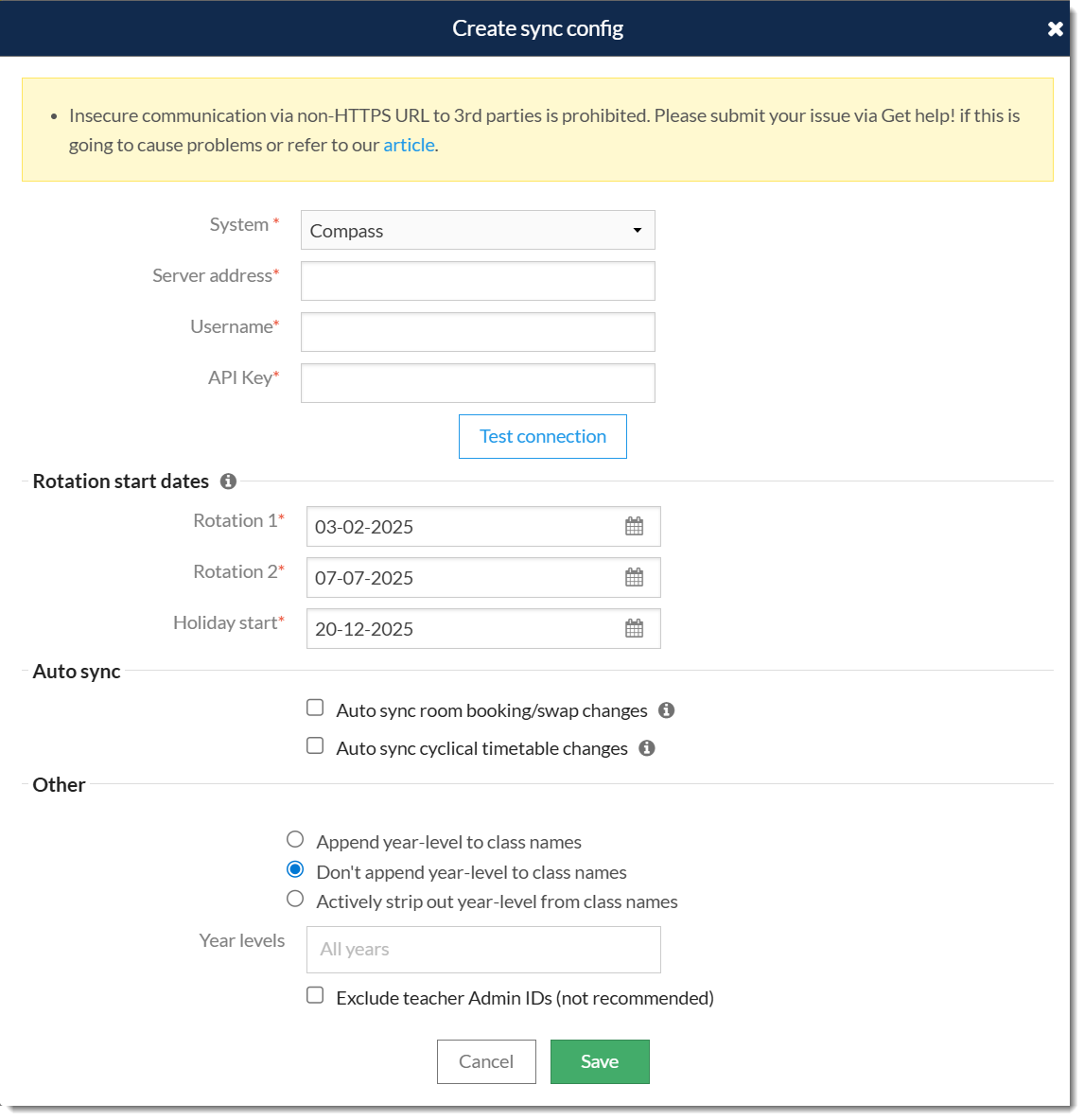
Set the rotation start dates here as per your term dates in Compass. This must also match your rotation start dates for Compass in your timetable sync configuration if you've done that as well. If your school runs a head start or early commencement program in term 4, click here for more information and refer to any guidance from Compass on the topic as well. - The 'Auto Sync' section is deselected by default. If you wish Timetable Daily to sync room bookings and/or cyclical timetable changes from the timetable file automatically then select one or both of these options. For more information on this feature please see the following document: Automated Instant Synchronisation.
- In the 'Other' section please select your preferences and then click Save.
Option Details Append / Don't Append /Actively strip out year level from class names Choose whether to add the year level of the class to the class name or not when sending to Compass.
We only advise stripping the year level if you sync to other systems that explicitly require this. Where possible you should rename the class in the timetable file instead.Year levels Specify an exhaustive list of year levels to include in syncing. All years are included by default. When changed from the default, any year levels not entered into the field will be excluded from syncing. It's important to note that the meetings year level includes duties and study classes! Exclude teacher Admin IDs (not recommended)Enabling this will use the Timetable/Daily teacher code instead of any existing admin ID. It's expected that Compass IDs are entered into this field in Timetable and Daily to facilitate the integration, therefore we don't recommend using this option.
Step 3: Perform the sync
There are three methods of syncing to Compass from Daily in order of convenience. The Advanced sync is important for troubleshooting and special cases so please familiarize yourself with it.
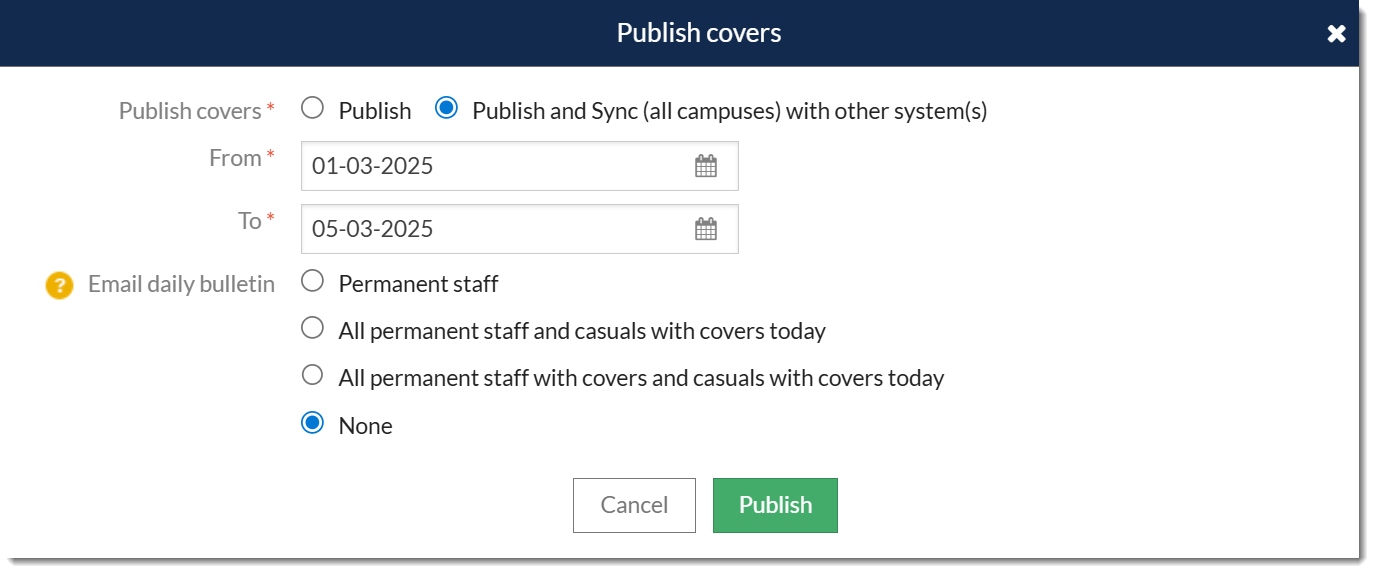
Publish & Sync
This option is recommended for everyday syncing. This will sync all the daily variations included in the date range, for every system configured in Daily > Synchronise. For more information on publishing, please see the following document: Timetable Daily: Covers Tab
To publish and sync:
To publish and sync:
- Go to the Covers tab on the Daily home page and select Publish covers.
- Select Publish and Sync with other systems.
- Enter the dates required.
- Select Sync to complete the process.
Basic Sync
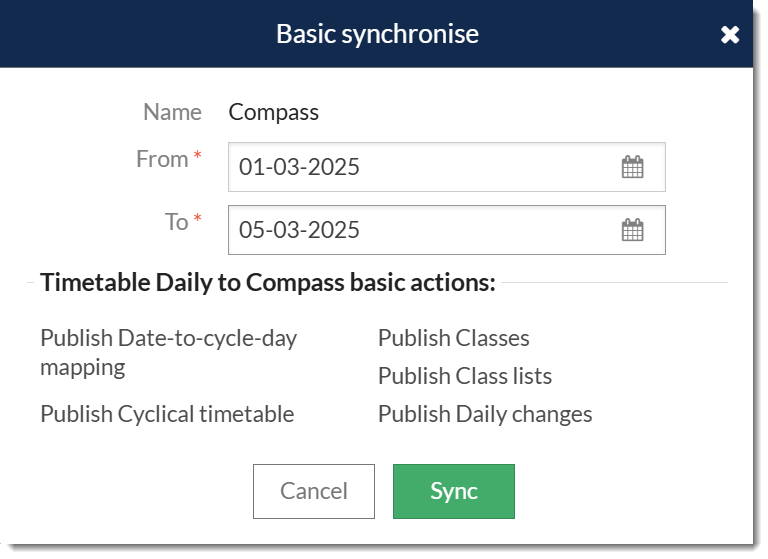
The basic sync can be performed on daily basis and this would sync the basic daily information with some extra information but not the extend that Advanced sync is sending. The recommended approach for school is to perform Advanced sync at first and then moving forward continue doing Publish & Sync.
To perform Basic sync:
- Go to Daily > Synchronise and select the Compass sync configuration.
- Select Basic sync from the actions panel.
- Enter the dates required.
- Select Sync to complete the process.
Advanced Sync
This method is normally used for first-time setup, syncing a new academic year or new semester. This method can send all timetable data as well as daily variations.
To perform an advanced sync:
- Go to Daily > Synchronise and select the Compass sync configuration.
- Select 'Advanced sync' from the actions panel.
- Select the data you.
- Select 'Sync' to complete the process.
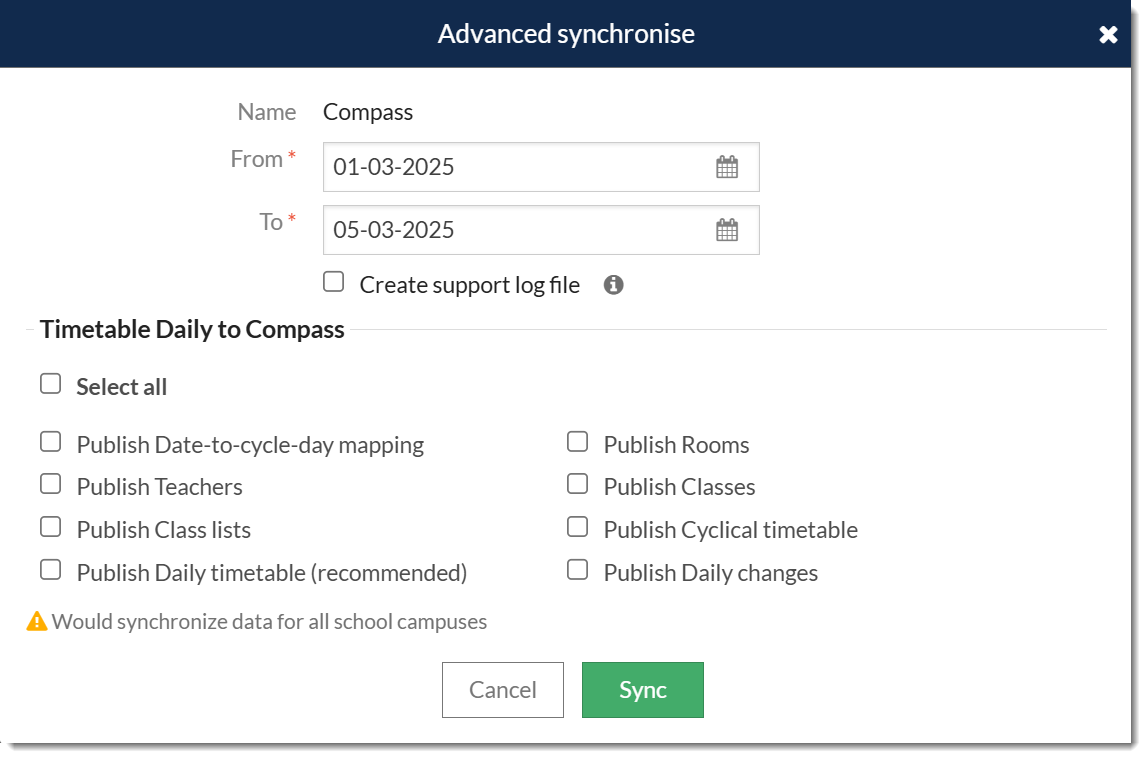
Create support log file: The support team may ask you to provide a log file by ticking this box and performing a sync. It will allow you to download a text log of the sync through your browser. Please attach this file to your ticket to expedite the support process.
For general troubleshooting please click here to see the FAQ section in our E10 - Compass guide
Was this article helpful?
That’s Great!
Thank you for your feedback
Sorry! We couldn't be helpful
Thank you for your feedback
Feedback sent
We appreciate your effort and will try to fix the article