- Preamble
- Type of sync
- Which data is sent to the other system?
- Which data can be downloaded from Compass?
- Steps to synchronise data
- Frequently Asked Questions
- 1. What is the 'currently relevant academic year' in Compass?
- 2. Why does the ‘Connection failed’ message appear in E10 timetable after I ‘Test Connection’?
- 3. What are the error messages showing in Import Jobs?
- While Tes support staff can assist with Tes related issues, Tes support staff cannot access the Compass database, so the user must contact Compass support staff for Compass related errors
- 4. Which Teacher codes sync to Compass?
- 5. Why is the Duty timetable not showing in Compass?
- 6. Why is Term 2 (or 3 or 4) starting on the wrong cycle day?
- 7. Why are classes not showing in Compass?
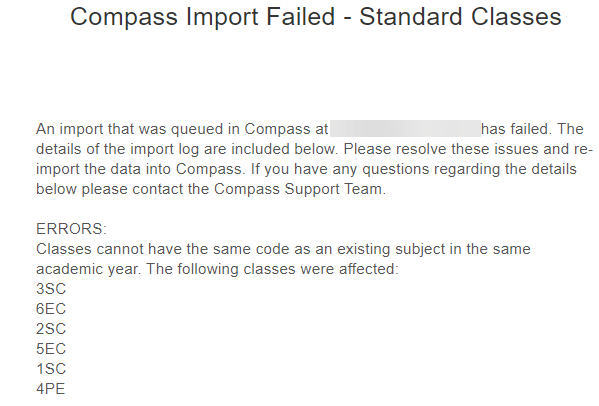
- Classes cannot have the same code as an existing subject in the same academic year.Class codes must be unique so Compass does not recognise the classes as one class.
- 8. Why are classes with multiple teachers only showing on one teacher's timetable in Compass?
- While Tes support has some understanding of Compass settings, users must refer to Compass documentation for detailed Compass configuration.
- 9. Two rooms at once do not show holding any classes in Compass
- 10. Why does the Compass Import Jobs page not show the standard classes/duties/subjects/etc?
- 11. Is there a way to indicate 'Lead teacher' in a split class scenario?
- 12. Does Tes-Compass support multigrid structure?
- 13. Does Tes-Compass support 'Move and Replace' or 'Move'?
- 14. Why does the error message "Classes cannot have the same code as an existing subject in the same academic year" appear?
- 15. What is the process of changing an existing class code in E10 timetable file as well as in Compass.
- Note: If the class code is changed in the 'subject' screen but not in the 'Classes' screen the change would NOT be appearing from E10 timetable file so both screens must be changed.
- 16. Why does the error message "No valid Teaching Days for the specified import bounds. Please ensure your school has been correctly configured and Teaching Days exist for the import period" appear?
- 17. Why does the warning message "Class code: *, GUID:* could not be imported as the session's time (date* time* - date* time*) is outside of the import's date bounds (date* 12:00:00 AM - date* 12:00:00 AM). Please adjust the date bounds and import again."
- 18. How to send specific classes to Compass only?
- 19. Exams appearing in Compass but with no teachers even though in Daily teachers are covering that class? A Warning message shows up in compass saying 'Exams without Teachers Detected'
- 20. I used the Split classes function in the Covers section in Daily but students/teachers are not appearing on Compass when I sync.
- 21. Meetings are appearing in Compass requiring a roll to be marked.
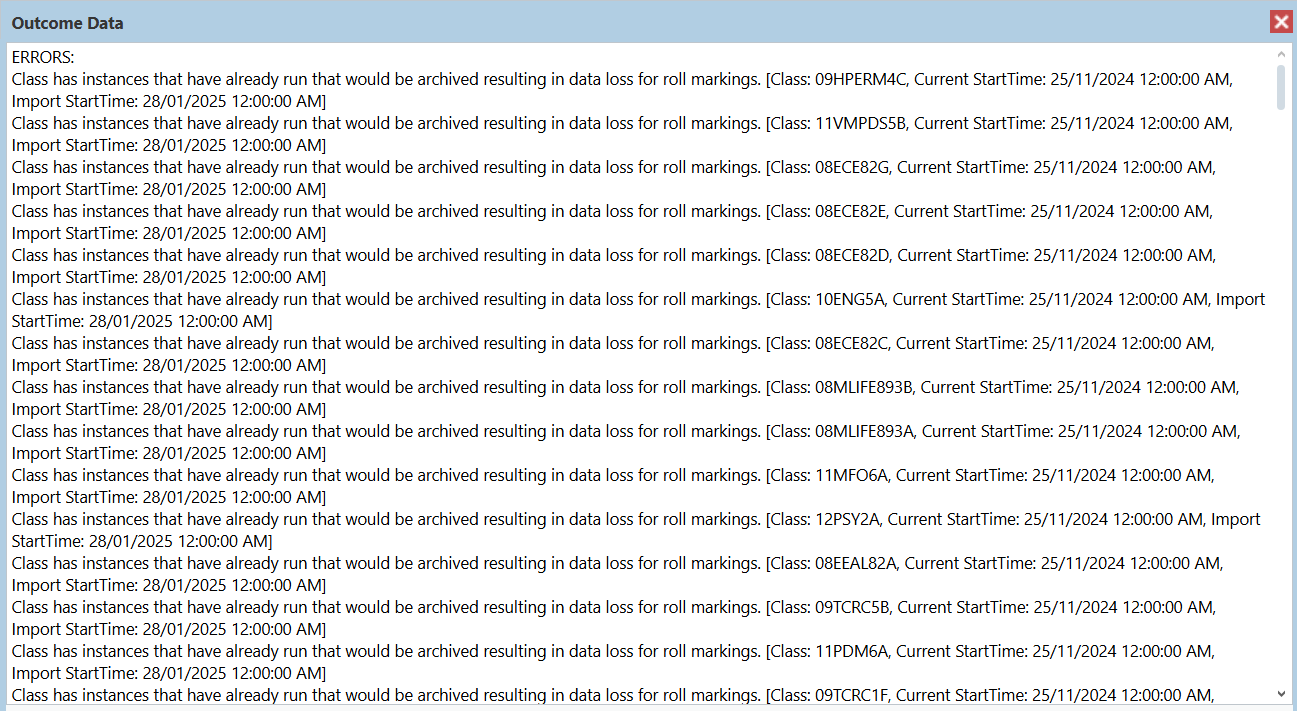
- 22. Classes are not syncing and receiving the error 'Class has instances that have already run that would be archived resulting in data loss for roll markings.'
Preamble
- new school file set up
- synchronisation processes
- synchronisation troubleshooting
Click here to watch our joint Tes-Compass integration webinar
While Tes takes all care to ensure any mention to the other system is correct and up to date, it is the user's responsibility to check with the other system prior to an initial sync. If the user becomes aware of any changes to the other system, we would very much appreciate this feedback.Type of sync
This sync is performed by a 'LISS' sync, which is a sync that sends and receives data at the push of a button with no need to upload into the other system.
Which data is sent to the other system?
Note that Tes builds many excellent features to help users build high quality timetables, and while these features can be sent onto the other system through the synchronisation process, not all systems have built the capability on their end to receive/display these features.
| Tes timetable feature | Notes on feature | Is this feature received by the other system? | Other notes |
| Bell times | Bell times as per Grid structures | No | Bell times are managed in Compass independently as 'Period Structures', you must configure this prior to syncing. See multi-grid for important details. |
| Campuses | Campuses and their associated rooms | No | Any campus association to teachers, students or rooms must be configured in Compass as well as in the timetable. |
| Classes | Classes as per Class data screens | Yes | Classes must contain both students and a teacher to display, must have unique class code (course code + classID) and must not have different subject names if they share a course code. |
| Class lists | Yes | Students are referenced by their timetable student code. | |
| Composite classes (linked classes) | One teacher teaching more than one class at the same time | Yes | Both classes show separately on teacher timetables. |
| Duty roster | Yes | As duties commonly run in non-teaching periods you must also add these periods to your period structures in Compass for them to appear correctly. | |
| Faculty data | Yes | ||
| Grid structure codes | Yes | Period codes in the timetable grid structure must not exceed 3 characters for Compass | |
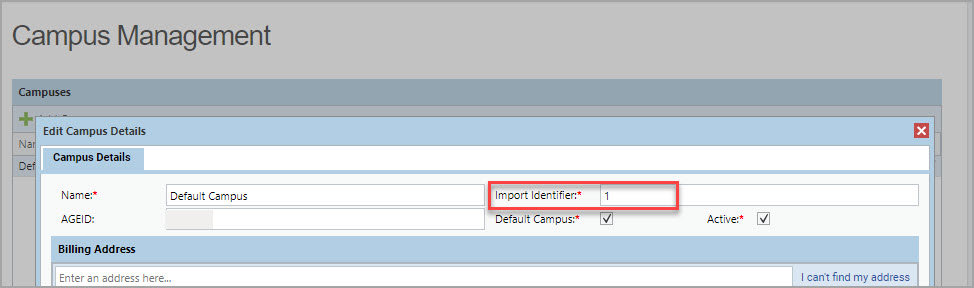
| Multi-file | Two (or more) timetable files | Yes | Timetable files can be synced to a particular Compass period structure with the correct import identifier referenced in the sync URL. For detailed information on this, please consult Compass support. |
| Multi-grid | Multiple grids with different bell times | Yes | Multi-grid schools must configure multiple period structures with an import identifier matching their respective campus code in the timetable file. |
| On-call roster | Yes | Compass may interpret them as regular classes and so you will need to configure them to not generate a roll. | |
| Priority classes | The priority class that shows on student's timetables where they have class clashes | No | |
| Room data | Room Code, Name, Size, Campus, Comment | No | Compass is the source of truth for room data. Rooms can be downloaded from Compass to ensure they match. |
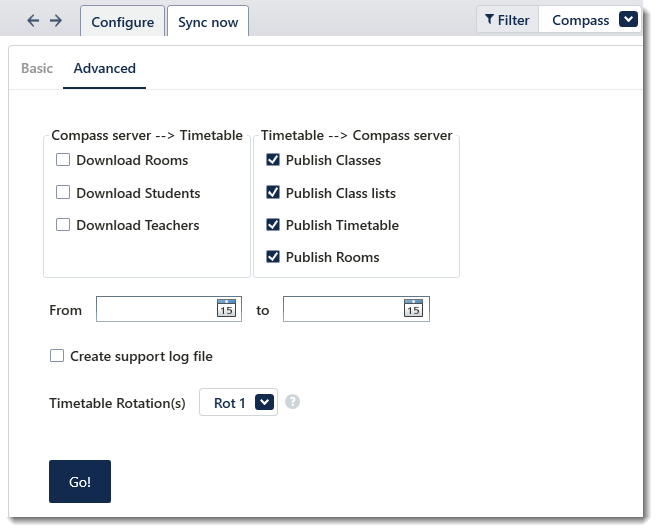
| Rotation classes | Classes from particular rotations | No | Compass will receive all exportable classes in the timetable, however the timetable data for those classes can be sent per rotation. The rotation for syncing will default to the current rotation set in the file under Settings > File, but you can override this when doing an advanced sync. |
| RTO roster | No | ||
| Student data | Student Code, Name, Preferred name, Year level, Letter group, House, Gender, StatewideID, Email, Phone | No | Compass is the source of truth for student data. Students can be downloaded from Compass to ensure they match. |
| Study roster | Study classes, staffing and rooming roster | Yes | |
| Sub-classes | Yes | Compass can receive sub‑class data, but it cannot display the sub‑class names. It only shows the parent class’s subject name. | |
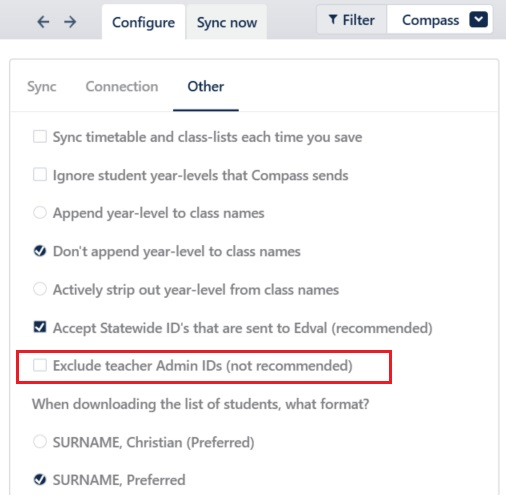
| Teacher data | Teacher Code, Name, Preferred name, Faculty, Gender, Email, Phone | Yes | Compass is the source of truth for teacher data. Teachers can be downloaded from Compass to ensure they match. By default Timetable will reference the admin ID of the teacher when syncing to Compass, if this is blank the teacher code is used instead. You can change this default in the sync settings. |
| Teacher days off (Unavailables) | No | ||
| Timetable data | Yes | ||
| Two (or more) rooms at once | No | ||
| Two (or more) teachers at once | Yes | Multiple teachers on the same class at the same time are disabled in Compass by default, but can be enabled if you contact their support team. | |
| Year levels (non-numeric) | Year levels such as SPT, LSUP, ROLL, Yr9+10 etc | Yes | Non-numeric year levels will come under the 'Cross Year' level in Compass. Classes created in Umbrealla, or Composite Year Levels, eg Yr9+10, are not synced as they do not usually contain classes. They are used for student year level movement, class list management or data export purposes. |
Which data can be downloaded from Compass?
| Tes timetable data | Can this data be drawn down into Tes timetable? | Other notes |
| Room data | Yes | Matched against code and conflicts are managed in import match screen. |
| Teacher data | Yes | Matched against code and conflicts are managed in import match screen. |
Student data | Yes | Matched against code and conflicts are managed in import match screen. You can set that Timetable should ignore year level and statewide IDs downloaded from Compass. |
Steps to synchronise data
Step 1: Complete Compass setup
- Configure Schedules
- Time Periods
- Academic Years
- Terms
- Important School Dates
- Period Structures
- Time Periods
- Subject Manager
- Year Level Management
1.1 Confirm that your codes match in both systems
It is possible to enter a temporary student or teacher code into Tes for the purpose of generating a timetable, but to have a student or teacher’s timetable appear correctly in Compass, the codes must be identical.
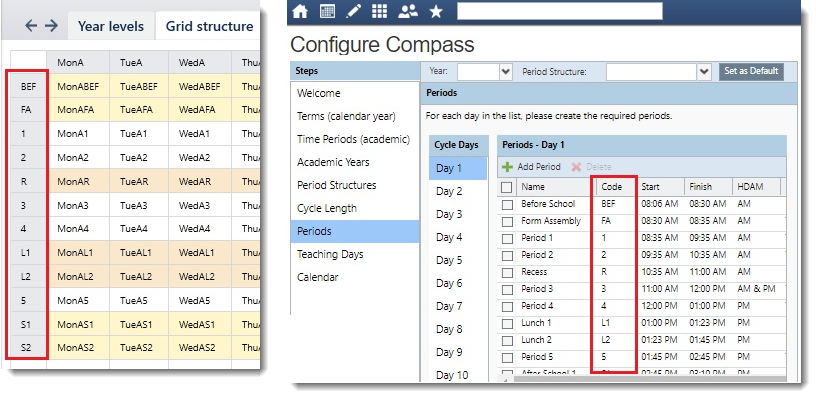
- Period codes in Timetable's grid structure ( File > Setup > Grid Structure ) must exactly match the codes of the period structure in Compass.
- Period codes must not exceed 3 characters.
- Bell times must be set up in Compass, their system does not accept bell time data from Timetable.
Step 2: Configure the timetable file
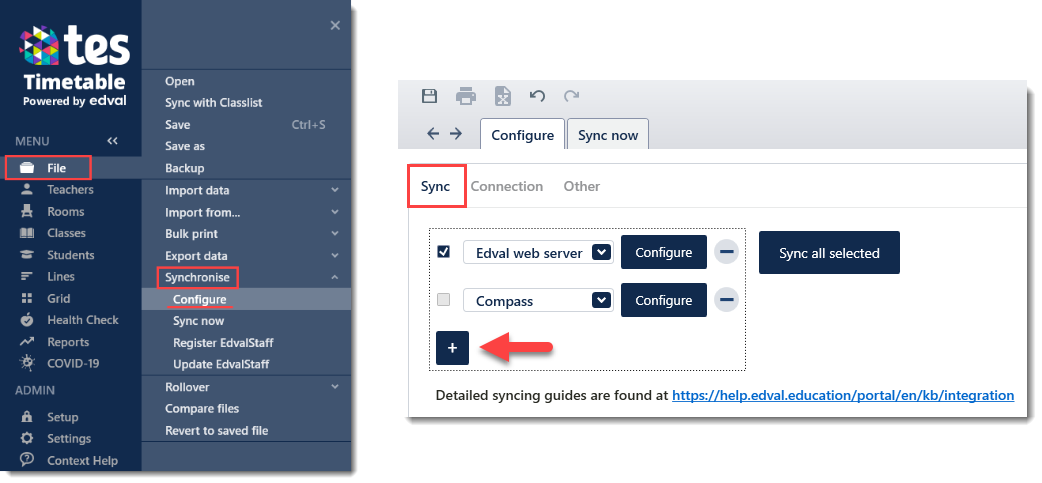
2.1. Create a Compass sync configuration
2.2. Enter connection information
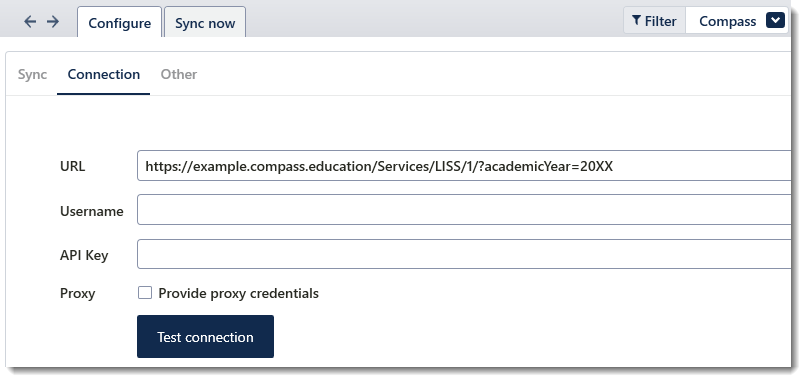
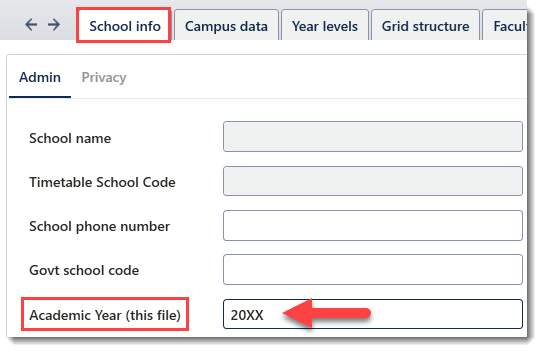
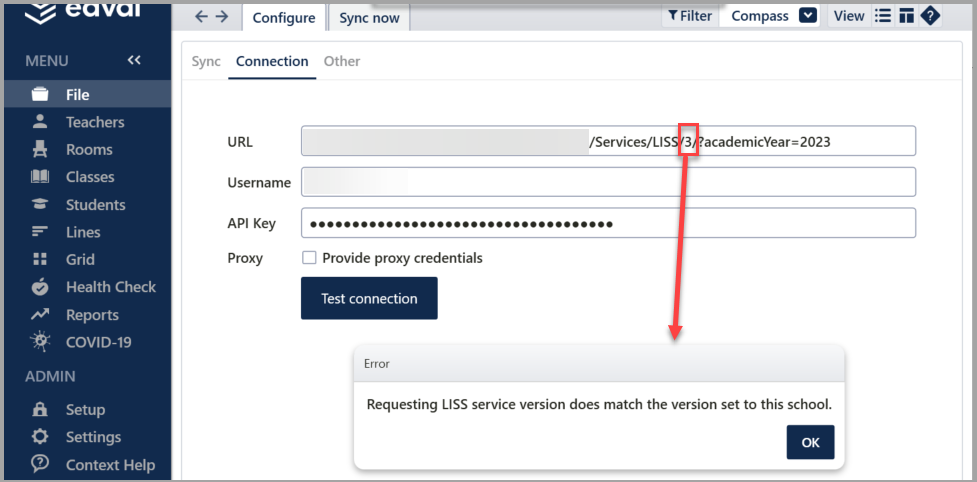
URL | Compass will provide the URL, however you will need to adjust the academic year at the end to the correct year for you. This is matching against the import identifier in Compass for each academic year. Headstart periods will use a different import ID such as 20XXHS. If you receive an error stating that the 'LISS service version does not match', then you will need to change the number in the URL following '/LISS/' from '1' to '3' or vice versa. |
Username | Compass/LDAP username |
API Key | To find your API key in Compass, Go to Tools > Login and Security > My API Key. |
Proxy | Only use this under option under guidance of your schools network administrator. |
Once you've entered the credentials you can select 'Test connection' to make sure they're correct before moving on.
For further assistance with Compass credentials, please consult their documentation and contact their support team if required.
2.3. Configure sync settings
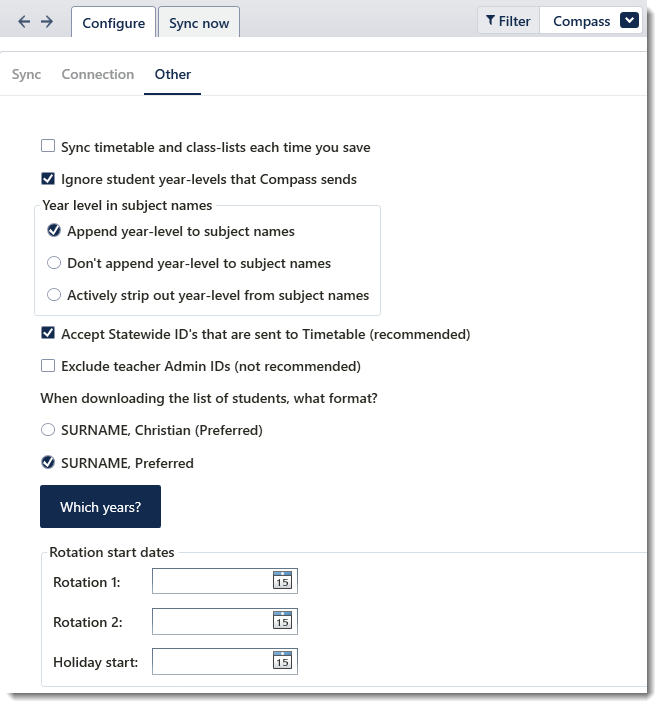
Sync timetable & class lists every time you save | This will send enrolment data to Compass every time the file is saved manually or automatically. |
Ignore student year levels that Compass sends | This will prevent students being moved between year levels when performing a sync that downloads students. It is important to have this ticked if you are preparing a head start program, as the timetable file will have students in their next year level, but perhaps not in Compass yet. With this setting unticked, student year levels in Compass will override those in the timetable file when students are downloaded. You may prefer to have this option ticked then until you actively need to update students. |
Append / Don't Append /Actively strip out year level from class names | Choose whether to add the year level of the class to the class name or not when sending to Compass. If class names include the year level, choosing to strip them out will remove that component of the class name if it was entered manually. We only advice you use this third option if there is another system you sync to that requires the year level in the subject name. Otherwise you should just rename the subject in the timetable file. |
Accept Statewide IDs that are sent to Timetable (recommended) | If unticked then the timetable will ignore statewide IDs when downloading students from Compass. |
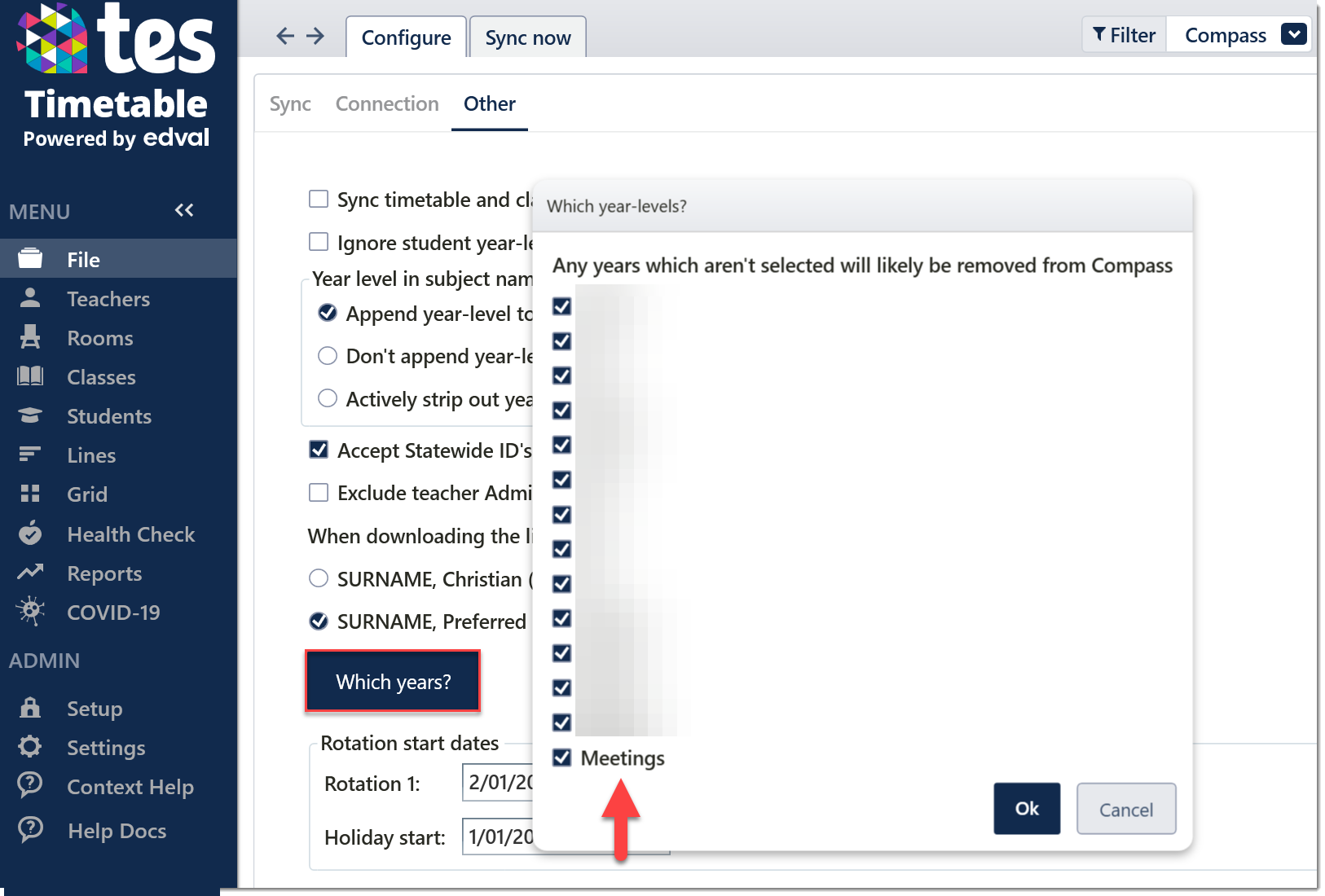
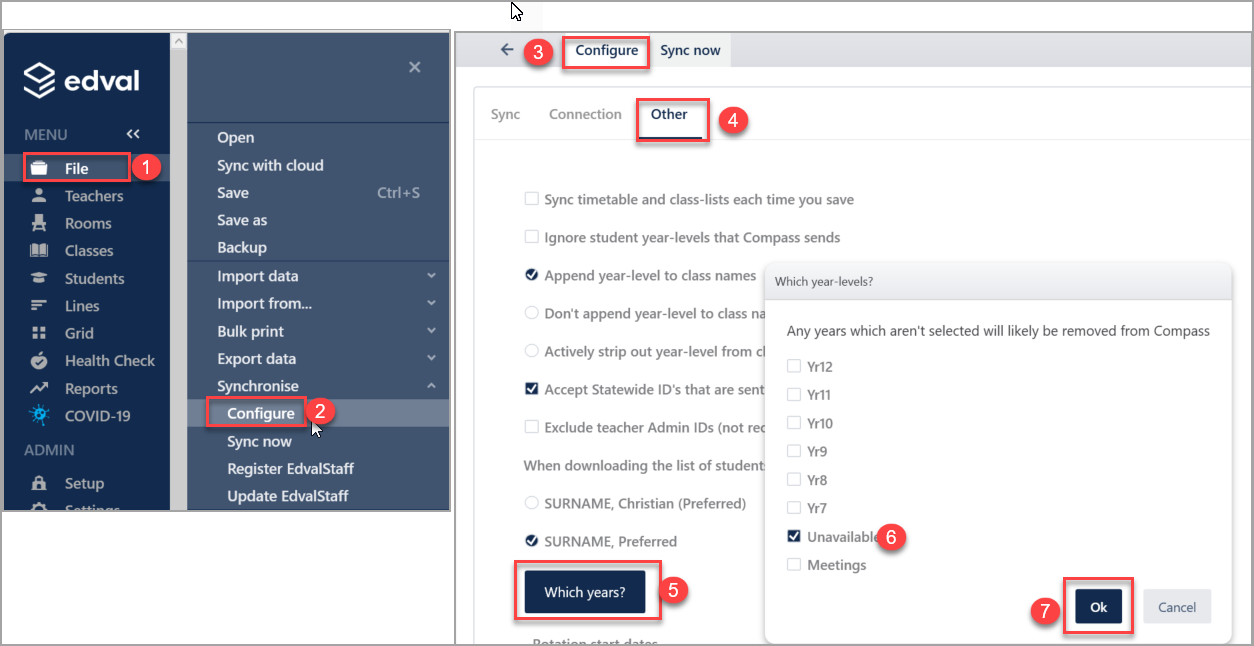
Which years? | This button will bring up a window with checkboxes for each year level. If the year level has a tick, then classes from those years will be included when syncing. If no year levels are selected, no classes will be sent. It's important to note that meetings is a special year level in the timetable that contains duties, studies and on-calls as well as meetings. |
Rotation start dates | Enter the start date of each rotation in the file, the holiday start date will be the day following your final day in the academic year. If your school runs a head start or early commencement program in term 4, click here for more information and refer to any guidance from Compass on the topic as well. The dates entered here must line up with your Compass term dates exactly. This is crucial to avoid issues down the line with class start and end dates. |
2.4. Set the academic year
Step 3: Syncing E10 timetable to Compass
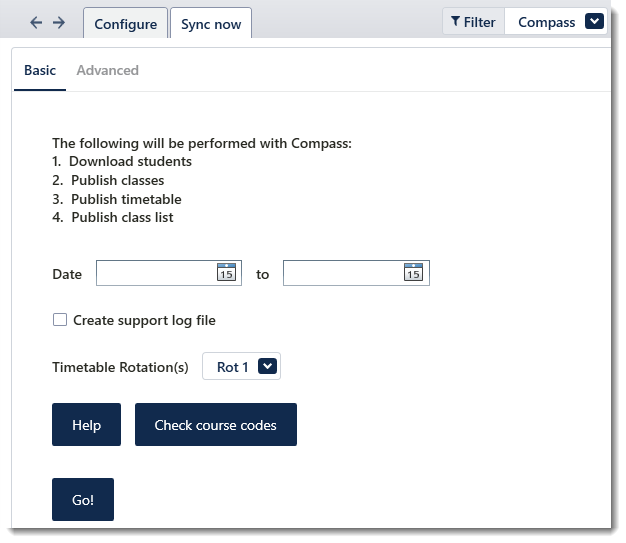
Basic
Advanced
For more information on how to lodge an effective support ticket click here
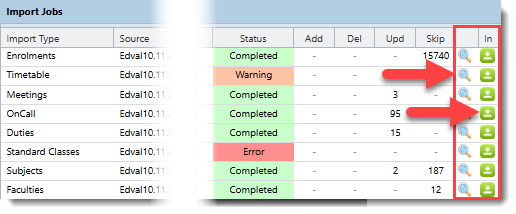
Check the import jobs in Compass
Frequently Asked Questions
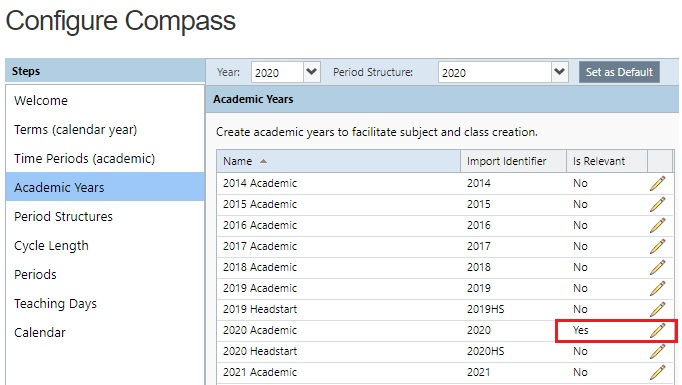
1. What is the 'currently relevant academic year' in Compass?
2. Why does the ‘Connection failed’ message appear in E10 timetable after I ‘Test Connection’?
3. What are the error messages showing in Import Jobs?
- Period codes in E10 grid structure do not match the Period codes in Compass.
- Teacher or student codes may not match. Note that Casual teachers are not u
While Tes support staff can assist with Tes related issues, Tes support staff cannot access the Compass database, so the user must contact Compass support staff for Compass related errors
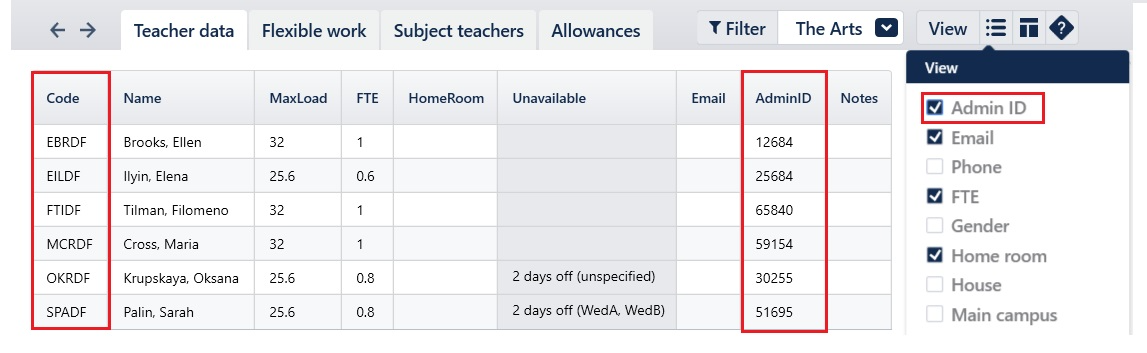
4. Which Teacher codes sync to Compass?
In this screenshot, numerical AdminIDs are required for syncing purposes, as these are the codes used in Compass and other systems. However, in this example, the numerical AdminIDs are not useful to the timetabler for identifying staff when working in the E10 timetable file. Therefore, the timetabler is able to enter useful, identifying codes into the Code field, and then the numerical codes into the AdminID field that are required for syncing purposes.
5. Why is the Duty timetable not showing in Compass?
Firstly, please ensure that the 'Meetings' year level is included in the sync. To do this, navigate to File > Synchronise > Configure (With Compass selected in the top-right filter) > Other, then select the 'Which Years?' button:
The second things to confirm is whether the period codes for the duties match with a period in Compass. The E10 period code is set in File > Set up > Grid Structure, and in Compass under the Tools menu (cog icon) > Administration Tools > Configure Schedules > Periods. If they don't match or don't exist, please fix those periods in Compass and sync again.
6. Why is Term 2 (or 3 or 4) starting on the wrong cycle day?
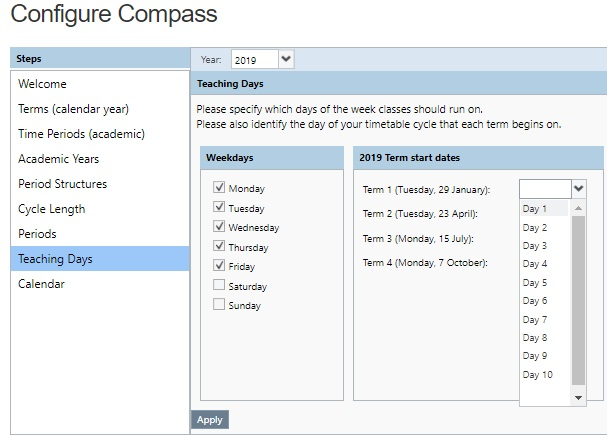
7. Why are classes not showing in Compass?
- A class has no teacher: a teacher must have been assigned to the class to show in Compass.
- A class has no room: a room must have been assigned to the class to show in Compass.
- Each class must have a class identifier e.g., 7ENG.1 or 7ENG_1 or 7ENG1 is acceptable. 7ENG. or 7ENG_ is not acceptable, as there is a full stop or underscore to separate the end of the Course code and the class identifier, but then there is no class identifier.
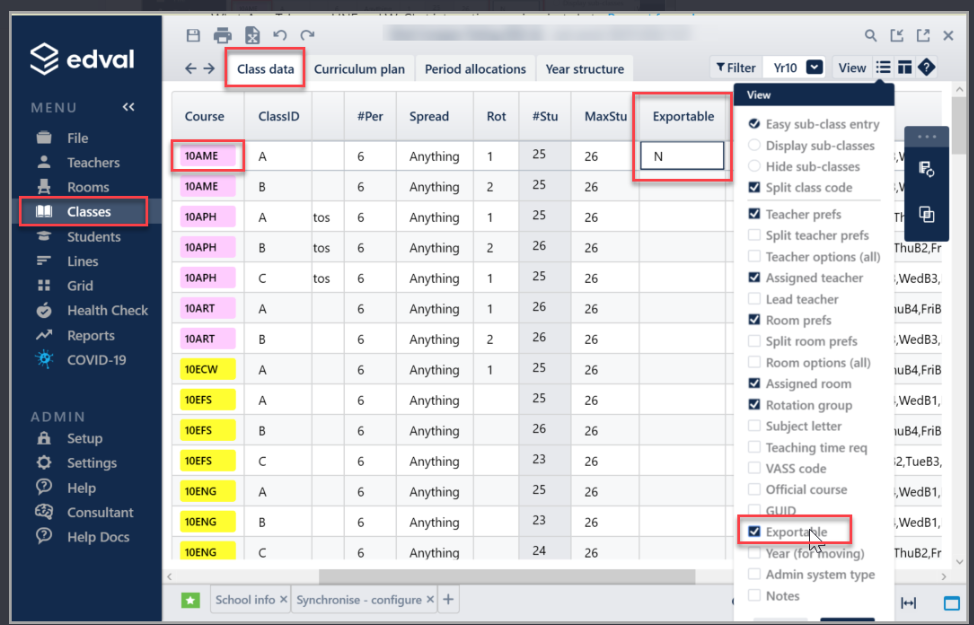
- Classes are not excluded from the export:: Classes > Class Data > View > Exportable. Ensure the field does not contain N for 'Not exportable'.
- Two teachers at once: Compass must turn on a feature at the Compass end to enable this feature. Contact Compass via support@compass.education
Classes cannot have the same code as an existing subject in the same academic year.
Class codes must be unique so Compass does not recognise the classes as one class.
8. Why are classes with multiple teachers only showing on one teacher's timetable in Compass?
While Tes support has some understanding of Compass settings, users must refer to Compass documentation for detailed Compass configuration.
9. Two rooms at once do not show holding any classes in Compass
10. Why does the Compass Import Jobs page not show the standard classes/duties/subjects/etc?
11. Is there a way to indicate 'Lead teacher' in a split class scenario?
12. Does Tes-Compass support multigrid structure?
13. Does Tes-Compass support 'Move and Replace' or 'Move'?
14. Why does the error message "Classes cannot have the same code as an existing subject in the same academic year" appear?
15. What is the process of changing an existing class code in E10 timetable file as well as in Compass.
Note: If the class code is changed in the 'subject' screen but not in the 'Classes' screen the change would NOT be appearing from E10 timetable file so both screens must be changed.
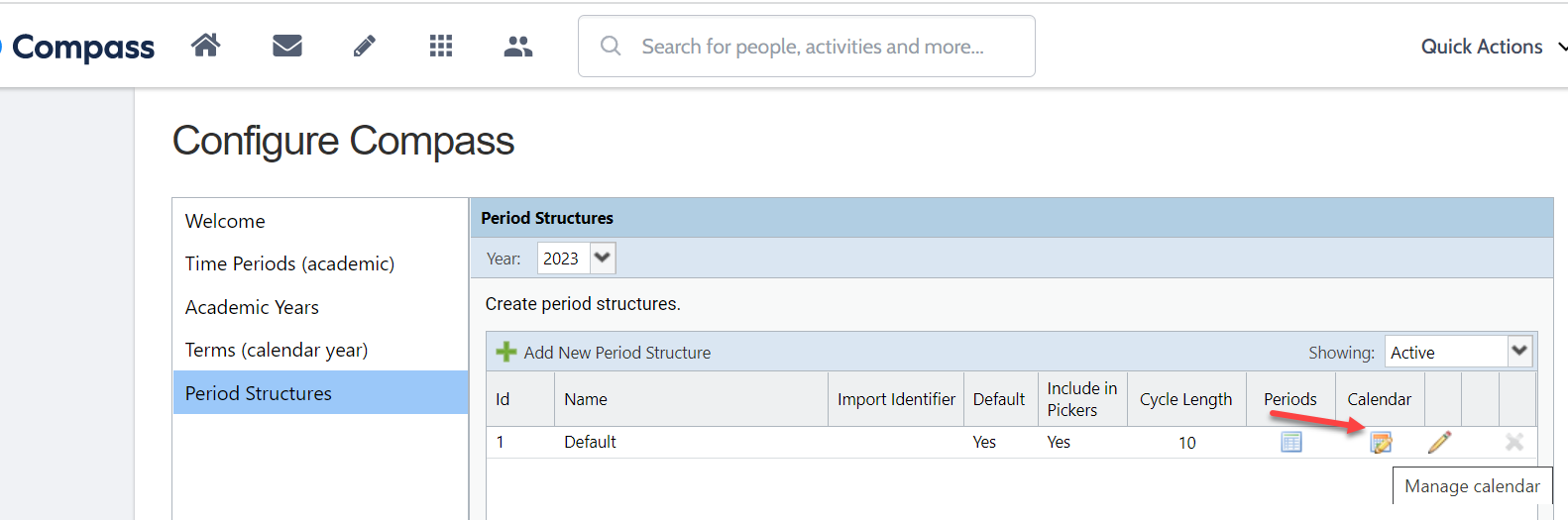
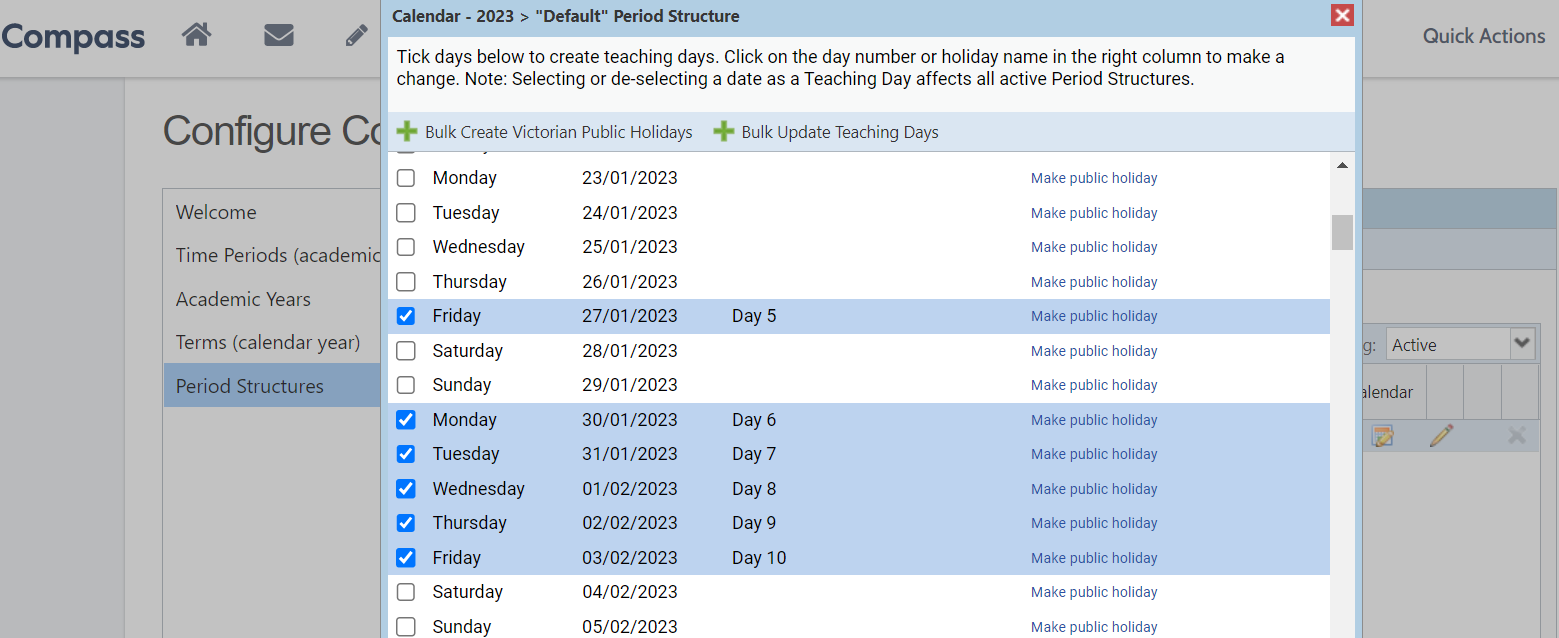
16. Why does the error message "No valid Teaching Days for the specified import bounds. Please ensure your school has been correctly configured and Teaching Days exist for the import period" appear?
17. Why does the warning message "Class code: *, GUID:* could not be imported as the session's time (date* time* - date* time*) is outside of the import's date bounds (date* 12:00:00 AM - date* 12:00:00 AM). Please adjust the date bounds and import again."
18. How to send specific classes to Compass only?
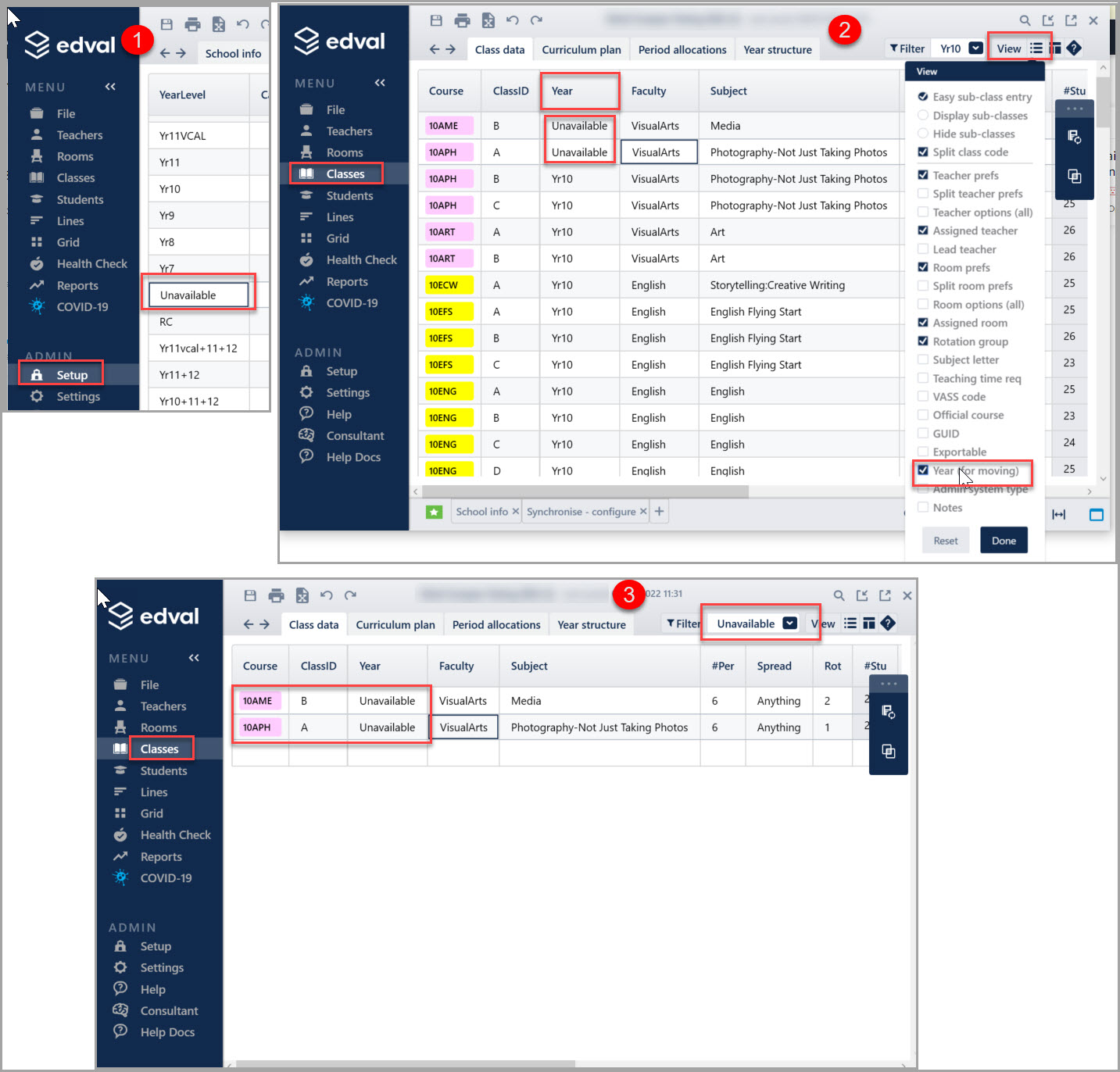
- You can create a new year level and move those classes to that particular year. After the new year level is created in setup->year levels then go to classes->class data-> u se the View menu (top-right) to tick the 'Year (for moving)' option. The year column will now appear next to the "Class ID" column, so in the original year level you can type in the new one in the 'Year' column.
- If you instead wanted specific classes to be excluded from all syncs then you would use the "Exportable" column in Class data. If the exportable column is not already visible, use the View menu in the top right to tick the 'exportable' option. As per the screenshot below, you will need to enter an 'n' to mark classes and non-exportable. Blank cells will be considered as having a 'y' in place by default and so will be exportable.
19. Exams appearing in Compass but with no teachers even though in Daily teachers are covering that class? A Warning message shows up in compass saying 'Exams without Teachers Detected'
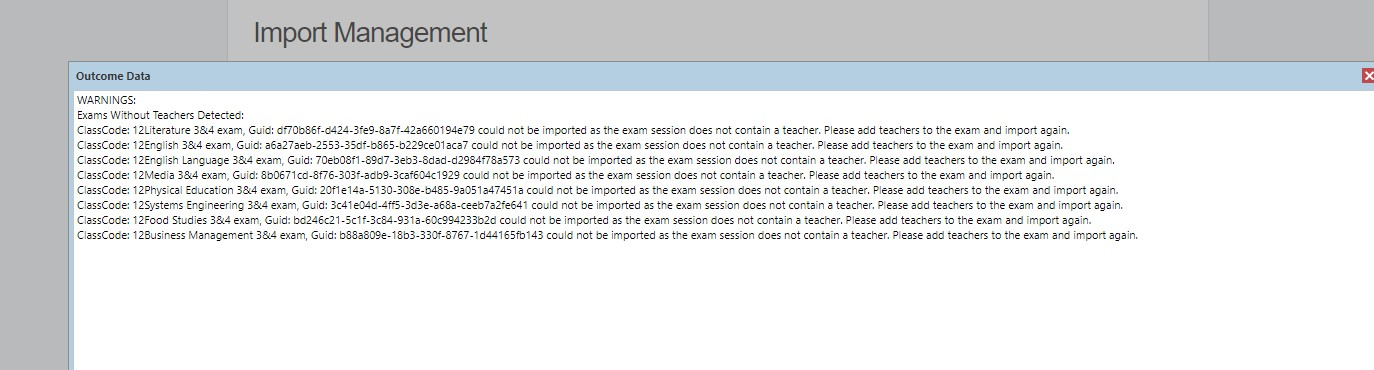
- Exams import has been activated/turned on in Compass
- Exams in the 'Events' tab have the 'Publish Date' set to to today's date or earlier
- Covers have been published for the days of the exams via the 'Publish Covers' button in the 'Covers' tab
- An Advanced sync was performed with 'Publish Daily Timetable' ticked with the range of the exam block to Compass
20. I used the Split classes function in the Covers section in Daily but students/teachers are not appearing on Compass when I sync.
21. Meetings are appearing in Compass requiring a roll to be marked.

22. Classes are not syncing and receiving the error 'Class has instances that have already run that would be archived resulting in data loss for roll markings.'
This message appears when the rotation start dates for the classes do not match with what is in Compass. This can happen if the first sync of the year had the incorrect rotation start dates setup via the Compass sync configuration 'File > Synchronise > Configure > Other' section and then corrected later in the year.
To resolve the error messages, you will need to either change the rotation start dates in the timetable file back to the original dates so that it matches with what Compass has;
Or manually change the start/end dates for the classes in Compass directly to match with the rotation start dates in the timetable file.
Was this article helpful?
That’s Great!
Thank you for your feedback
Sorry! We couldn't be helpful
Thank you for your feedback
Feedback sent
We appreciate your effort and will try to fix the article