TABLE OF CONTENTS
- Preamble
- Type of sync
- Which data is sent to the other system?
- Which data can be received from the other system into Tes timetable file?
- 1. CES set up
- 2. Configure the timetable sync from E10
- 3: Perform the sync
- 4. Publish timetable in CES
- Important information
Preamble
Timetabling data that exists in Timetable files is usually sent on to one or more other non-Tes systems, such as student learning management systems, reporting systems, administration systems, and many more. The Tes integration team works with other systems to make sure that the data required to be sent is in the correct format.
This document can be referenced for:
- new school file set up
- synchronisation processes
- synchronisation troubleshooting
The following data syncs are possible and performed for particular purposes:
- Sync the timetable file to CES
- Usually done at the beginning of each term or semester, or if not using Timetable Daily, whenever timetable or class list changes need to be sent to CES. - Sync the timetable file to the Timetable Daily
- Whenever timetable or class list changes are made within the timetable file - Sync Timetable Daily (online)
- On a Daily basis, to send through daily organisation type changes, timetable changes or class list changes made through Tes Staff
This article covers the first option only.
Please make sure that you have read the important information section in this document as well before starting the configuration. The following information has been provided by the Civica team and was correct at the time of publication. Please check the Civica documentation for any changes to the process. Please contact them for any support required in the set up in this system, as Tes consultants are not able to advise.While Tes takes all care to ensure any mention to the other system is correct and up to date, it is the user's responsibility to check with the other system prior to an initial sync. If the user becomes aware of any changes to the other system, we would very much appreciate this feedback.Type of sync
This sync is performed by a 'LISS' sync, which is a sync that sends and receives data at the push of a button with no need to manually upload data into the other system.
Which data is sent to the other system?
This table lists many of the data and features found in Tes and whether they are understood by the other system.
Note that Tes builds many excellent features to help users build high quality timetables, and while these features can be sent onto the other system through the synchronisation process, not all systems have built the capability on their end to receive/display these feature| Tes Timetable feature | Notes on feature | Is this feature received by the other system? | Other notes |
| Bell times | Bell times as per the Grid structures | Yes | |
| Campuses | Campuses and their associated rooms | Yes | |
| Classes | Class code, GUID, Faculty, Course Name, Assigned teacher | Yes | |
| Class lists | Yes | ||
| Composite classes (linked classes) | One teacher teaching more than one class at the same time | Yes | |
| Duty roster | Yes | ||
| Faculty data | Yes | ||
| Grid structure codes | Yes | ||
| Multi-file | Two (or more) timetable files | Usure | |
| Multi-grid | Multiple grids with different bell times | Unsure | |
| On-call roster | Yes | ||
| Priority classes | The priority class that shows on students' timetables where they have class clashes | Yes | |
| Room data | Room Code, Name | Yes | |
| Rotation classes | Classes from particular rotations | Yes | |
| RTO roster | No | ||
| Student data | Student Code | Yes | |
| Study roster | Study classes, staffing and rooming roster | Yes | |
| Sub-classes | No | ||
| Teacher data | Teacher Code, Name, Faculty | Yes | |
| Teacher days off (Unavailable) | No | ||
| Timetable data | Yes | ||
| Two (or more) rooms at once | No | ||
| Two (or more) teachers at once | No | ||
| Year levels (non-numeric) | Year levels such as SPT, LSUP, ROLL, Yr9+10, etc... | Yes |
Yes - The data is sent from our end and is being received and processed by 3rd party system.
No - The data is not supported by 3rd party systems and is not sent from the timetable file.
Unsure - The data is being sent from the timetable file, but we are unsure if it is being processed and supported by 3rd party system.
Which data can be received from the other system into the Tes timetable file?
| Tes timetable data | Can this data be drawn down into the Tes timetable? | Other notes |
| Room data | Yes | Matched against code, and conflicts are managed in the import match screen. |
| Teacher data | Yes | Matched against code, and conflicts are managed in the import match screen. |
Student data | Yes | Matched against code, and conflicts are managed in the import match screen. You can set the timetable to ignore year level and statewide IDs downloaded from Civica. |
1. CES set up
Some setup must be done in CES prior to syncing any data from the Timetable file. These include:
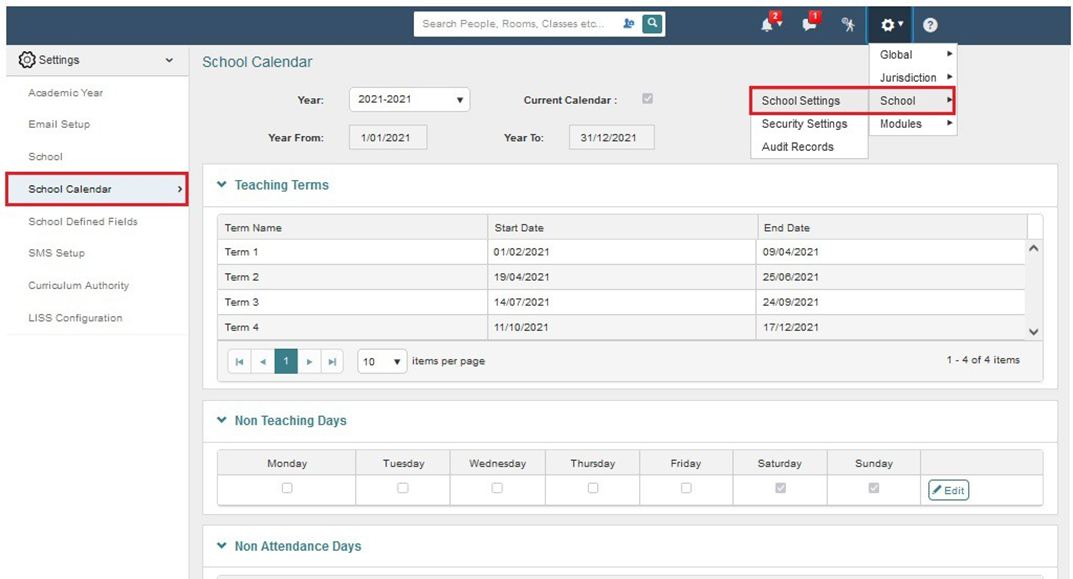
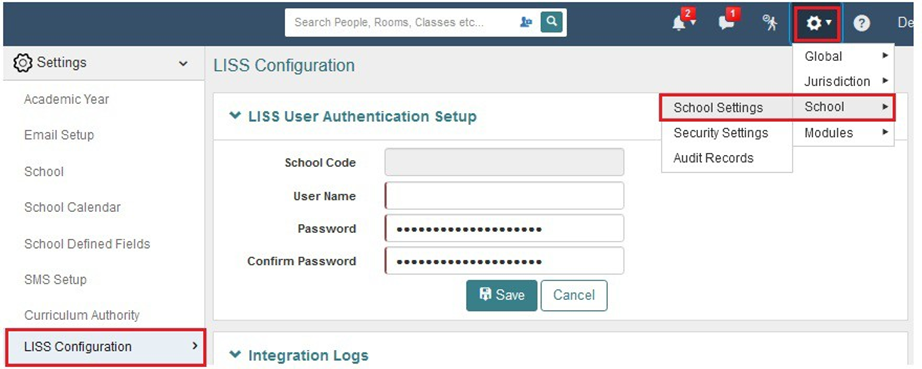
- Setting up School Settings
- School Calendar: Teaching Terms, Non-Teaching Days, Non-Attendance days
- LISS Configuration: Set up a Username and Password that will later be entered into the timetable file to authenticate the user to perform the sync
- School Calendar: Teaching Terms, Non-Teaching Days, Non-Attendance days
- Timetabling Preparation
- Timetable Cycle:
- Set up a cycle.
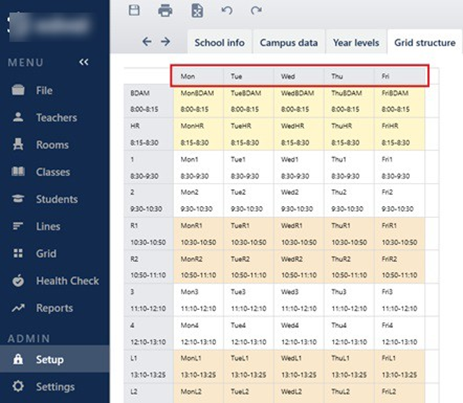
- Set up Timetable Cycle Days. The Code must match the Days codes in the E10 grid structure.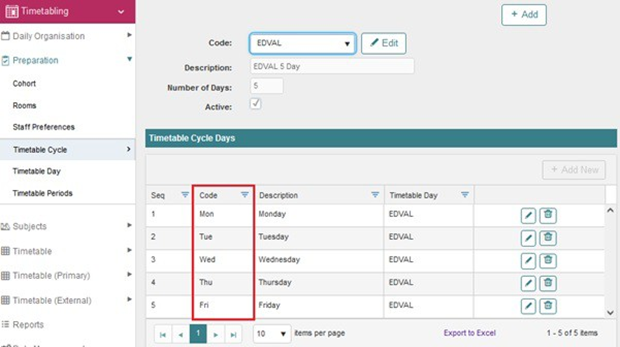
- Timetable Day:
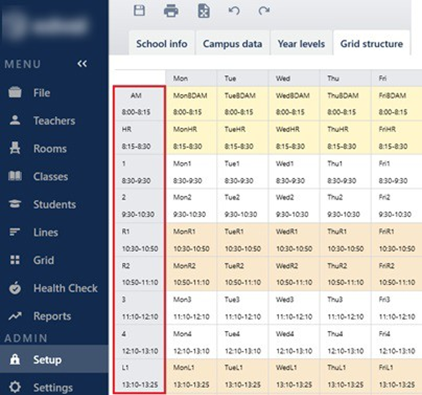
- Enter the Period codes and times. The Description field must match the Period codes in the E10 grid structure.
* Note that bell times in the timetable file do not sync to CES; bell times must be set up correctly in CES.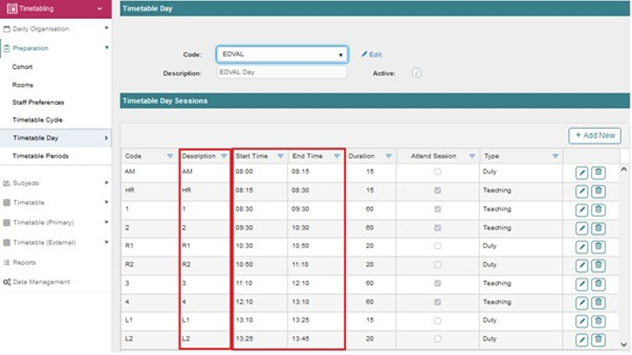
- Timetable Cycle:
2. Configure the timetable sync from E10
The syncing details must be initially set up in E10 before a sync can occur. This is often only needed to be performed once.
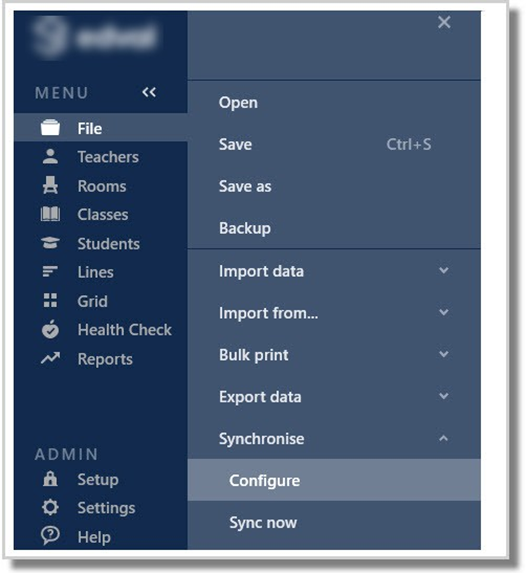
- Go to File > Synchronisation > Configure
- Click on the blue plus + button and select Civica Education Suite (LISS)
(The image below shows that the Edval web server sync is also configured for Timetable Daily purposes.)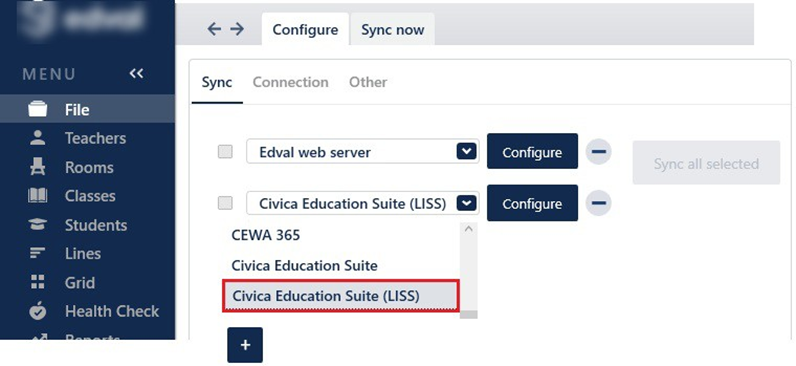
- Click on the Configure button (or go to the Connection tab).
- Enter the details
- For CEONT Schools (Catholic Education Northern Territory), enter the URL: https://ces-liss.nt.catholic.edu.au (Contact CES if unsure about the URL).
- For CESA Schools (Catholic Education South Australia), enter the URL: https://cesa-liss.catholic.edu.au or https://cesa-liss.civicaed.com.au/ (Contact CES if unsure about the URL).
- School code, Username and Password: explained in the CES set-up above.
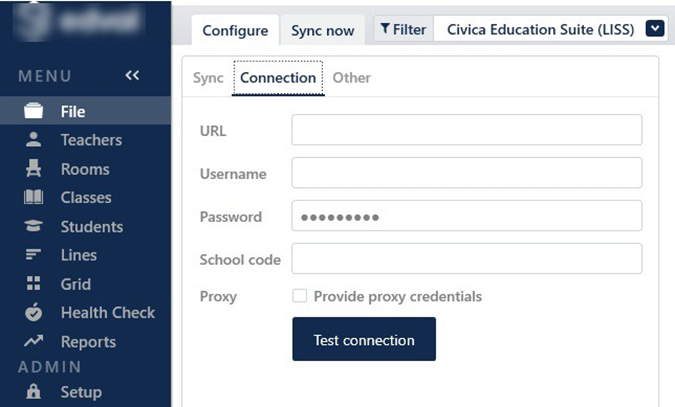
- Go to the Other tab.
Enter your preferences.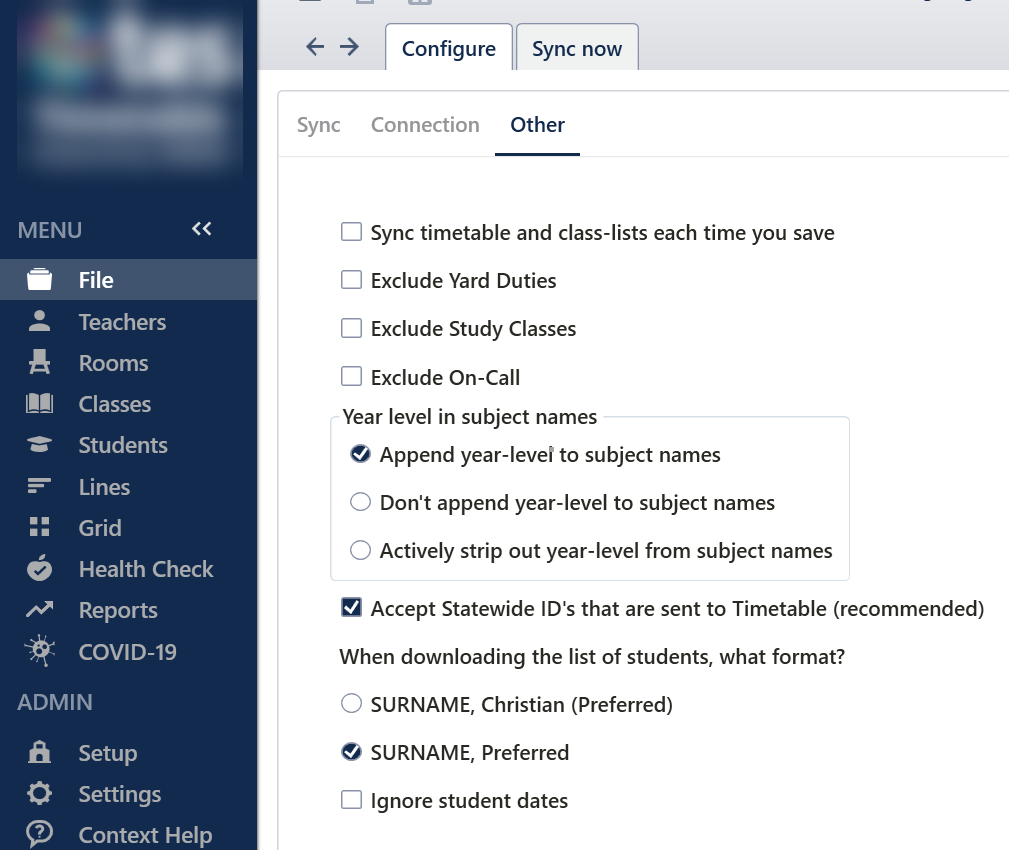
| Option | Details |
Sync timetable & class lists every time you save | This will send only the timetable and class membership data to Civica each time you save the file |
Exclude Yard duties | When ticked, Yard duties will be ignored for syncing purposes |
| Exclude Study classes | When ticked, Study classes will be ignored for syncing purposes |
| Exclude On-calls | When ticked, on-calls will be ignored for syncing purposes |
| Accept StatewideID's that are sent to Tes (Recommended) | Generally, Tes will obtain statewide ID's from the external school information/admin system (SIS), as this is regarded as the source of truth for this field. However, some users want this field for different purposes. In NSW, for example, some prefer to have the student code field for the 'ERN' number, but the Statewide ID field for the NSW Board of Studies registration number. If so, you may want to untick this and retain your BOS number in the Statewide ID field. |
| When downloading the list of students, what format | Depending on how you have configured in Civica, you can select the relevant option. |
Which years? | This option allows you to select the specific year levels to send to Civica. Please leave all of the year levels un-ticked if you want to send everything. Note. This function will only appear if the timetable file has the Multi-grid function enabled. |
Step 3: Perform the sync
Refer to the Important information section regarding Teacher and Student data before syncing.- Go to File > Synchronise > Sync now
There are two sync options: Basic and Advanced.
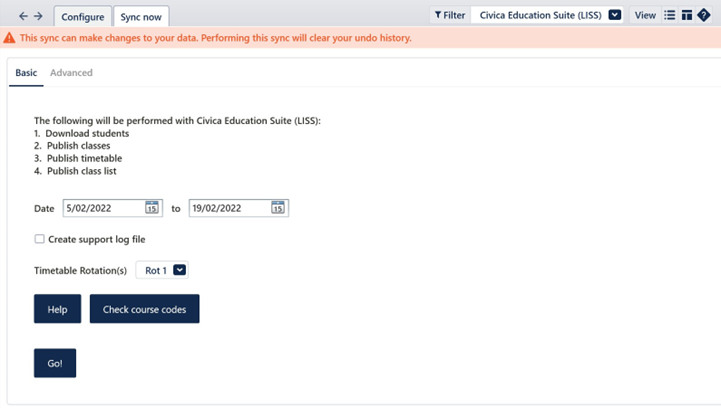
Basic sync
The basic sync sends the following information from E10 to CES: Classes, Class lists, the Timetable and Duty Roster, and Room information. Downloads teachers and students from CES into the Tes timetable.
- Date: Enter the date range of the sync, such as for a term or semester.
- Create support log file: Check this box if you are having issues with the sync. It will place a text file of the timetable data into your folder, where the timetable file is stored, which can be sent to Tes support for troubleshooting.
- Timetable Rotation(s): Select the rotation/s for which timetable rotation is to be synced.
- Check course codes: This button checks that classes with the same course codes but different subject names are flagged, as Schoolbox does not differentiate between them and applies the first subject name it sees for all classes with that course code. E.g. 12ENG1 - English and 12ENGA - Engineering. Course code for both classes is '12ENG', and Schoolbox could label both as either 'English' or 'Engineering'.
Advanced sync
This sync allows full control over what information is sent to and received from CES.
The left-hand box (Timetable<-- CES Education Suite) shows options for data transfer from CES into the timetable file.
The right-hand box (Timetable--> CES Education Suite) shows the options for data transfer from the timetable file into CES.
- From: Enter the date range of the sync, such as for a term or semester.
- Create support log file: Check this box if you are having issues with the sync. It will place a text file of the timetable data into your folder, where the timetable file is stored, which can be sent to Tes support for troubleshooting.
- Timetable Rotation(s): Select the rotation/s for which timetable rotation is to be synced.
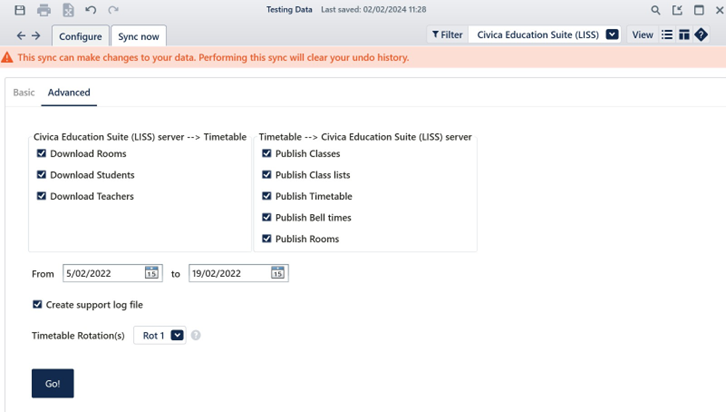
- Select Go to perform the sync.
Data matching screen in Timetable
A data check will occur between the two systems when a basic sync is done, or if you choose to download data from another system into the Timetable file in the Advanced sync. The data checking includes Rooms, Teachers and Students.
If there is a mismatch in data, a pop-up screen will display the mismatched data. There will be the option to correct the data or to proceed without fixing.
Download Rooms:
The screen displayed here shows the list of rooms that exist in the Timetable file, but do not exist in the other system. You have the option to delete these rooms from the Timetable file or keep them.

Download Students:
If there is a mismatch in student data, the following matching screen will display.
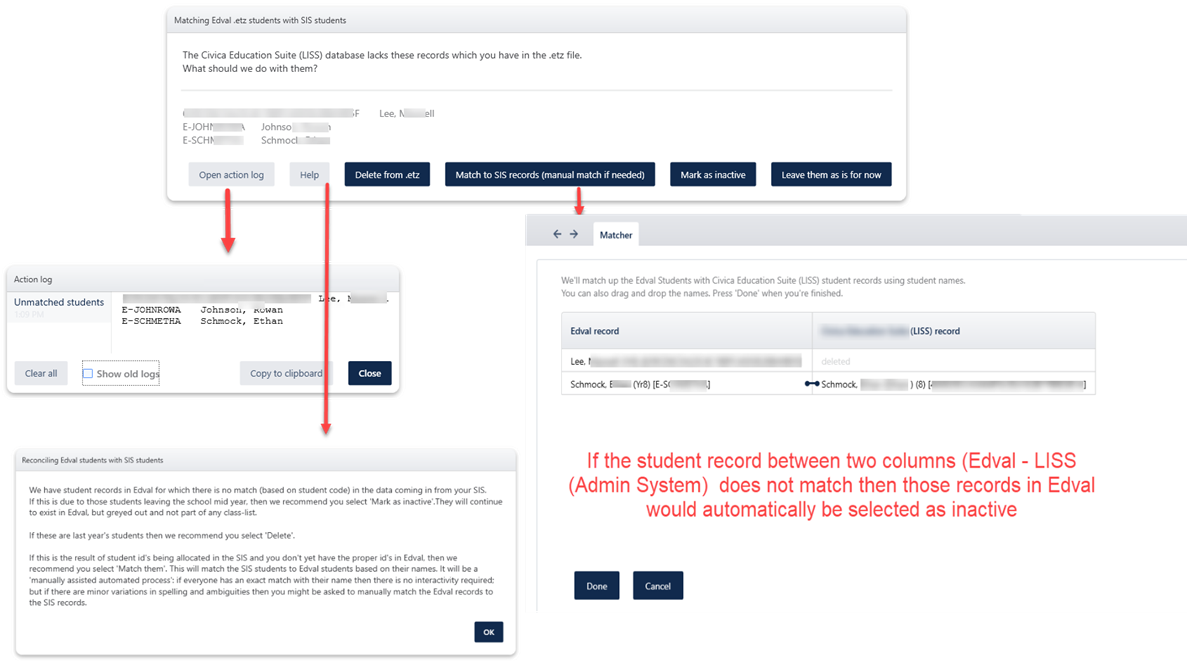
Options | Details |
Open action log | This will open all the mismatching data in the log format, which will then allow you to copy to the clipboard or even compare with 'Show old logs' from previous syncs. |
Help | This will open the help window that will explain the matching between the two systems |
Delete from the timetable file | This will allow the user to delete any data from the timetable file if it does not exist in the other system |
| Match to SIS records (manual match if needed) | This will open the window that will show the Timetable file record on the left column and the other system on the right column, where it allows you to drag the data to match between the two systems. Remember, if any data is not matched and you click on " Done, it will inactivate the data in the Timetable file. |
| Mark as inactive | This will inactive the students in the Timetable that does not match the other system |
Leave them as is for now | This will not match up the data, but will download the new data from another system. In the timetable, both old and new will be kept. |
Download Teachers:
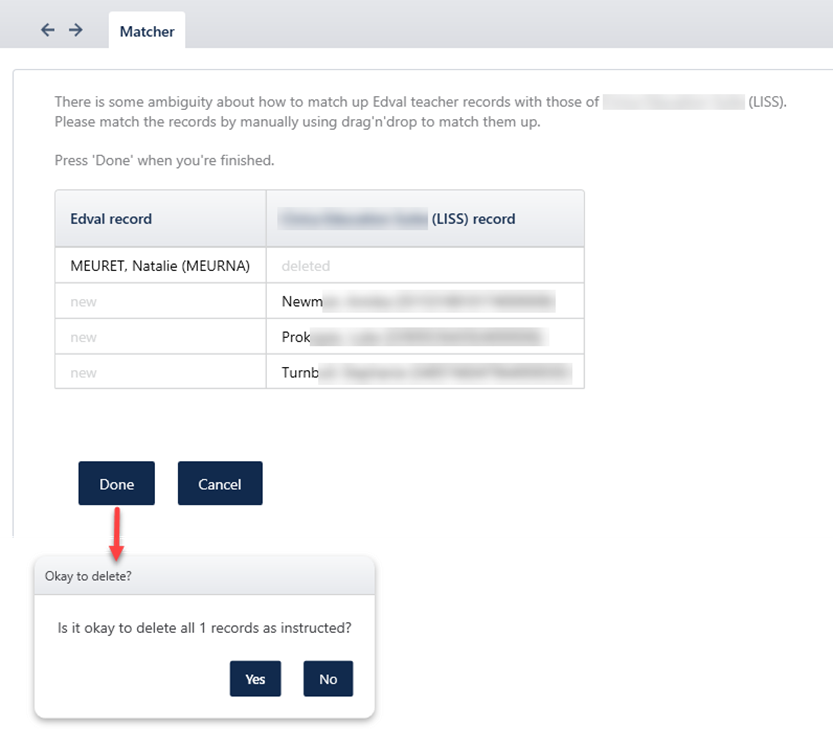
If there is a mismatch in teacher data, the matching screen will display.
The matching screen allows you to drag and drop the entries in each column to match the teacher data between the Timetable file and the other system.
If there is any unmatched data left and you click on 'Done', a message will pop up asking if you wish to delete the entry or leave it as it is. This means it will download the new teachers and leave the existing unmatched teachers in the Timetable file as is.
Syncing class lists only
It is common to make regular changes to students' classes, without changing the actual timetable. In this case, you might like to do the following:
- Go to the Advanced sync
- Select only 'Publish class lists'
- Sync
In this case, there is no need to complete Step 4 below, as the student's timetables in CES reflect the change without the need to publish the timetable in CES.
4. Publish timetable in CES
The incoming timetable must be 'published' in CES after every sync from the Timetable file.
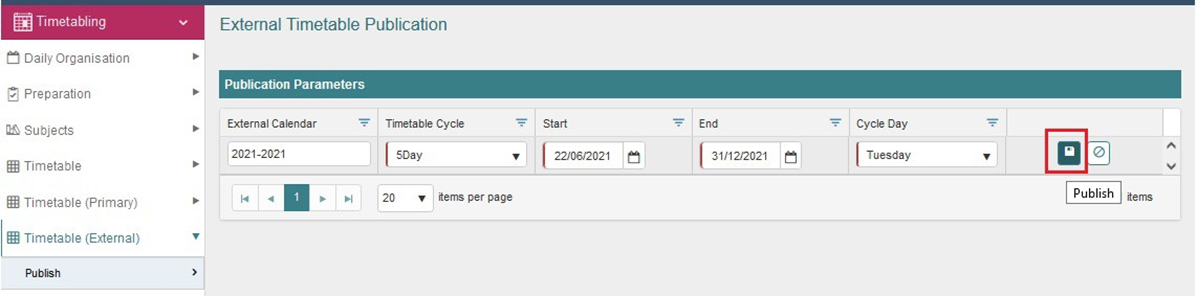
- Go to Timetabling > Timetable (External)
- Select Publish
- Select the Edit icon on the right of the External Calendar
- Check the Timetable Cycle, Start and End dates that the incoming timetable should display for, and the Cycle start day (the first day of the calendar year, usually a date in January)
- Save
The timetable sync is now complete. It is wise to check some teacher and student timetables to make sure everything looks as expected.
Important information
Teacher data
CES is the source of truth for teachers; therefore, teachers must first be entered into CES. They can then be either downloaded into the Timetable file through the Advanced sync option in the Timetable file, or entered manually into the Timetable file using the same teacher details. There are a few fields in CES that must have specific information for a sync to occur.
Authority Staff ID: This code will be downloaded into the Timetable file and used for matching purposes.
Staff type: There are only two types of teachers who will be downloaded into the Timetable file: Teacher and Extra curricular.
FTE: Must be greater than zero (decimals are accepted for part time staff).
Teacher details downloaded are: Authority Staff ID, First name, Surname, gender, school email address and home phone number.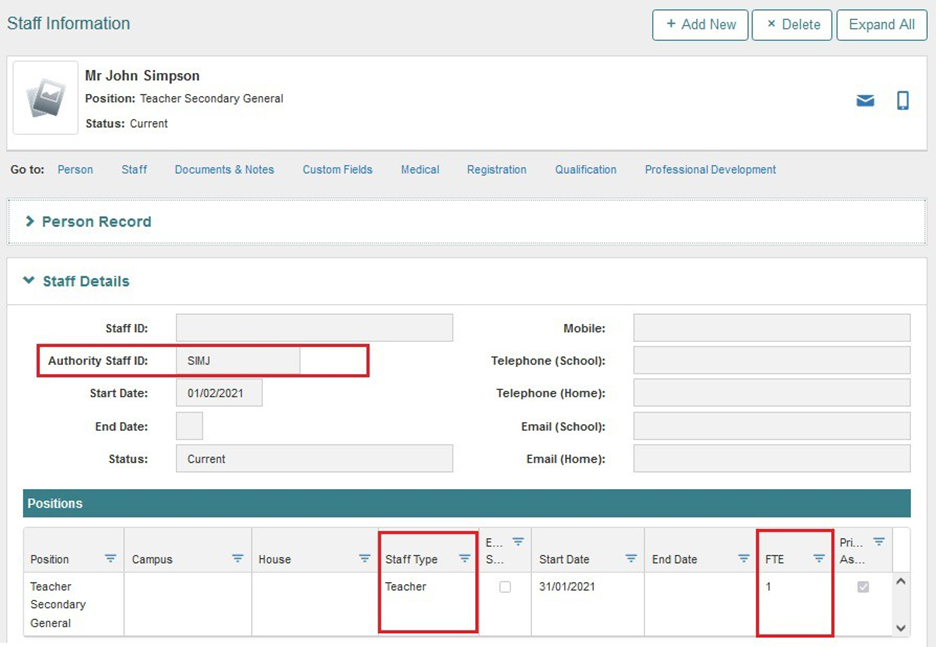
Student data
CES is the source of truth for students; therefore, students must first be entered into CES. They can then be either downloaded into the Timetable file through the Advanced sync option in the Timetable file, or entered manually into the Timetable file using the same student details.
If an entry exists in the Student ID field in CES, this will be used as the Student code in the Timetable file when downloading the details. If no entry exists in the Student ID field in CES, the student's SIF code will be used instead (The SIF code for a student cannot be found in CES ).
Student details downloaded are: Student ID, First name, Surname, Gender, House, Email address and Phone number.When a student has an exit date entered in CES, and a further sync between the Timetable file and CES occurs, the student will remain in the Timetable file but will display as inactive.
Class data
Classes should have numeric class identifiers, as CES will only accept classes with numeric identifiers.
For example:
Accepted: 9MAT 1 9MAT. 1 9MAT. 01 9MAT- 01Not accepted: 9MAT A 9MAT. 6B
Functionality not yet supported
Some Tes Timetable features are not yet supported in CES. These include;
- Two teachers at once
- Two rooms at once
- Meetings set up in the Meetings year
- Priority classes
Tes support can offer alternatives to these features that may achieve the desired outcome.
Was this article helpful?
That’s Great!
Thank you for your feedback
Sorry! We couldn't be helpful
Thank you for your feedback
Feedback sent
We appreciate your effort and will try to fix the article