TABLE OF CONTENTS
Preamble
- new school file set up
- synchronisation processes
- synchronisation troubleshooting
While Tes takes all care to ensure any mention to the other system is correct and up to date, it is the user's responsibility to check with the other system prior to an initial sync. If the user becomes aware of any changes to the other system, we would very much appreciate this feedback.
Type of sync
Which data is sent to the other system?
Note that Tes builds many excellent features to help users build high quality timetables, and while these features can be sent onto the other system through the synchronisation process, not all systems have built the capability on their end to receive/display these features.
| Tes Timetable feature | Notes on feature | Is this feature received by the other system? | Other notes |
| Bell times | Bell times as per Grid structures | Yes | |
| Campuses | Campuses and their associated rooms | Yes | |
| Classes | Classes as per Class data screens | Yes | |
| Class lists | Yes | ||
| Composite classes (linked classes) | One teacher teaching more than one class at the same time | Yes | |
| Duty roster | Yes | ||
| Faculty data | Yes | ||
| Grid structure codes | Yes | ||
| Multi-file | Two (or more) timetable files | Yes | |
| Multi-grid | Multiple grids with different bell times | Yes | |
| On-call roster | Yes | ||
| Priority classes | The priority class that shows on student's timetables where they have class clashes | Yes | |
| Room data | Room Code, Name, Size, Campus, Comment | Yes | |
| Rotation classes | Classes from particular rotations | No | |
| RTO roster | Yes | ||
| Student data | Yes | ||
| Study roster | Study classes, staffing and rooming roster | Yes | |
| Sub-classes | No | ||
| Teacher data | Yes | ||
| Teacher days off (Unavailable) | Yes | ||
| Timetable data | Yes | ||
| Two (or more) rooms at once | A class with two or more rooms at the same time | Yes | |
| Two (or more) teachers at once | A class with two or more teachers at the same time | No | Due to lack of sub-class compatibility |
| Year levels (non-numeric) | Year levels such as SPT, LSUP, ROLL, Yr9+10 etc | Yes |
Steps to synchronise data
Step 1: Set up the Engage Doublefirst Sync
- Open the relevant Timetable file, and go to File > Synchronise > Configure > Sync tab
- Select the + button and choose 'Engage (DoubleFirst)' from the drop down menu.
Step 2: Configure the Timetable File
- Go to File > Synchronise > Configure > Connection tab: Enter the following information into the Connection screen:
| Option | Detail |
| URL | Contact Engage (Double First) support for your school's URL |
| Username | Engage (DoubleFirst) username |
| Password | Password |
School code | School code is provided by Engage (DoubleFirst) |
| Proxy | Not usually required. See your school network administrator if a proxy message appears after Testing connection. |
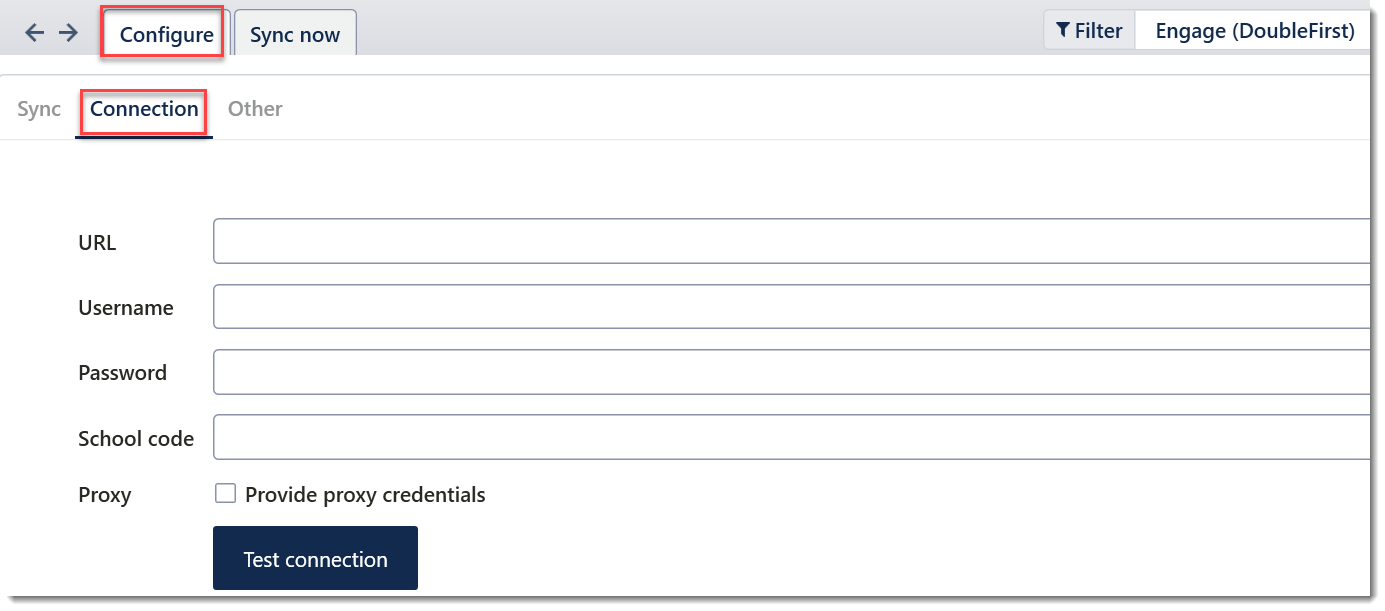
- Click the 'Test Connection' button to check that the details are correct and the link between the Timetable file and Engage (DoubleFirst) is working correctly.
- Go to File > Synchronise > Configure > Other tab
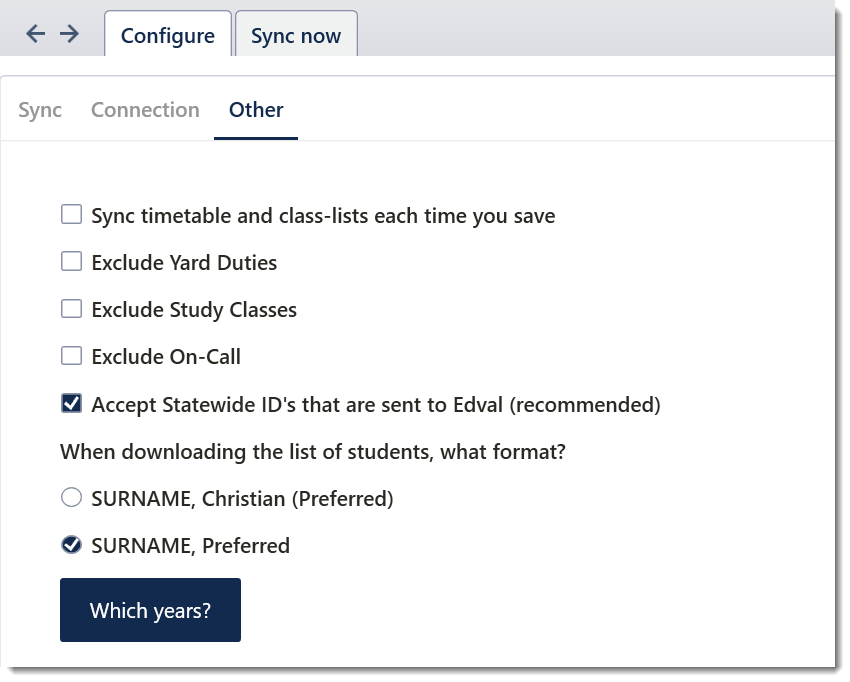
Option | Details |
Sync timetable & class lists every time you save | Sends enrolment data to Engage (DoubleFirst) upon every save. |
Exclude Yard Duties | When ticked, Yard duties are not sent |
Exclude Study Classes | When ticked, Study classes are not sent |
Exclude On-call | When ticked, On-calls are not sent |
Accept Statewide ID's that are sent to the Timetable file (recommended) | Student Id's can be displayed in Students > Student data > View > Statewide ID |
When downloading the list of students, what format? | Select whether the formal or preferred name for the students are downloaded. |
Which years? | - Sync all year levels: By default, all year levels are ticked, in which case all year levels will be synced.
|
Step 3: Perform the sync
- Go to File > Synchronise > Sync now.
There are two sync options: Basic or Advanced.
Basic Sync
- Go to File>Synchronise>Sync Now, and select ‘Basic’
- Ensure ‘Engage (DoubleFirst)’ is selected from the dropdown in the top-right corner.
- Input the date range you wish to update for.
- Click ‘Go’ to sync.
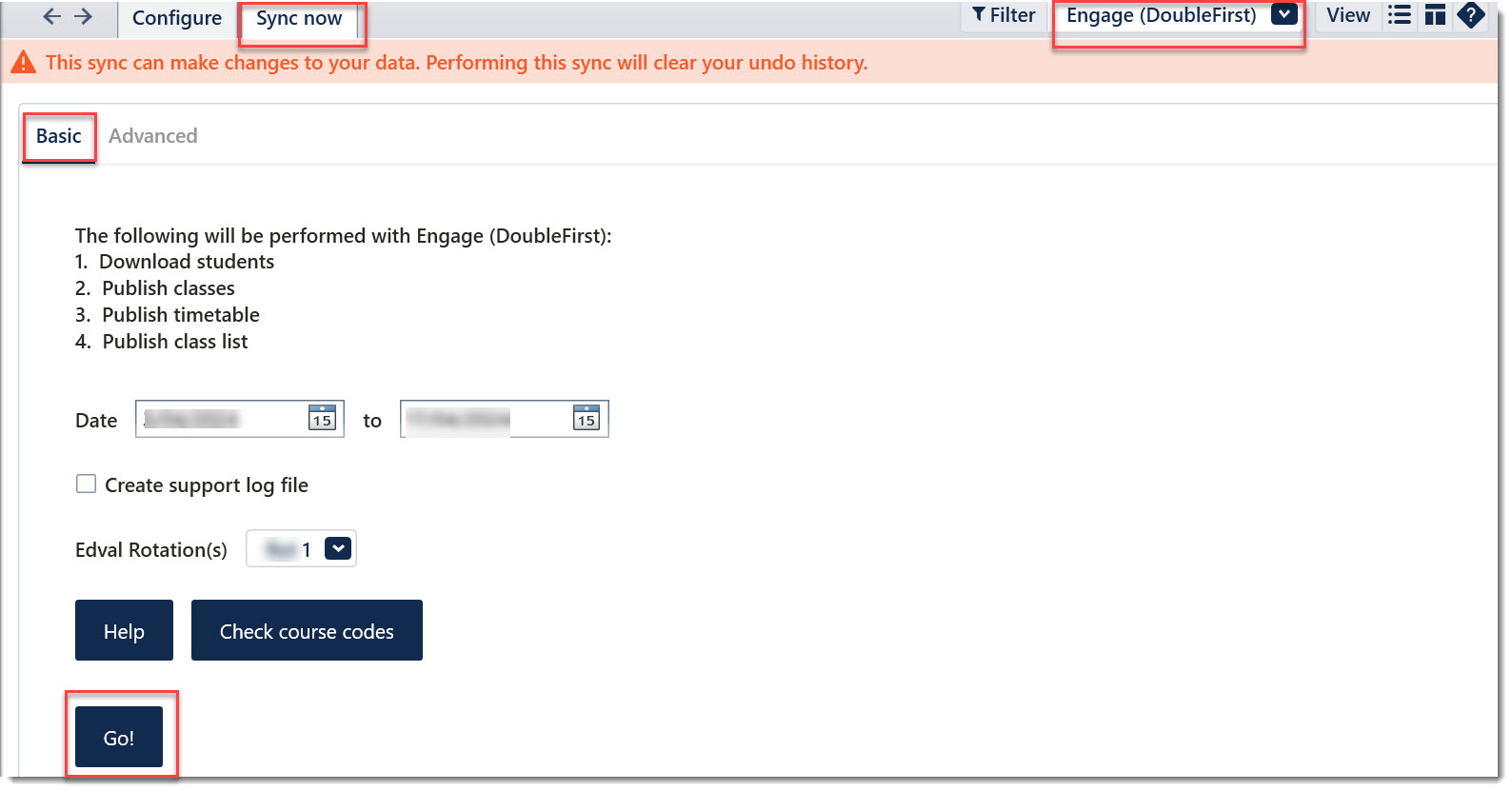
Check course codes: Click this button to see if there is any confusion over course code that Engage might not support. Engage only takes the course code into consideration and not the class identifier so if if you have two similar course codes, but different subject names, then Engage will pick one of the subject names for both course codes. e.g. if you have class codes 11AHI.H1 (History), 11AHI.S2 (Ancient History) with the same code of AHI, Engage will pick randomly one of the course names and assign it to both.
The basic sync may download staff data that is not wanted in the timetable file, such as admin and support staff. The Advanced option may be used to avoid this situation.
Advanced Sync
- Go to File>Synchronise>Sync Now, and select ‘Advanced’
- Ensure ‘Engage (DoubleFirst)' is selected from the dropdown in the top-right corner.
- Select which data you want to sync to Engage (DoubleFirst)
- Enter the sync dates and relevant rotation.
- Click ‘Go’ to sync
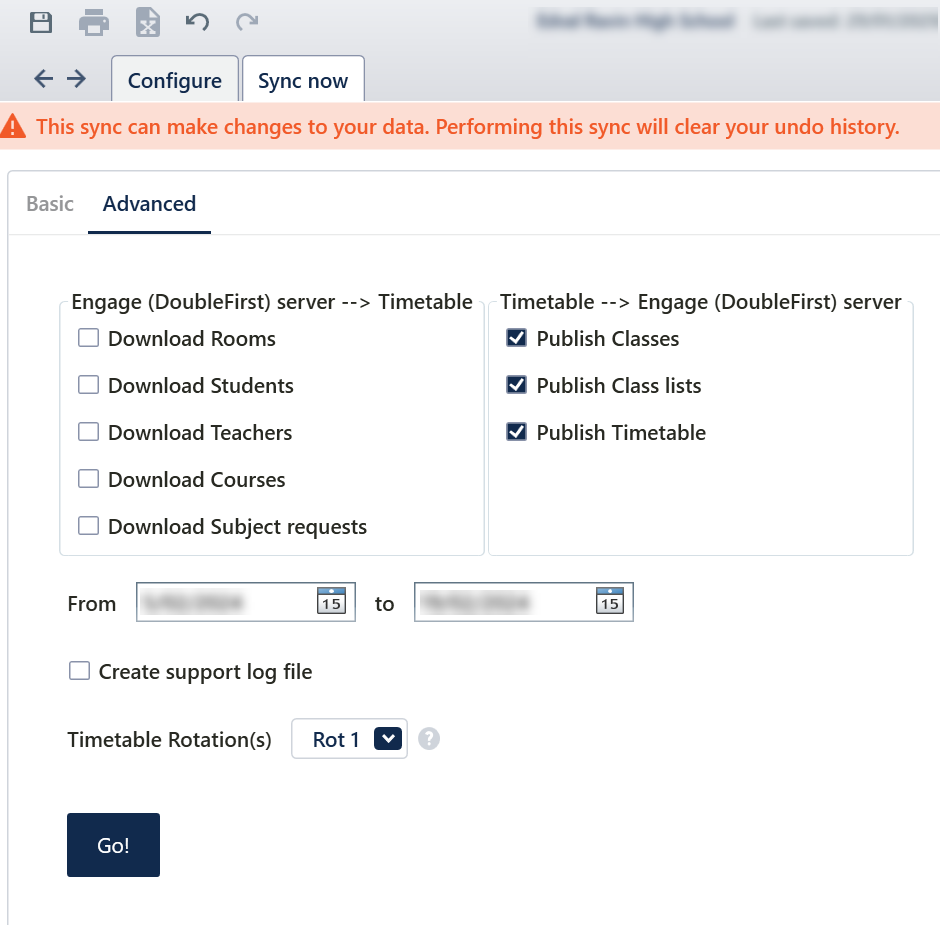
Create support log file: Occasionally, Integration support specialists may ask you to perform a sync and tick this box, which will create a text file in the same location as the timetable file. This file can be sent to Tes to help with troubleshooting.
Was this article helpful?
That’s Great!
Thank you for your feedback
Sorry! We couldn't be helpful
Thank you for your feedback
Feedback sent
We appreciate your effort and will try to fix the article