TABLE OF CONTENTS
Preamble
- new school Daily setup
- synchronisation processes
- synchronisation troubleshooting
The following information has been provided by the Daymap team and was correct at the time of publication. Please check the Daymap documentation for any changes to the process. Please contact them for any support required in the set up in this system, as Tes consultants are not able to advise.
While Tes takes all care to ensure any mention to the other system is correct and up to date, it is the user's responsibility to check with the other system prior to an initial sync. If the user becomes aware of any changes to the other system, we would very much appreciate this feedback
Type of sync
Which data is sent to the other system?
Note that Tes builds many excellent features to help users build high quality timetables, and while these features can be sent onto the other system through the synchronisation process, not all systems have built the capability on their end to receive/display these feature
| Tes Timetable feature | Notes on feature | Is this feature received by the other system? | Other notes |
Cycle date mapping | Bell times and date mapping calendar | Yes | |
Campuses | Campuses and their associated rooms | Yes | |
Classes | Class code, GUID, Faculty, Course Name, Assigned teacher | Yes | |
Class lists | Yes | ||
Composite classes (linked classes) | One teacher teaching more than one class at the same time | Yes | |
Duty roster | Yes | ||
Faculty data | Yes | ||
Grid structure codes | Yes | ||
Multi-file | Two (or more) timetable files | Unsure | |
Multi-grid | Multiple grids with different bell times | Unsure | |
On-call roster | Yes | ||
Priority classes | The priority class that shows on students' timetables where they have class clashes | Yes | |
Room data | Room Code, Name, Size, Comment | Yes | |
Rotation classes | Classes from particular rotations | Yes | |
RTO roster | Yes | ||
Student data | Student Code, First name, Last name, Year level, Gender, GUID | Yes | |
Study roster | Study classes, staffing and rooming roster | Yes | |
Sub-classes | No | ||
Teacher data | Teacher Code, First name, Last name, Faculty, GUID | Yes | |
Teacher days off (Unavailable) | No | ||
Timetable data | Yes | ||
Two (or more) rooms at once | Yes | ||
Two (or more) teachers at once | Yes | ||
Year levels (non-numeric) | Year levels such as SPT, LSUP, ROLL, Yr9+10, etc... | Yes | |
Publish Daily Timetable | Sends the following Daily data: Events, Covers, Absences and Room swaps | Yes |
Steps to synchronise data
Step 1: Check if any Daymap set-up is required
Step 2: Configure the Timetable Daily Sync
- Go to Daily > Synchronise
- Choose 'Add sync system' and select Daymap from the system dropdown.
- Enter the Daymap credentials that you received from Daymap. (Contact Daymap if unsure about these details)
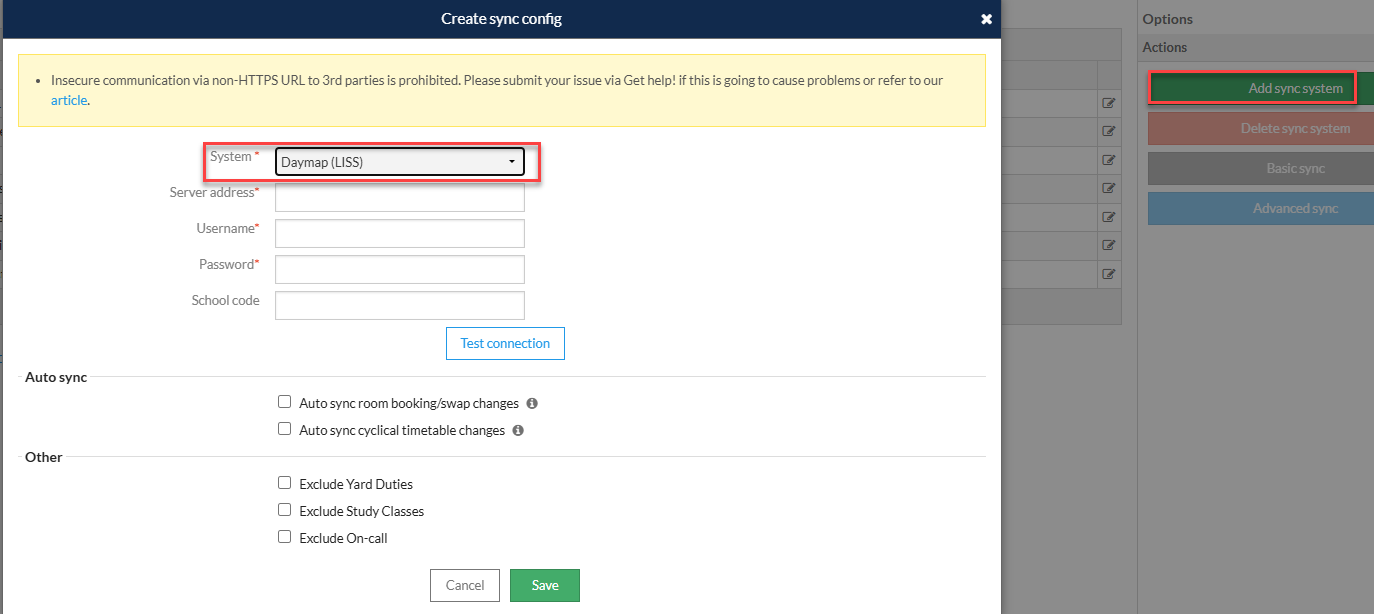
- The 'Auto Sync' section is deselected by default. If you wish Timetable Daily to sync room bookings and/or cyclical timetable changes from the timetable file automatically, then select one or both of these options. For more information on this feature, please see the following document: Automated Instant Synchronisation.
- In the 'Other' section, please select your preferences and then click Save.
| Option | Details |
| Exclude Yard duties | When ticked, Yard duties will be ignored for syncing purposes |
| Exclude Study classes | When ticked, Study classes will be ignored for syncing purposes |
| Exclude On-calls | When ticked, on-calls will be ignored for syncing purposes |
Exclude teacher Admin IDs (not recommended) | When ticked, teachers' Admin IDs will be ignored for syncing purposes (In Admin>Users>Teacher Admin ID) |
Step 3: Perform the sync
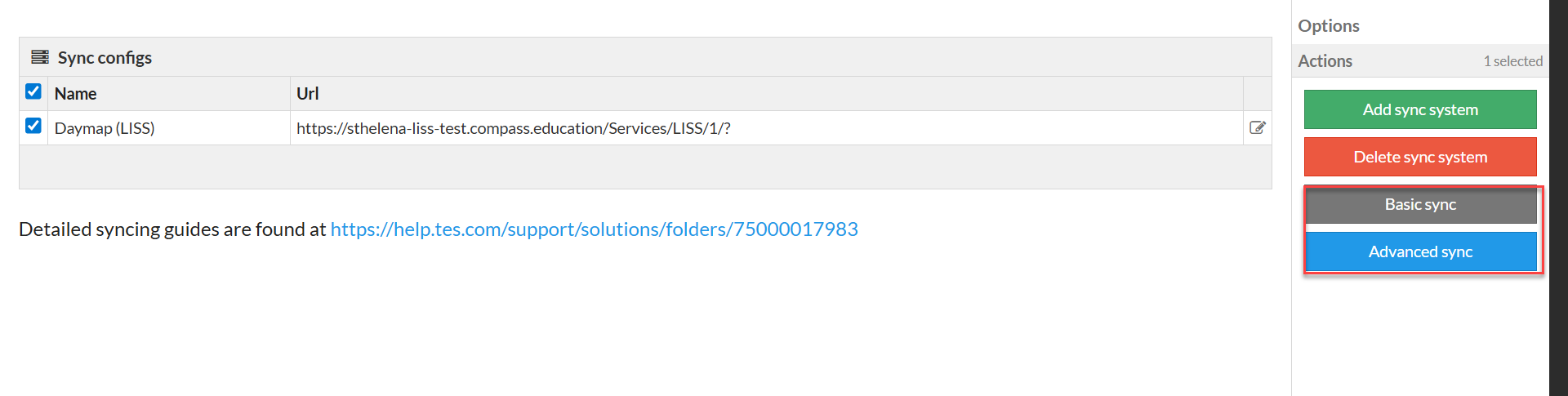
Advanced Sync
Note: A warning message will appear when a sync is attempted before cover data has been published.
This warning is shown for the first date in the date range for which covers have not been published.
To perform an advanced sync:
- Go to Daily > Synchronise and select the Daymap sync configuration.
- Select 'Advanced sync' from the actions panel.
- Select the data that is required to be sent.
- Select 'Sync' to complete the process.
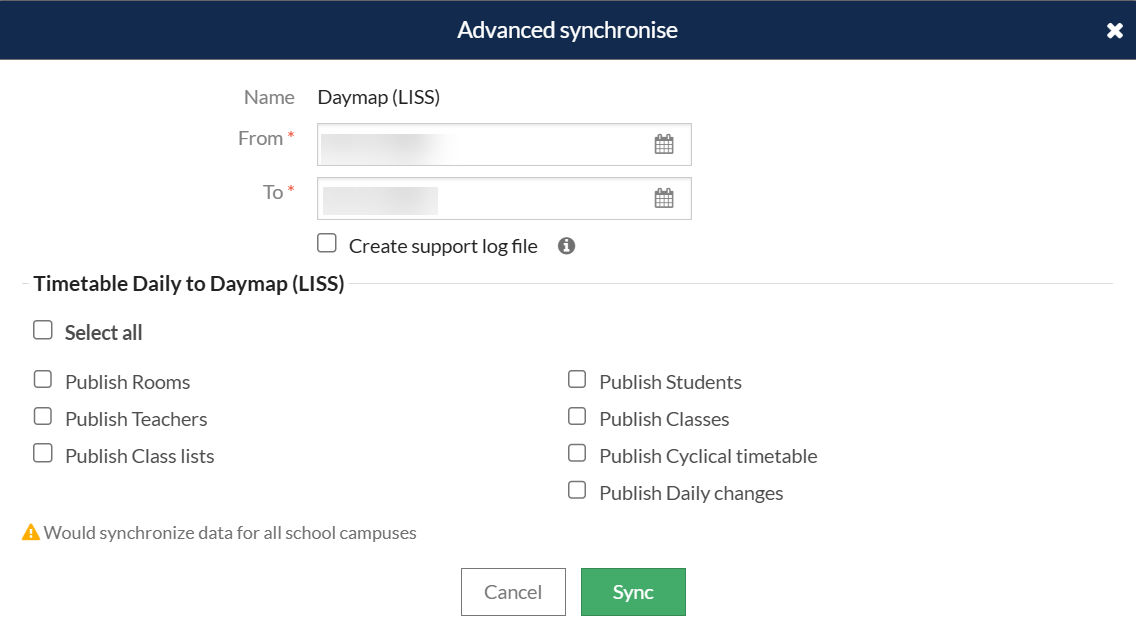
Create support log file: Occasionally, Tes specialists may ask you to perform a sync and tick this box, which will create a text file in the Download location in your computer. This file can be sent to Tes to help with troubleshooting
Basic Sync
- Go to Daily > Synchronise and select the Daymap configuration.
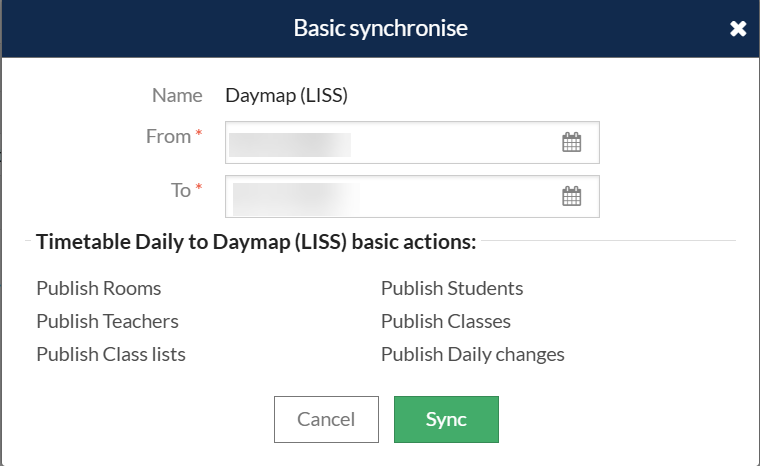
- Select Basic sync from the actions panel.
- Enter the dates required.
- Select Sync to complete the process.
Publish & Sync
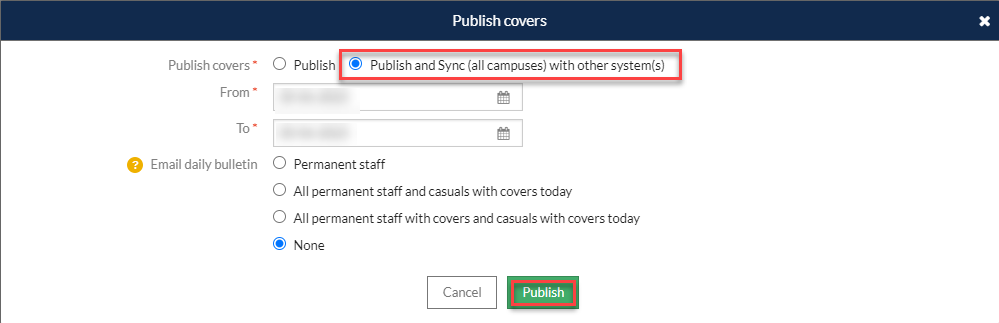
- Go to Daily > Cover and Click on Publish.
- Select Publish and Sync with other systems from the Publish covers panel.
- Enter the dates required.
- Select Sync to complete the process.
For more information on this feature, please see the following document: Timetable Daily: Covers Tab
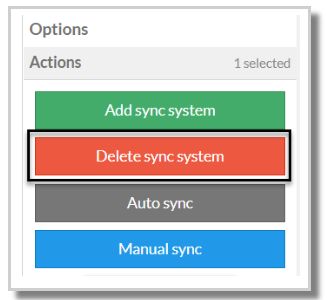
Delete Sync System
Was this article helpful?
That’s Great!
Thank you for your feedback
Sorry! We couldn't be helpful
Thank you for your feedback
Feedback sent
We appreciate your effort and will try to fix the article