TABLE OF CONTENTS
Preamble
- Synchronisation processes
While Tes takes all care to ensure any mention of the other system is correct and up to date, it is the user's responsibility to check with the other system prior to an initial sync. If the user becomes aware of any changes to the other system, we would very much appreciate this feedback.
Make sure that your region in 'Setup > School info > Admin' is set to your correct region and not 'Unknown' or 'Other'.

The Vivo Miles sync will not appear in sync drop-down if the incorrect region is selected.
- Students
- Teachers
- Classes
- Class Lists
- Timetable
- Bell Times
Step 1: Configure the Vivo Miles sync in the Timetable file
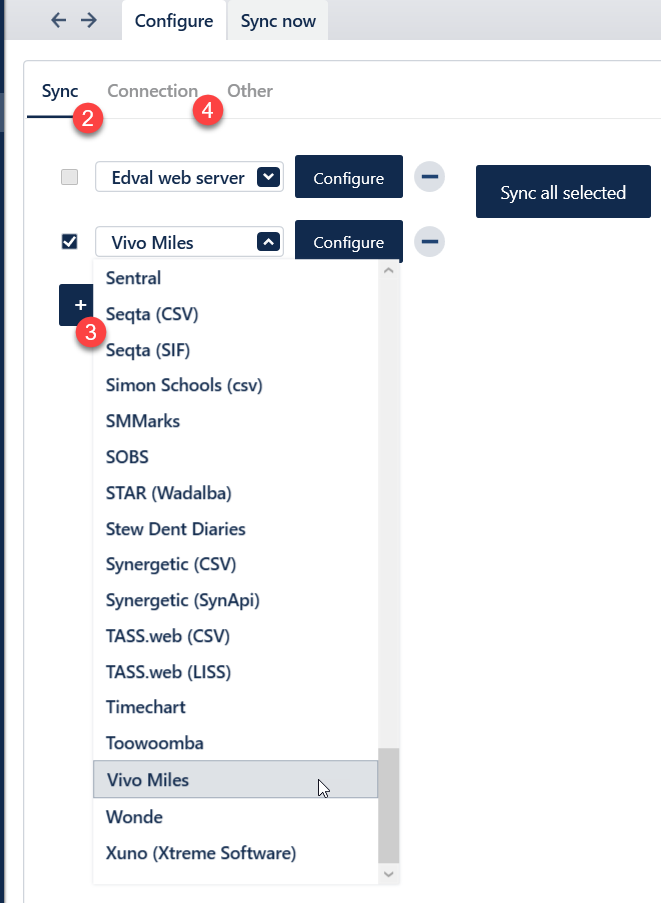
- Go to File > Synchronise > Configure
- Select the ‘Sync’ sub-tab
- Click the '+' and select "Vivo Miles" from the dropdown
Multiple systems can be set up to sync. It is common to have both the Edval web server and the school's learning management system configured, along with any other systems the school wishes to regularly sync with.
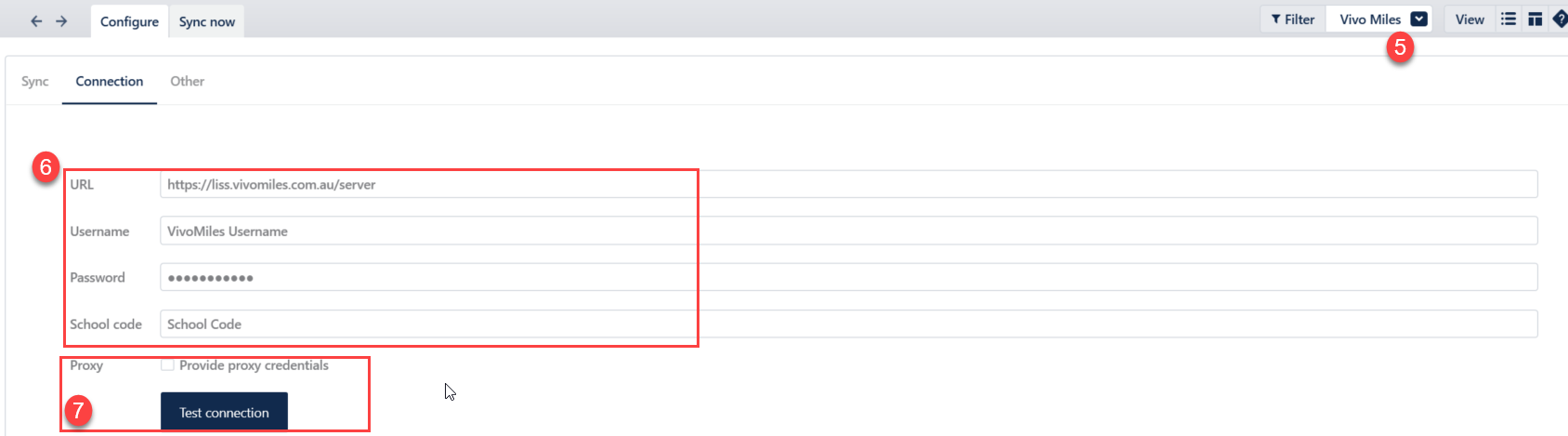
Go to the ‘Connection’ sub-tab
Ensure that “Vivo Miles” is selected in the top-right corner
Input your credentials. Vivo Miles will provide you with the Vivo Miles Server URL, Username, Password and School code.
Proxy credentials are not usually required. Please see your school network administrator if a proxy message appears after testing your connection
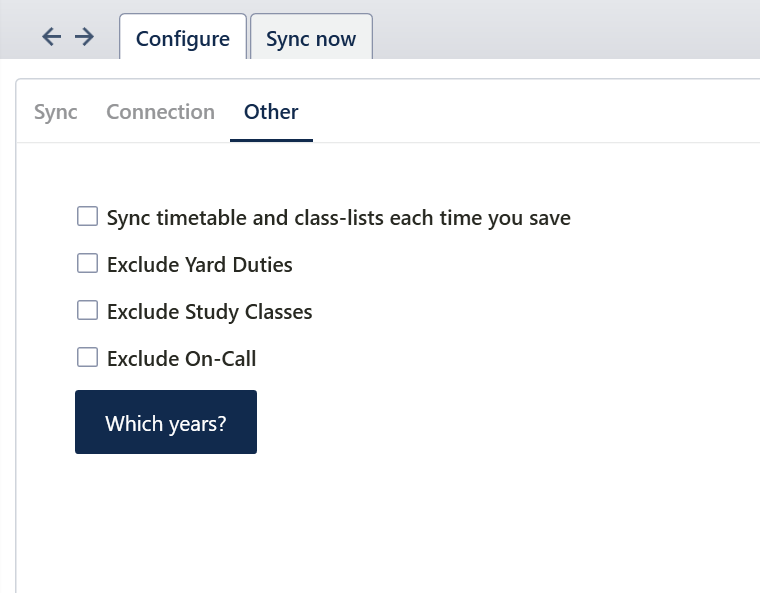
Go to the 'Other' tab
Tick 'Exclude Yard duties/Study classes/On-calls' option if you do not want to send this data to Vivo Miles.
'Which years?' gives you the option of selecting specific year levels to send to Vivo Miles. Please leave all of the year levels un-ticked if you want to send everything.
'Sync each time you save' - This means the sync will occur automatically on a Ctrl-S save. In this case, data is first saved locally to disk, and then an attempt is made to sync with all external systems. This is simple, but you may want to disable this if the external systems or your network are slow to sync, or you want more control over 'when' you publish data through to other systems. No message is shown on a sync-on-save, as it is done quietly. Only active sync via menu/ctrl-K will show a completion message.
Step 2: Perform the sync
Basic Sync
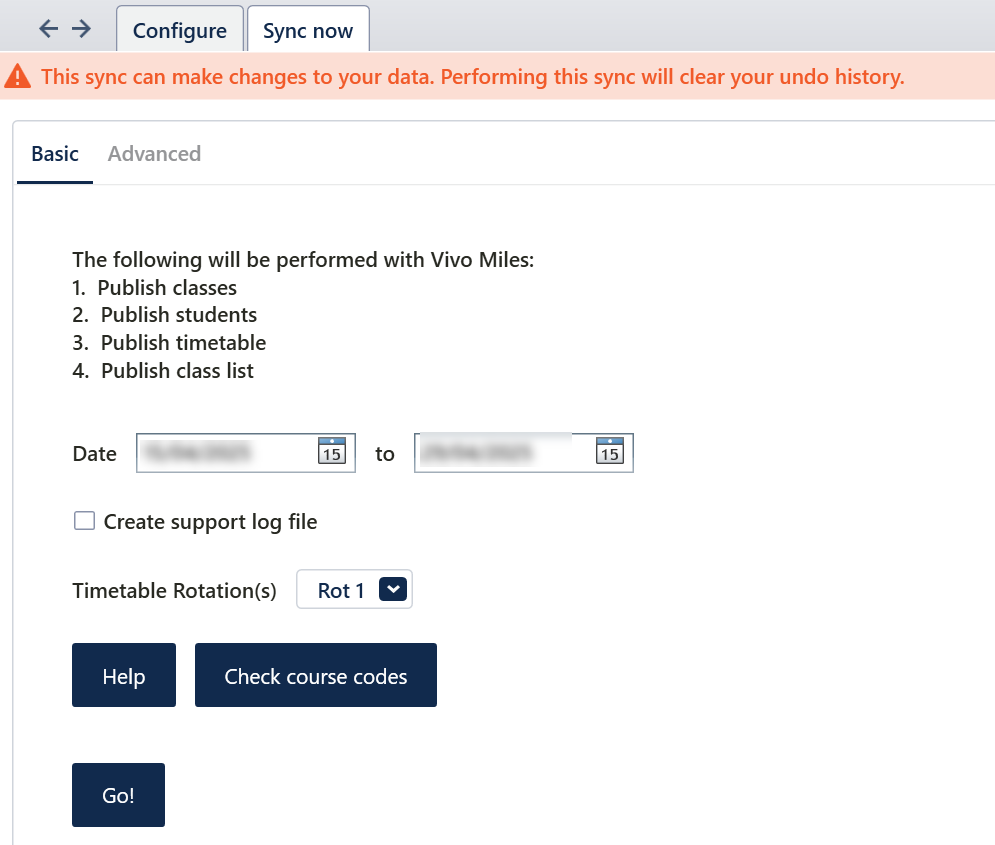
Basic sync is for general syncing. A basic sync allows you to download students from Vivo Miles, and publish Classes, Class lists and timetable to Vivo Miles. To perform a basic sync:
Go to 'File > Synchronise > Sync Now', and select the ‘Basic’ sub-tab
Ensure “Vivo Miles” is selected from the dropdown in the top-right corner
Input the date range you wish to update the Vivo Miles in, and select the rotation you wish to sync
'Create Support Log File' is usually required by Tes support to check the data validation and any issues with syncing
Click “Go” to sync
Advanced Sync
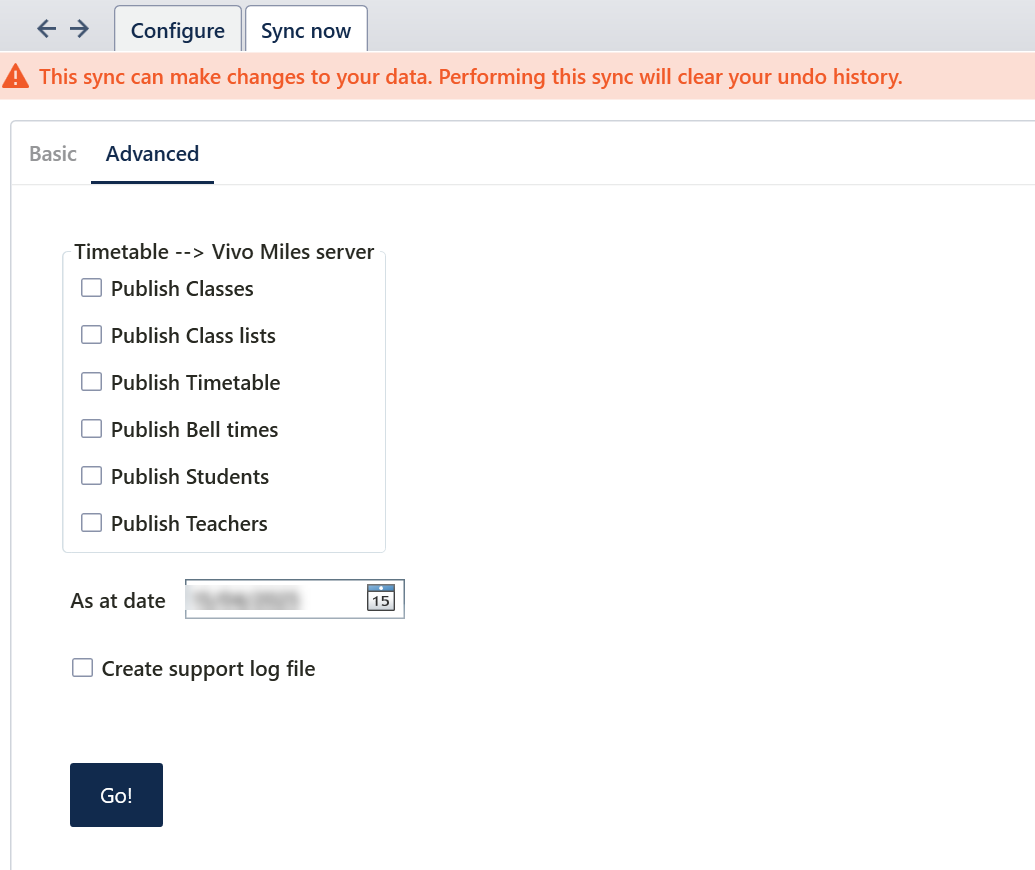
Advanced sync is used to publish specific parts of your data to Vivo Miles. An advanced sync also allows you to publish bell times, classes, class lists, students, teachers and timetable to Vivo Miles.
To perform an Advanced Sync:
Go to File > Synchronise > Sync Now, and select the ‘Advanced’ sub-tab
Ensure “Vivo Miles” is selected from the dropdown in the top-right corner
Select which data you wish to sync with Vivo Miles
- Input the date range you wish to update the Vivo data in, and select the rotation you wish to sync
'Create Support Log File' is usually required by Tes support to check the data validation and any issues with syncing
Click “Go” to sync
Was this article helpful?
That’s Great!
Thank you for your feedback
Sorry! We couldn't be helpful
Thank you for your feedback
Feedback sent
We appreciate your effort and will try to fix the article