TABLE OF CONTENTS
Preamble
Timetabling data that exists in E10 timetable files are usually sent on to one or more other non-Tes systems, such as student learning management systems, reporting systems, administration systems, and many more. The Tes integration team works with other systems to make sure that the data required to be sent is in the correct format. This document outlines the synchronisation process to Academy Attendance.
While Tes takes all care to ensure any mention to the other system is correct and up to date, it is the user's responsibility to check with the other system prior to an initial sync. If the user becomes aware of any changes to the other system, we would very much appreciate this feedback.Type of sync
This sync is performed by exporting a txt file that has been correctly formatted, ready uploading into Reporter Pro.
The Academy Attendance export function will export following CSV files:
- Periods.csv
- Students.csv
- Subjects.csv
- Teachers.csv
Which data is sent to the other system?
This table lists many of the data and features found in Tes and, where known by Tes specialists, whether they are also understood by the other system.
Note that Tes builds many excellent features to help users build high quality timetables, and while these features can be sent onto the other system through the synchronisation process, not all systems have built the capability on their end to receive/display these features.
| Tes feature | Notes on feature | Is this feature received by the other system? | Other notes |
| Bell times | Bell times as per Grid structures | Yes | Periods.csv |
| Campuses | Campuses and their associated rooms | No | |
| Classes | Class Code, Subject name | Yes | |
| Class lists | Yes | Students.csv | |
| Composite classes (linked classes) | One teacher teaching more than one class at the same time | Unsure | |
| Duty roster | No | ||
| Faculty data | No | ||
| Grid structure codes | Yes | Periods.csv | |
| Multi-file | Two (or more) timetable files | Unsure | |
| Multi-grid | Multiple grids with different bell times | Yes | |
| On-call roster | No | ||
| Priority classes | The priority class that shows on student's timetables where they have class clashes | No | |
| Room data | Room Code | Yes | Only in relation to Students.csv |
| Rotation classes | Classes from particular rotations | Yes | |
| RTO roster | No | ||
| Student data | Student Code, Name, Year level, Letter group, House, Gender | No | Student code referenced in Students.csv but this is actually just class list information. |
| Study roster | Study classes, staffing and rooming roster | No | |
| Sub-classes | No | Actively ignores sub classes from E10 | |
| Teacher data | Teacher Code, Name | Yes | |
| Teacher days off (Unavailable) | No | ||
| Timetable data | Yes | Students.csv | |
| Two (or more) rooms at once | No | ||
| Two (or more) teachers at once | No | ||
| Year levels (non-numeric) | Year levels such as SPT, LSUP, ROLL, Yr9+10 etc.. | No | Actively ignores student year levels from E10 |
Yes - The data is sent from our end and is being received and processed by 3rd party system.
No - The data is not supported by 3rd party systems and is not sent from Edval.
Unsure - The data is being sent from Edval but we are unsure if it is being processed and supported by Academy Attendance.
Steps to Synchronise data
Step 1: Check if any SEQTA set up is required
Many systems require some set up prior to receiving timetable data from Tes Check with Academy Attendance .
Step 2: Configure the timetable file
Configuring the sync is usually a once off set up, but can be altered at any time the user wishes to.
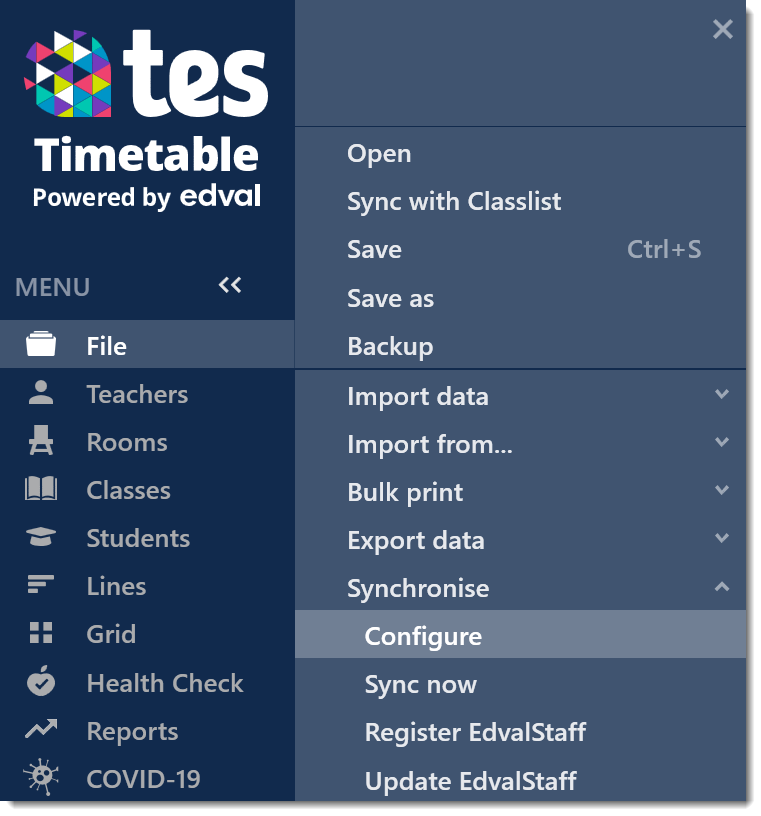
- In E10 timetable, select File > Synchronise > Configure.
- In the Configure tab, select Academy Attendance from the drop down list of options.
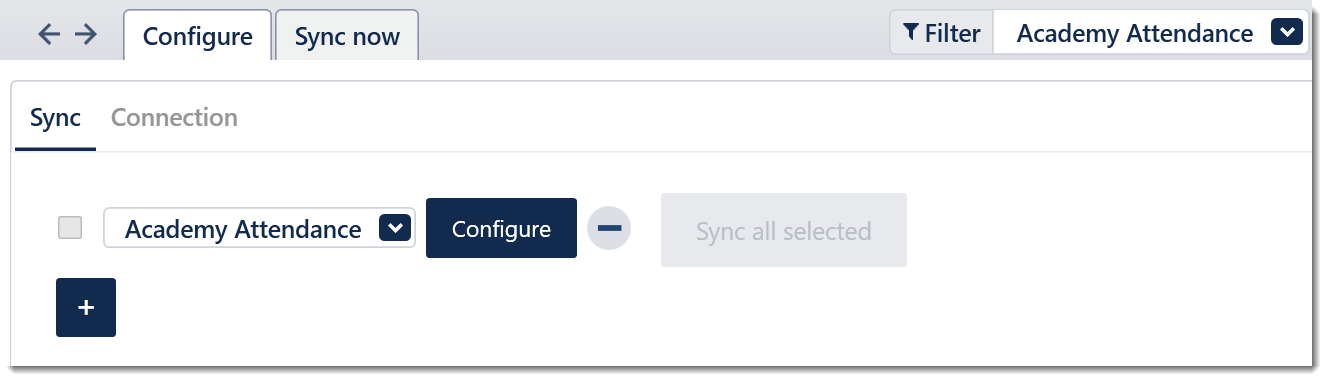
- Select the Configure button, which will move you to the Connection tab. A destination folder must be selected to direct where the .csv files will be saved to. Select Browse and locate or create the desired location.
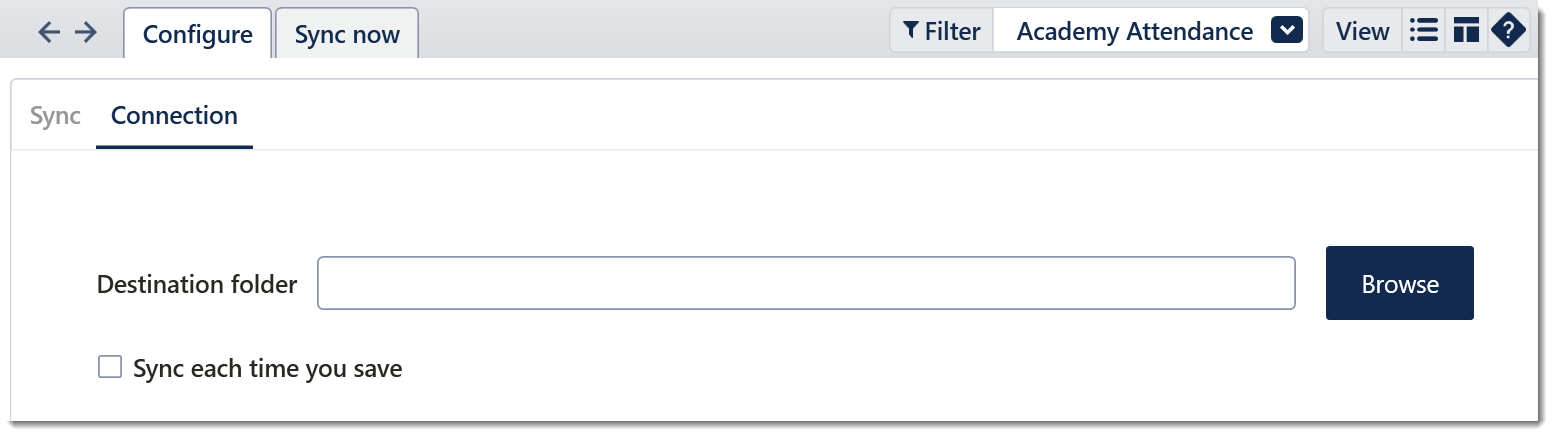
If you check the option 'Sync each time you save', ensure that the destination folder will always be accessible to avoid disruption.
Step 3: Perform the sync export
The following steps will be performed each time new data is to be sent to SEQTA .
- Navigate to File > Synchronise > Sync now.
- Select / ensure that the Academy Attendance option is chosen in the Filter menu in the top right.
- Select Create TT publish file.
Step 4: Upload/Import the CSV files into Academy Attendance
The files will have exported to the destination folder for you to retrieve and upload to Academy Attendance. For further support with this, you will have to consult the Academy Attendance support team and their resources.
Was this article helpful?
That’s Great!
Thank you for your feedback
Sorry! We couldn't be helpful
Thank you for your feedback
Feedback sent
We appreciate your effort and will try to fix the article