TABLE OF CONTENTS
- Preamble
- Type of sync
- Which data is sent to the other system
- Steps to synchronise data
- Frequently Asked Questions
Preamble
- new school Daily set up
- synchronisation processes
- synchronisation troubleshooting
While Tes takes all care to ensure any mention to the other system is correct and up to date, it is the user's responsibility to check with the other system prior to an initial sync. If the user becomes aware of any changes to the other system, we would very much appreciate this feedback.
Type of sync
This sync is performed by a 'LISS' sync, which is a sync that sends and receives data at the push of a button with no need to manually upload data into the other system.
Which data is sent to the other system
This table lists many of the data and features found in Tes and, where known by Tes specialists, whether they are also understood by the other system.
Note that Tes builds many excellent features to help users build high quality timetables, and while these features can be sent onto the other system through the synchronisation process, not all systems have built the capability on their end to receive/display these features.
| Tes Timetable feature | Notes on feature | Is this feature received by the other system? | Other notes |
Cycle date mapping | bell times and date mapping calendar | Yes | |
Campuses | Campuses and their associated rooms | Yes | |
Classes | Class code, GUID, Faculty, Course Name, Assigned teacher | Yes | Classes must contain students. |
Class lists | Yes | ||
Composite classes (linked classes) | One teacher teaching more than one class at the same time | Yes | Has the 'Composite' tag in the Sentral timetable. |
Duty roster | Yes | Has the 'Duty' tag on the Sentral timetable. | |
Faculty data | No | ||
Grid structure codes | Yes | ||
Multi-file | Two (or more) timetable files | Yes | |
Multi-grid | Multiple grids with different bell times | Yes | Sentral requires that each grid must have the same number of periods. |
On-call roster | Yes | Has the 'On-Call' tag on the Sentral timetable. | |
Priority classes | The priority class that shows on student's timetables where they have class clashes | Yes | Sentral's teacher timetable will show both classes, but PxP will show the higher priority class only. E10's Low priority classes are not accepted by Sentral. |
Room data | Room Code, Name, Size, Comment | Yes | Sentral is our source of room data; we only send rooms in reference to a class. Room changes must be managed in Sentral first. |
Rotation classes | Classes from particular rotations | Yes | |
RTO roster | Rostered time off | No | |
Student data | Student Code, First name, Last name, Year level, Gender, GUID | Yes | |
Study roster | Study classes, staffing and rooming roster | Yes | |
Sub-classes | Yes | Sentral's Teacher timetable will show the umbrella (main) class for both teachers. | |
Teacher data | Teacher Code, First name, Last name, Faculty, GUID | Yes | |
Teacher days off (Unavailable) | No | Sentral will show a blank period on the timetable. | |
Timetable data | Yes | ||
Two (or more) rooms at once | Yes | ||
Two (or more) teachers at once | Yes | ||
Year levels (non-numeric) | Year levels such as SPT, LSUP, ROLL, Yr9+10 etc... | Yes | Sentral is our source of truth for year levels. They will ignore references to unrecognized year levels from Tes Timetable and Daily. |
Publish Daily Timetable | Events, Covers, Absences and Room swaps | Yes |
Steps to synchronise data
Step 1: Check if any Sentral set up is required
Many systems require some set up prior to receiving timetable data from the Timetable file. Check with Sentral.
Step 2: Configure the Timetable Daily Sync
- Go to Daily > Synchronise
- Choose 'Add sync system' from the right hand side and select Sentral from the system dropdown.
- Enter your Sentral credentials. Please contact Sentral if you're unsure about these details.
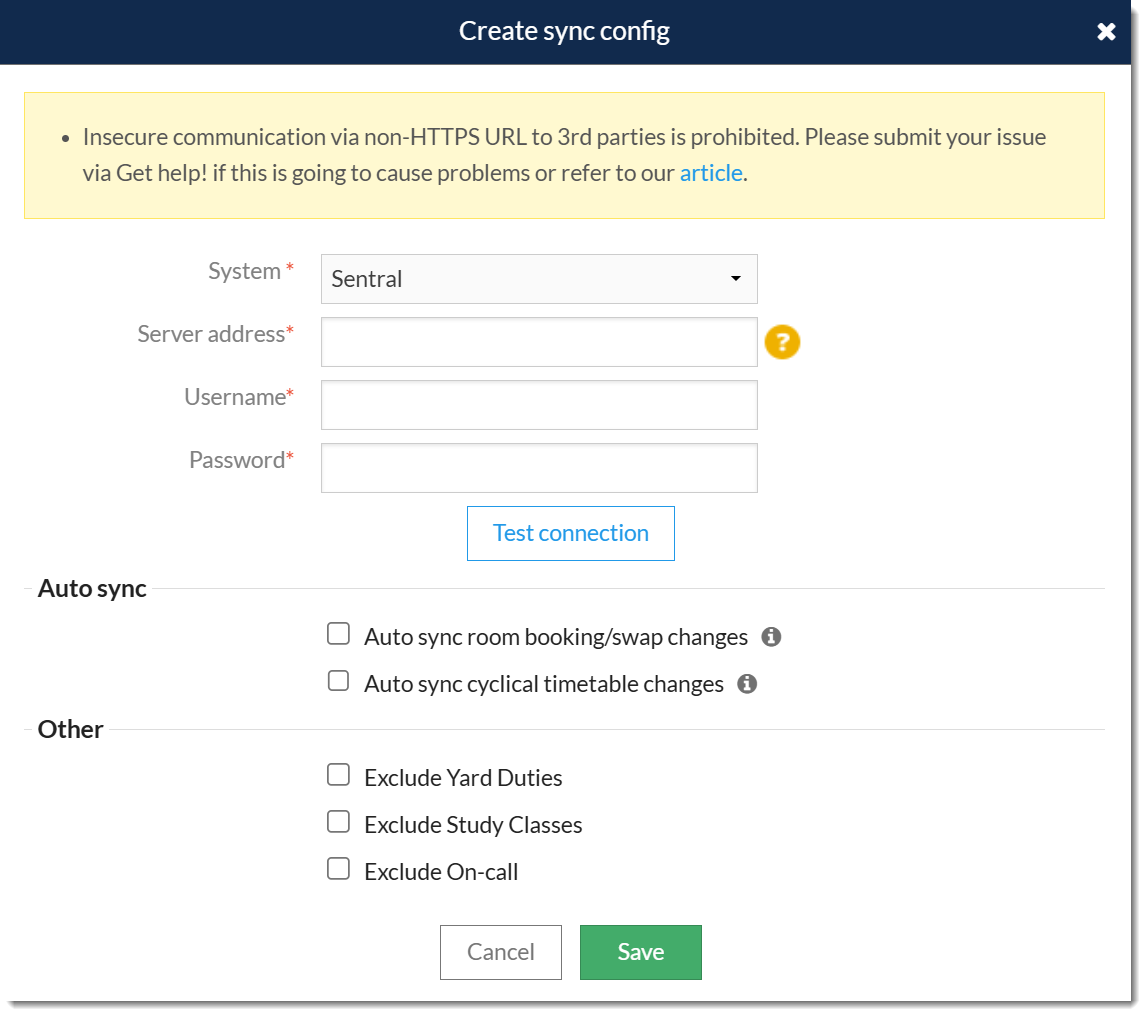
- The 'Auto Sync' section is deselected by default. If you wish Timetable Daily to sync room bookings and/or cyclical timetable changes from the timetable file automatically, then select one or both of these options. For more information on this feature please see the following document: Automated Instant Synchronisation.
- In the 'Other' section please select your preferences and then click Save.
Option Details Exclude Yard duties When ticked Yard duties will be ignored for syncing purposes Exclude Study classes When ticked Study classes will be ignored for syncing purposes Exclude On-calls When ticked On-calls will be ignored for syncing purposes Exclude teacher Admin IDs (not recommended)When ticked, teachers Admin IDs will be ignored for syncing purposes (In Admin>Users>Teacher Admin ID)
Step 3: Perform the sync
There are three methods of syncing to Sentral from Daily in order of convenience. The Advanced sync is important for troubleshooting and special cases so please familiarize yourself with it.
Sentral does not allow the syncing of daily variations for date ranges exceeding 30 days.
Publish & Sync
To publish and sync:
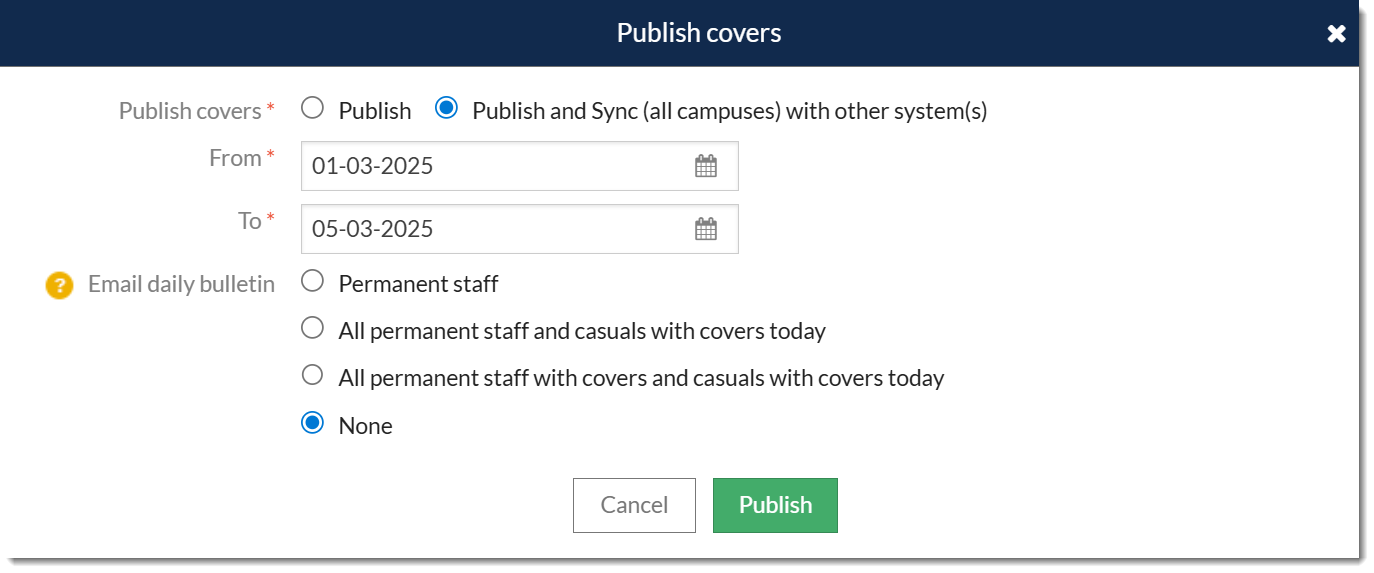
- Go to the Covers tab on the Daily home page and select Publish covers.
- Select Publish and Sync with other systems.
- Enter the dates required.
- Select Sync to complete the process.
Basic Sync
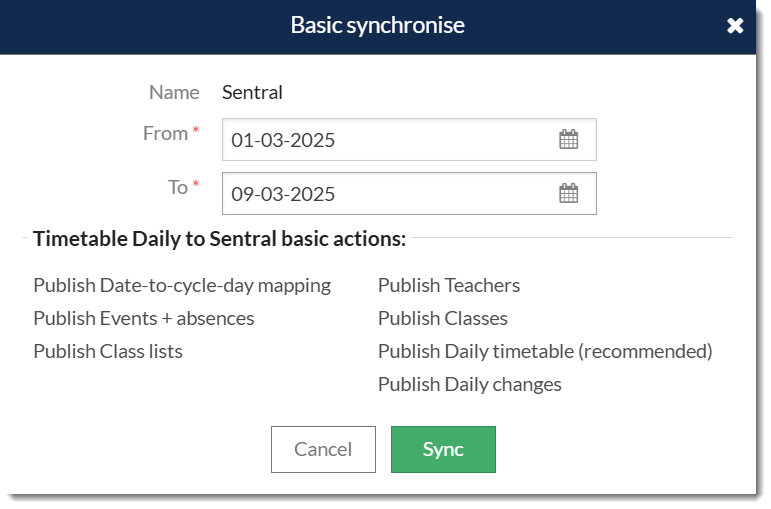
- Go to Daily > Synchronise and select the Sentral sync configuration.
- Select Basic sync from the actions panel.
- Enter the dates required.
- Select Sync to complete the process.
Advanced Sync
- Go to Daily > Synchronise and select the Sentral sync configuration.
- Select 'Advanced sync' from the actions panel.
- Select the data you.
- Select 'Sync' to complete the process.
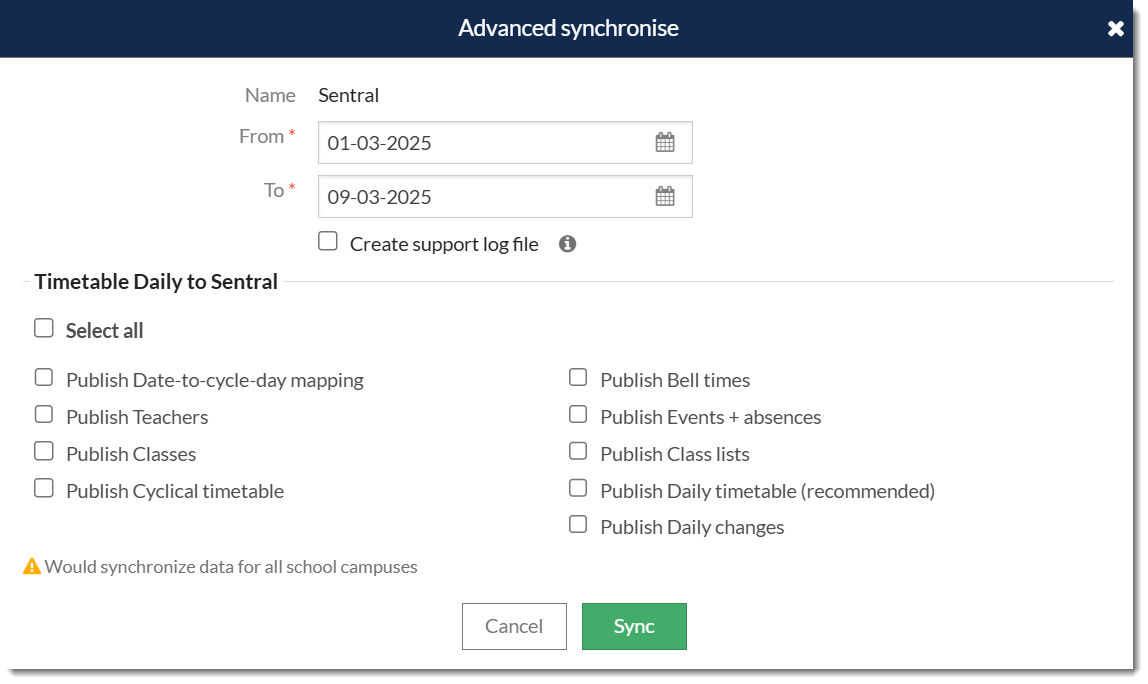
Create support log file: The support team may ask you to provide a log file by ticking this box and performing a sync. It will allow you to download a text log of the sync through your browser. Please attach this file to your ticket to expedite the support process.
Frequently Asked Questions
Unable to locate tenant by code "..."
When syncing you may see the error message: 'Unable to locate tenant by code "...". Please ensure your LISS username is the Sentral school code for the school you are using.'
This means that your sync username and/or password are incorrect. Sentral has since moved away from using user accounts and instead requires 'service accounts' for syncing instead. For more information please contact Sentral support.
Was this article helpful?
That’s Great!
Thank you for your feedback
Sorry! We couldn't be helpful
Thank you for your feedback
Feedback sent
We appreciate your effort and will try to fix the article