Create a spreadsheet with 2 column headings 'CourseCode' and 'SubjectName' for and enter each sport activity on offer underneath. Save this file to import in later steps.

In the timetable etz., navigate to Setup > Year levels and create a new year level called 'SPT' or 'Sport'.
In Lines > Elective data (F10) follow the steps below to create a Sport dataset:
1. Create a new dataset and use a short code to be used, such as 'Sport_elecs'
2. Add a Form Name to be displayed on your Choice Form
3. Set the Type as 'Sport' in the dataset options tab.
4. Include all relevant student year levels and the new year level SPT.

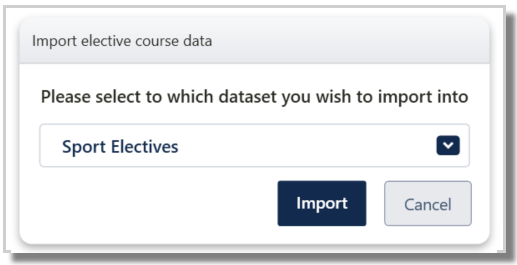
Select File > Import data > Elective course data and the correct dataset when prompted.
1. Select your saved spreadsheet file from earlier.
2. If the grey column headers were not automatically matched, drag the appropriate header from the left tab.
3. Press Go.
4. When prompted, choose:
Merge to avoid deleting existing data
or Clear & Overwrite to replace any existing data.
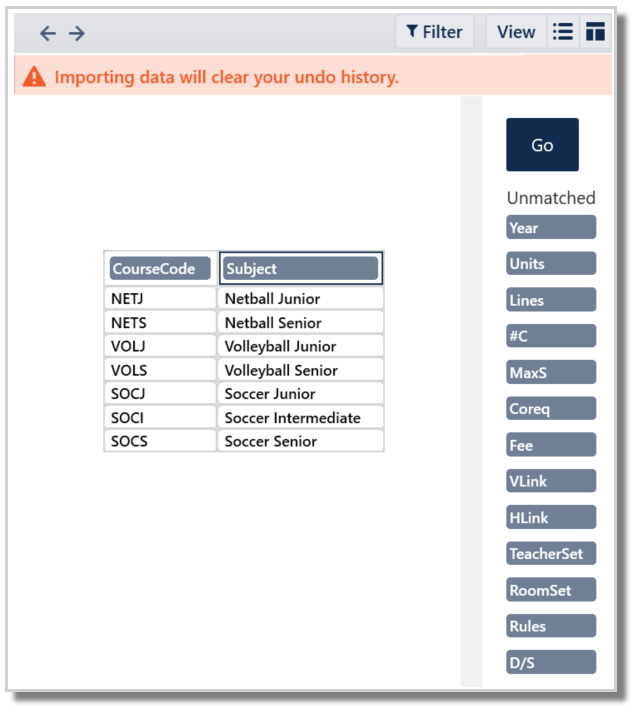
Edval will display the Lines > Elective data screen with imported sport courses.
Was this article helpful?
That’s Great!
Thank you for your feedback
Sorry! We couldn't be helpful
Thank you for your feedback
Feedback sent
We appreciate your effort and will try to fix the article