TABLE OF CONTENT
- Preamble
- Type of sync
- Steps to synchronise data
- iSAMS TXT file Breakdown and Guide
- Import/Upload the TXT file to iSAMS (KJ TXT)
Preamble
- new school file set up
- synchronisation processes
- synchronisation troubleshooting
The following information has been provided by the other system and was correct at the time of publication. Please check the other system's documentation for any changes to the process and contact them for any support required, as Tes specialists are not able to advise.
Type of sync
- TTEport.TXT
Which data is sent to the other system?
Note that Tes builds many excellent features to help users build high quality timetables, and while these features can be sent onto the other system through the synchronisation process, not all systems have built the capability on their end to receive/display these features.
| Tes Timetable feature | Notes on feature | Is this feature received by the other system? | Other Notes |
| Bell times | Yes | ||
| Classes | Classes as per Class data screens | Yes | |
Class list | Yes | ||
| Composite (linked) classes | One teacher teaching more than one class at the same time | Yes | |
| Duty roster | Yes | ||
| Faculty data | No | ||
Grid structure codes | Yes | ||
| Multi-file | Two or more timetable files | No | |
| Multi-grid | More than one bell times structures set up | No | |
| On-call roster | Yes | ||
| Priority classes | The chosen class on a student's timetable where they have class clashes. | No | |
| Room data | Room Code | Yes | |
| Rotation classes | Classes from particular rotations | Yes | Timetable file exports rotation based on current rotation in the settings->file->current rotations. Unsure if iSAMS support current rotations. |
| RTO roster | Yes | ||
| Student data | No | ||
| Study roster | Study classes, staffing and rooming roster | Yes | |
| Sub-classes | No | ||
| Teacher data | Teacher Code, Name, Faculty | Yes | |
| Teacher days off (Unavailables) | No | ||
| Timetable data | Yes | ||
| Two (or more) rooms at once | No | ||
| Two (or more) teachers at once | A class with two or more teachers at the same time | No | |
| Year levels | Year levels such as SPT, LSUP, ROLL etc | Yes | . |
Steps to synchronise data
Step 1: Check if any iSAMS (KJ TXT) set up is required
Step 2: Configure the Timetable file
- Open the relevant Timetable file, and go to File > Synchronise > Configure > Sync tab
- Select the + button and choose 'iSAMS (KJ TXT)' from the drop down menu.
Multiple systems can be set up to sync. It is common to have both the Edval webserver, the schools learning management system configured, along with any other systems the school wishes to regularly sync to.
- Select the Configure button, which will move you to the Connection tab. A destination folder must be selected to direct where the .csv file will be saved. Select Browse and locate or create the desired location.
- Enter the name of the folder where the export csv is to be stored.
- Choose the ‘Edit period mappings’.
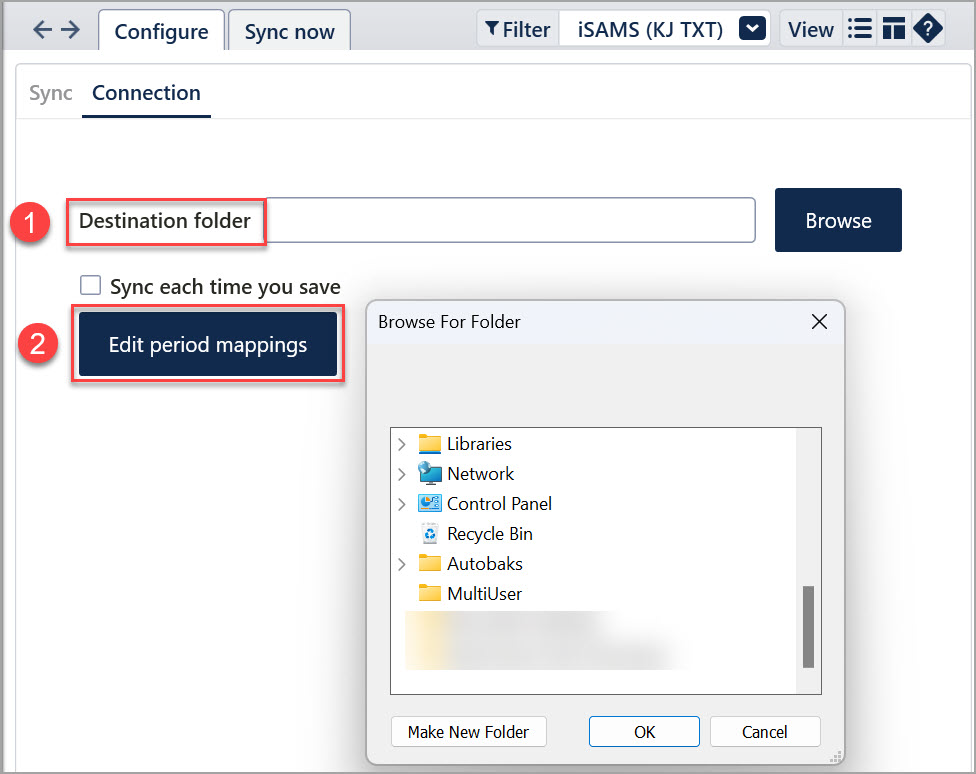
'Sync each time you save' - This means the sync will occur automatically on a ctrl-S save. In this case, data is first saved locally to disk, and then an attempt is made to sync with all external systems. This is simple, but you may want to disable this if the external systems or your network is slow to sync, or you want more control about 'when' you publish data through to other systems. No message is shown on a sync-on-save, as it is done quietly. Only active sync via menu/ctrl-K will show a completion message.
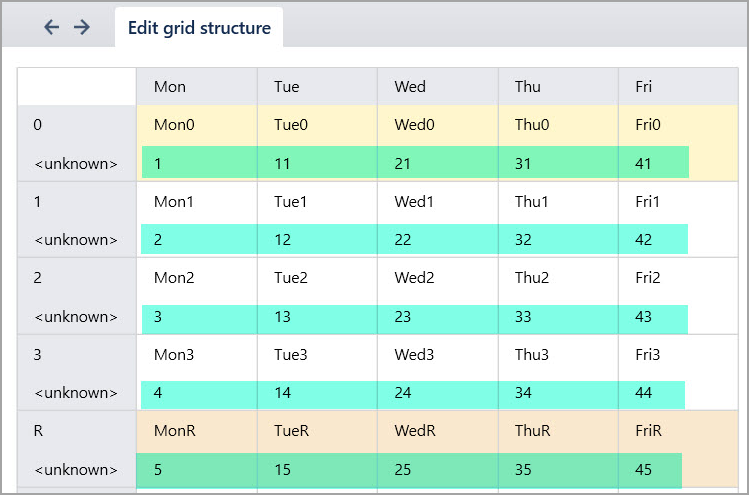
Edit period mapping: When you click on Edit period mapping a grid structure view will be displayed as shown below. In this screen you set up a mapping from Timetable file periods to iSAMS (KJ TXT) “period numbers”.
Step 3: Perform the sync export
- Go to File > Synchronisation > Sync now.
- Ensure ‘iSAMS (KJ TXT)’ is selected from the dropdown in the top-right corner.
- Select Create TT publish file

- Select OK

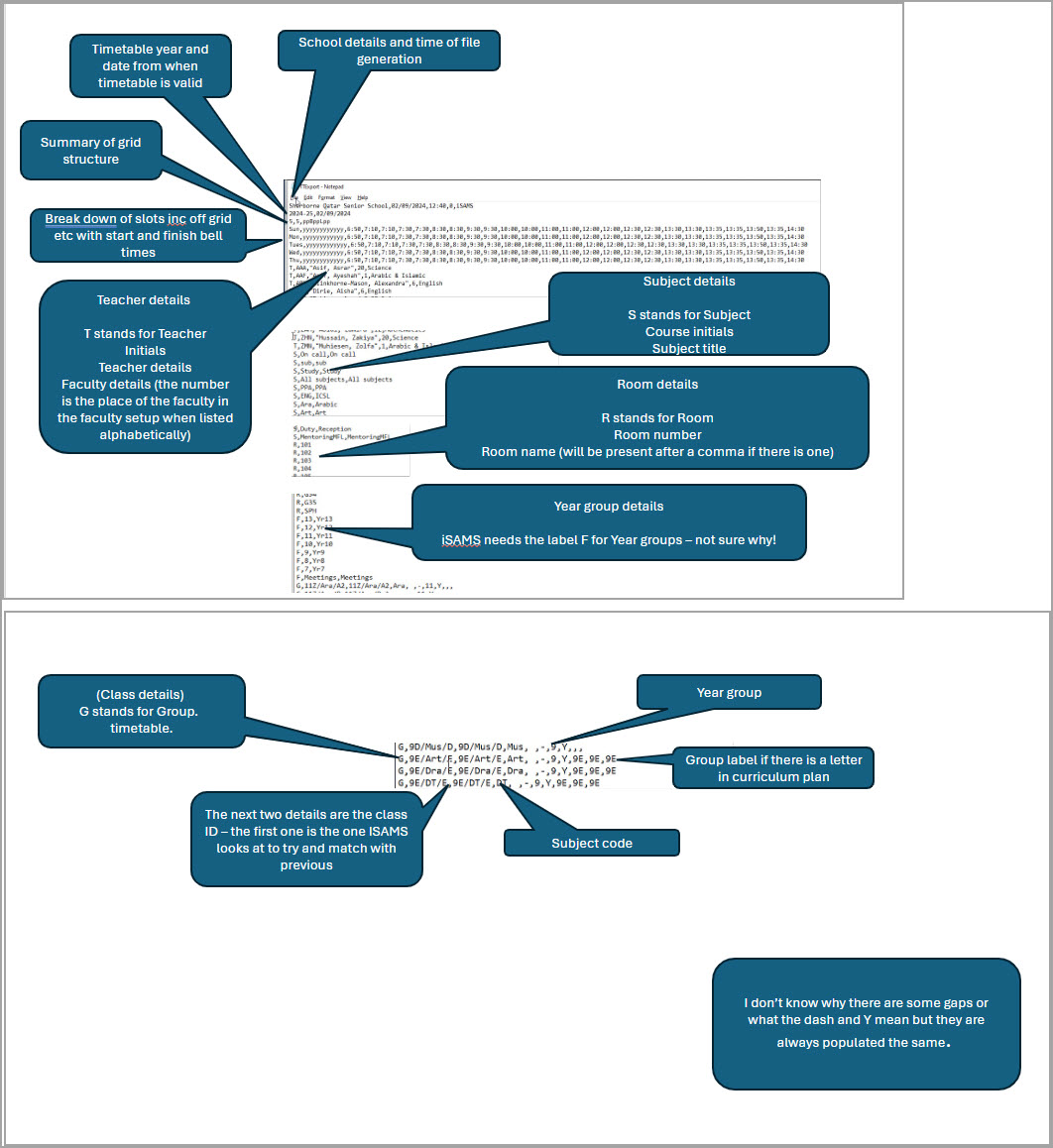
| Sections in the File | Data Type | Example |
| Grid Structure | Day, Number of Periods(y), Time | MonA,yyyyyy,8:30 |
| Teachers | Teacher Code, Name, Faculty Number, Faculty | T,ABCD, "Teacher Name" , 5, Maths |
| Subject | Subject Code, Subject Name | S,DRA,Drama |
| Room | Room Code | R,A1 |
| Year | Year Level (#), Year Level (Yr#), Year Groups | F,11,Yr11,11D |
| Class Data | Class Code, Class Code, Subject Code, Year Level, Year Group | G,7CSTA,7CSTA,CST, ,-,7,Y,7A,7A,7A |
Most of the sections has a letter that it starts with. T = Teachers, S = Subject, R = Room, F = Year, G = Class Data
iSAMS TXT file Breakdown and Guide
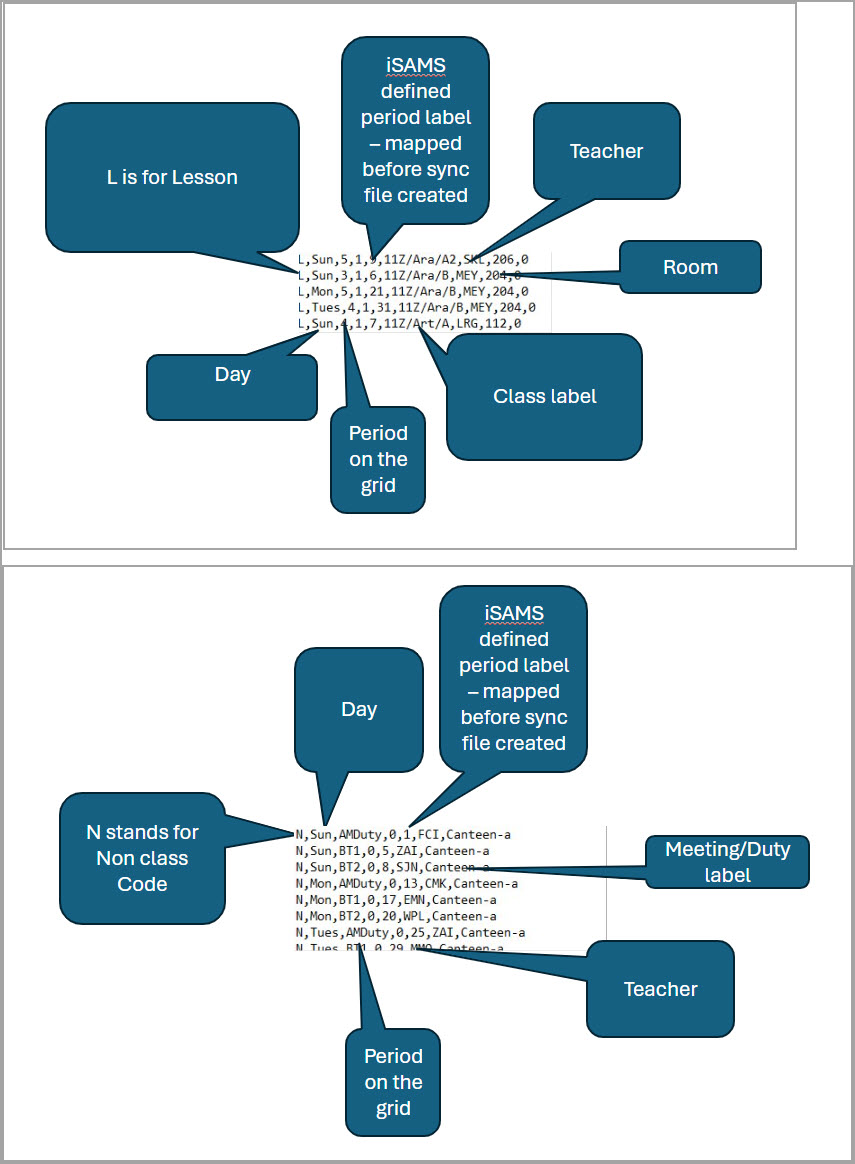
Other important information
- Your Timetable file teacher codes must match your iSAMS (KJ TXT) teacher codes. Otherwise those lessons won’t be published. Change them in either your Timetable file and/or iSAMS (KJ TXT) until they’re all matching.
- Similarly, you need to ensure that your Timetable file room codes match your iSAMS room codes.
Import/Upload the TXT file to iSAMS (KJ TXT)
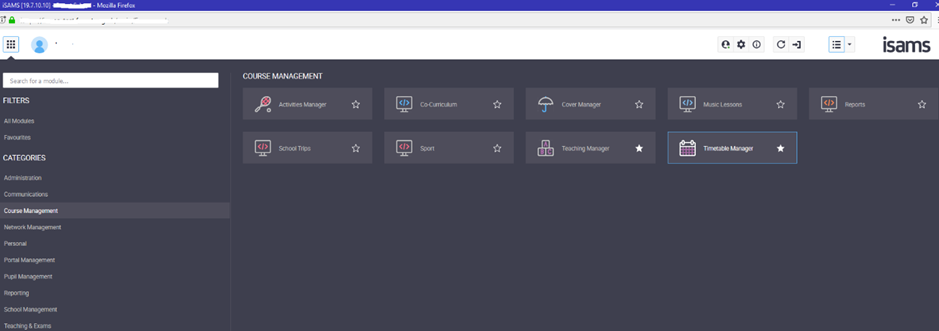
Go to iSAMS (KJ TXT). Navigate to Timetable Manager (Course Management > Timetable Manager) > Import
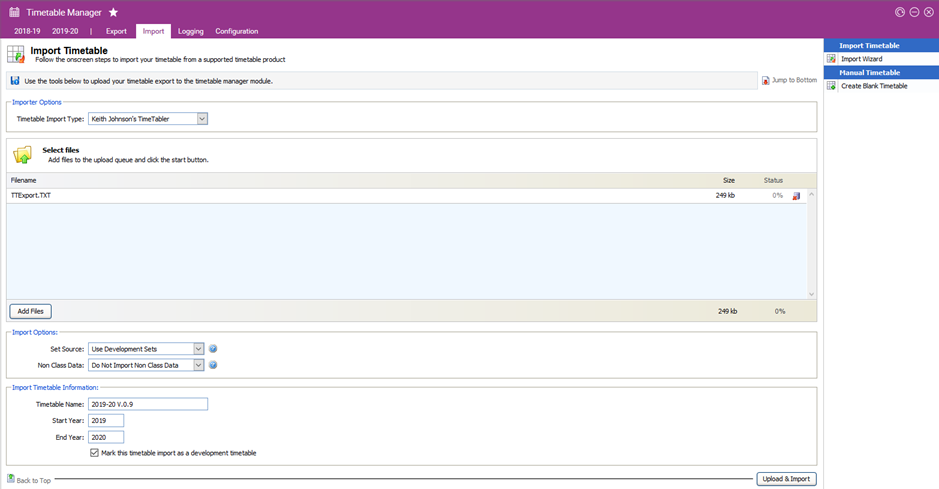
Timetable Import Type: SchoolTimetable
Click Add Files and browse to the location for where you have saved your export files.
Set Source: Use Development Sets (this can be rolled-over to current academic sets at a later date
Non Class Data: Select the appropriate option for importing non class data
Timetable Name: Provide an appropriate name
Start Year: forthcoming academic year start (4 digits)
End Year: forthcoming academic year end (4 digits)
Ensure the Mark this timetable import as a development timetable is ticked
Click Upload & Import
The system will begin to validate the structure, sets, staff members and rooms within iSAMS. If any one doesn’t validate click on the respective option to resolve the errors:
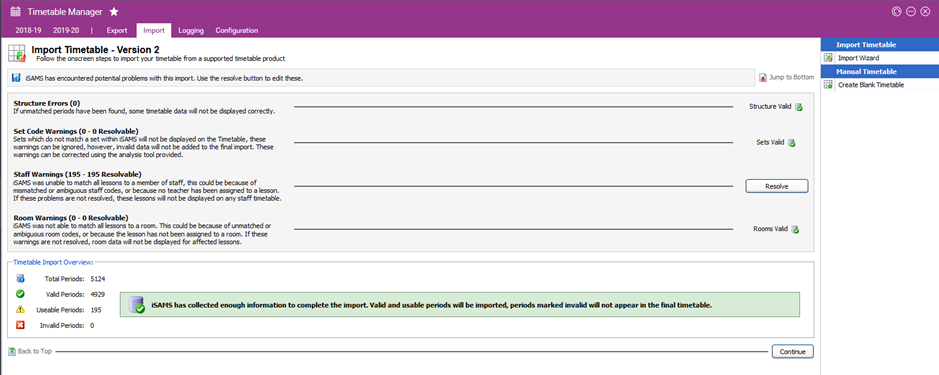
Note: Ensure the periods in step 3 have been correctly mapped by cross referencing a previous timetable:
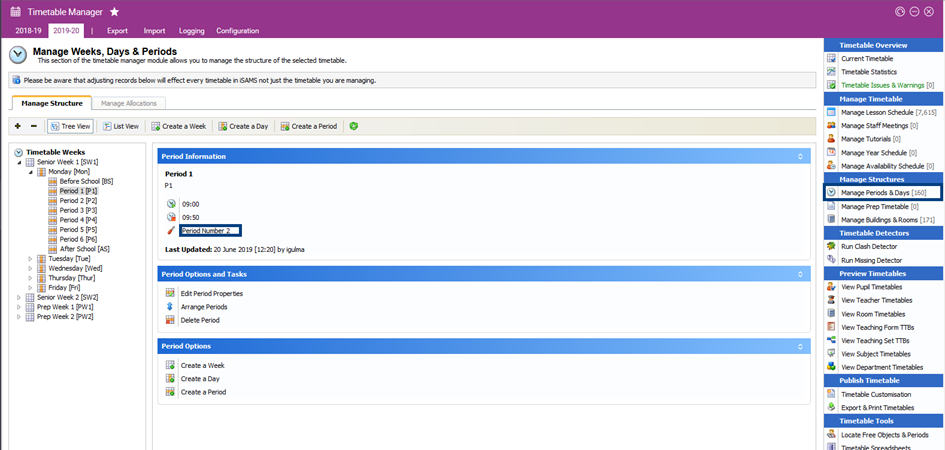
Select Manage Periods & Days (as highlighted) and navigate to the period name for which the number you’d like to cross-check. The number highlighted is what you will need to ensure is correct in the Timetable file.
so that the periods match correctly.
Once all the checks have been completed, click Continue to import the timetable.
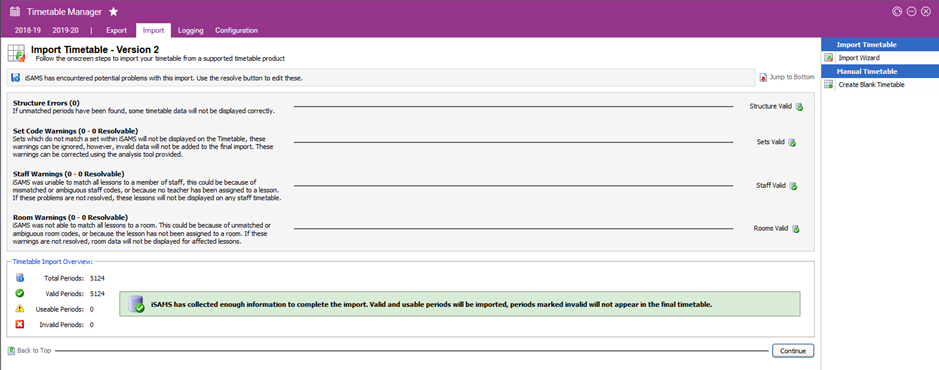
Finally click Finish to confirm the action

The imported timetable will now appear within Timetable Manager as an additional tab:
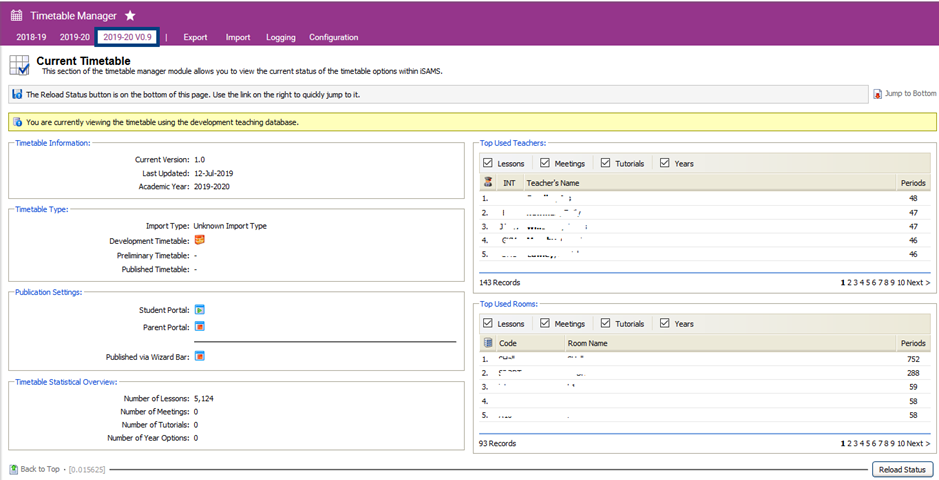
Was this article helpful?
That’s Great!
Thank you for your feedback
Sorry! We couldn't be helpful
Thank you for your feedback
Feedback sent
We appreciate your effort and will try to fix the article