TABLE OF CONTENTS
This document will assist you on what information to provide to Tes in order to assist you with syncing related issues.
This is very important that Tes receives all the necessary information in order to investigate the issue.Tes Desktop Products
We would need the following details in order to troubleshoot the issue.
Copy of your latest timetable file where the sync issue is happening
The name of the system you are syncing to
Copy of error screenshot if you are getting an error in Tes while syncing
Steps to replicate the issue such as:
What sync did you do manual/Advanced or auto/Basic? The options will be available based on what
system you are using.What options where ticked when doing manual/Advanced syncing
An example of the issue where the data is not appearing correctly in your 3rd party System
Copy of the log file within Tes while syncing. Most of the systems in Tes will have the “create support log
file” option while syncing. The option needs to be ticked while syncing which will generate a log file once
sync is complete.
An example of how the log option would look In Tes E10 Timetable under Advanced or Basic sync.
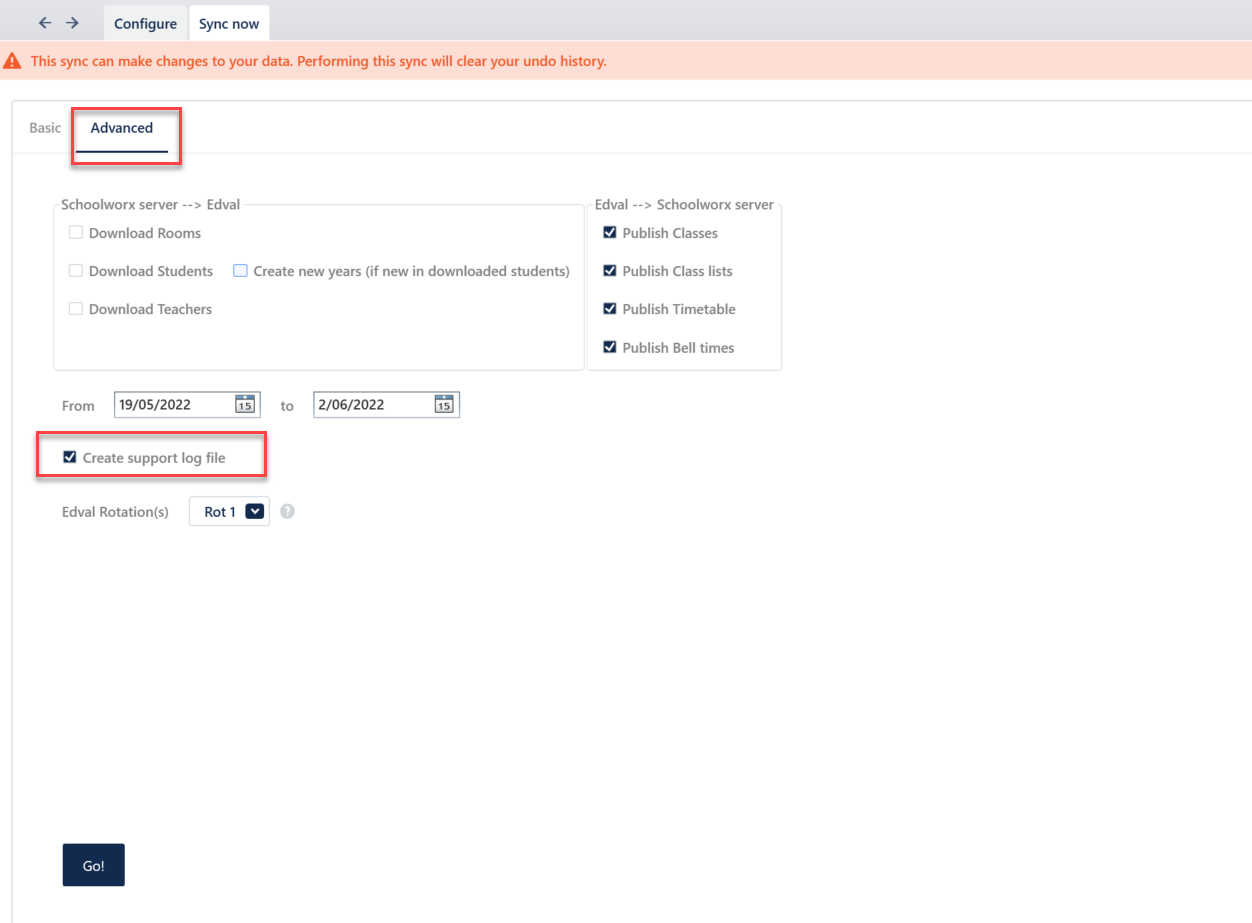
The Support log file will be saved in the same location as the ETZ file, The file would also open automatically once the sync is complete.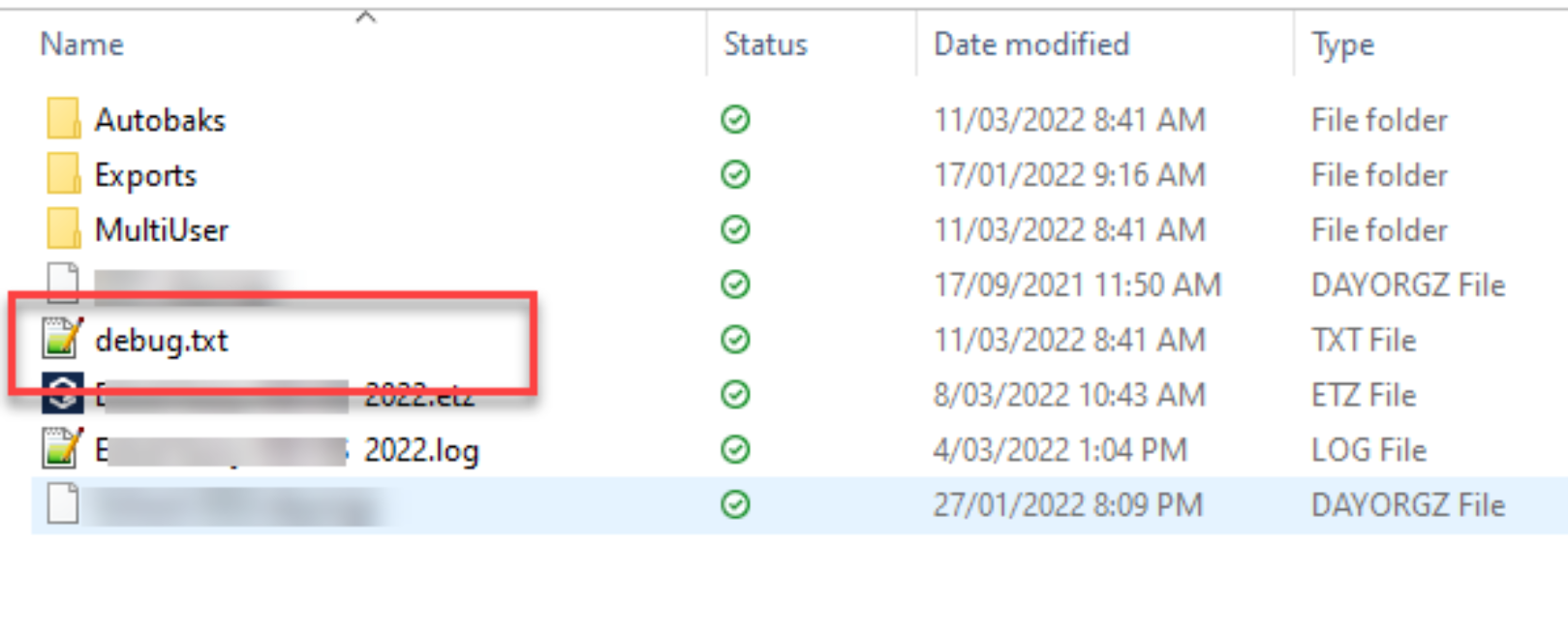
'Tes E10 Timetable file (ETZ) to Edval Web Server sync' support log file is usually not asked of the school as Tes's support team is able to generate this on their own once they have the school's ETZ file
Copy of your timetable file if the issue is between Tes timetable and Tes Cloud modules “Timetable Daily,
Timetable Interviews, Timetable Choice”The name of the system you are syncing to
Copy of error screenshot if you are getting an error in Tes while syncing
Steps to replicate the issue such as:
What sync did you do Advanced or Basic? The options will be available based on what system you
are using.What options where ticked when doing Advanced syncing
An example of the issue where the data is not appearing correctly in your 3rd party System
Copy of the log file within Tes timetable while syncing. Most of the systems in Tes timetable will have
the “create support log file” option while syncing. The option needs to be ticked while syncing which will
generate a log file once sync is complete.
An example of how the log option would look In Tes Timetable Daily under Advanced or Basic sync.
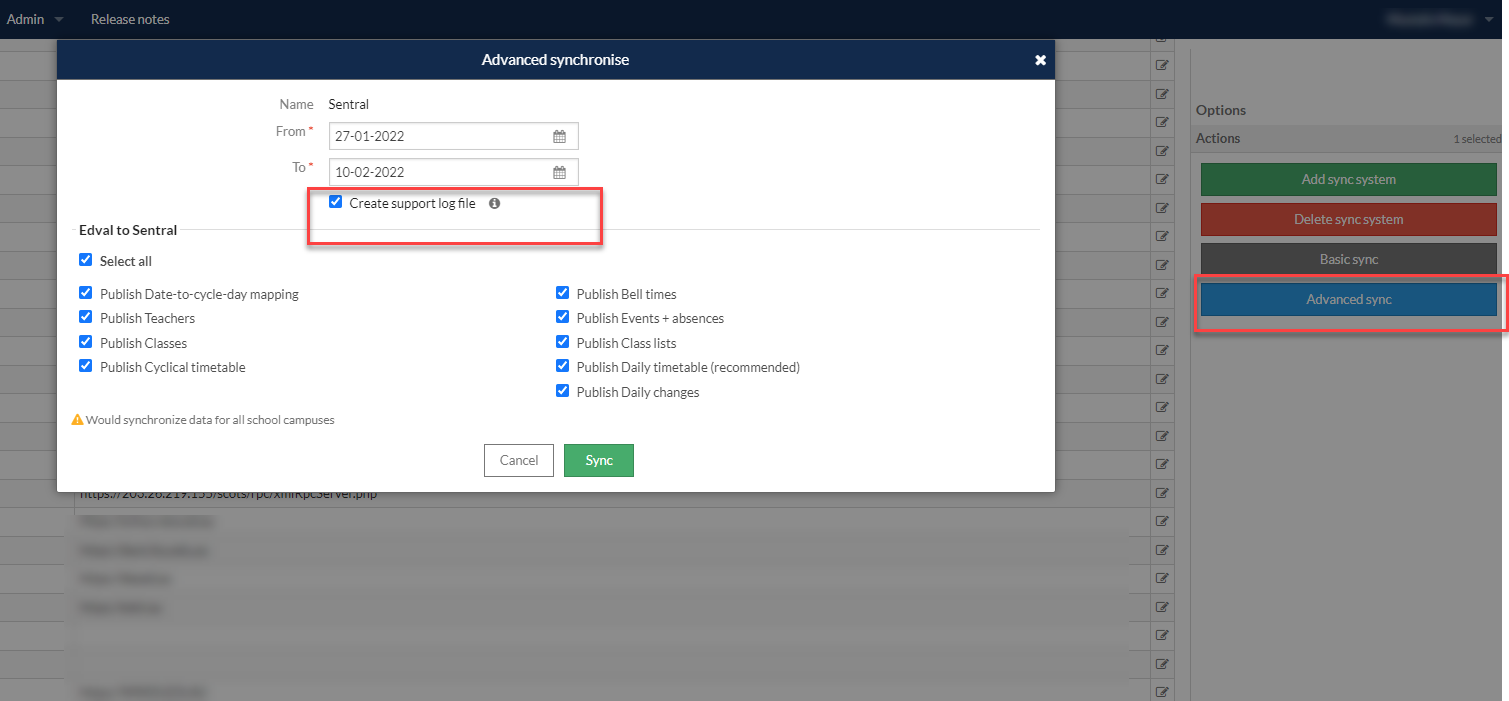
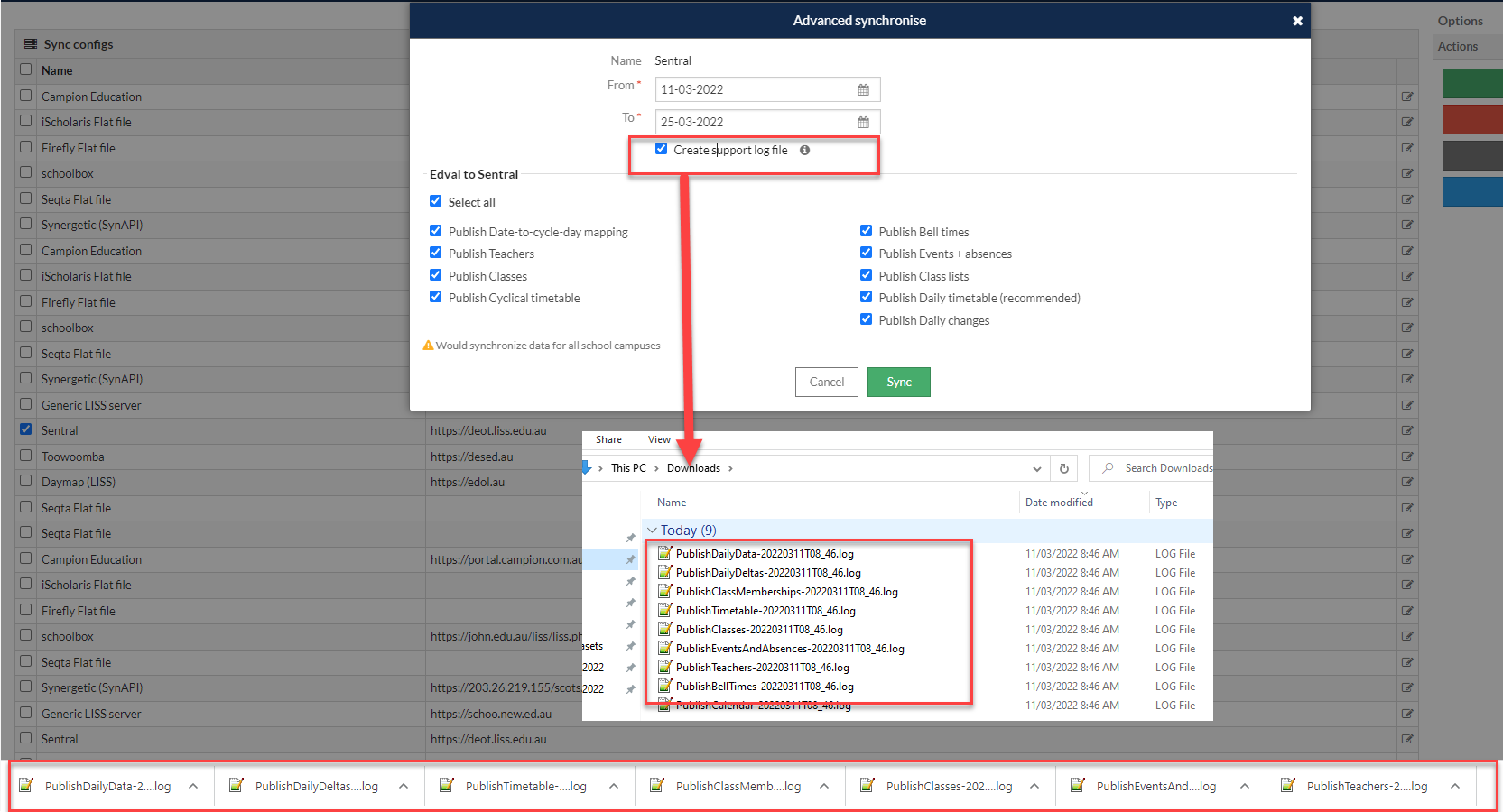
The Support log file(s) will be downloaded in the 'Downloads' folder or wherever the default download location has been set for the browser. Timetable Daily creates individual log file(s) for each box ticked in the 'Advanced sync' screen. Please make sure to attach all the logs file(s) when submitting your query to Tes Integration Team.
Was this article helpful?
That’s Great!
Thank you for your feedback
Sorry! We couldn't be helpful
Thank you for your feedback
Feedback sent
We appreciate your effort and will try to fix the article