Create classes
Steps
- Navigate to Lines > Line results > View lines > Action: Create classes.
- Select the preferred course code format.
- Tick 'Prefix class codes with year level' option if needed.
- Click Create.
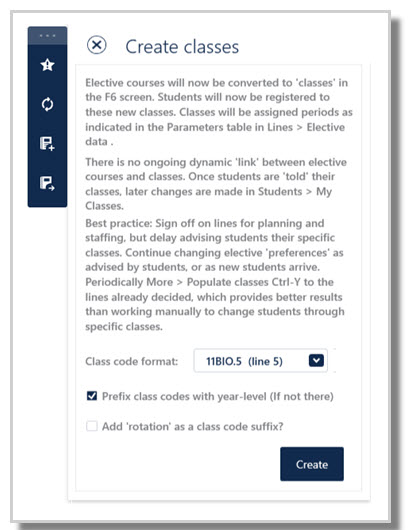
Course code format
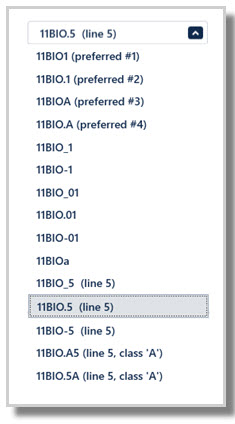
- Click the dropdown to view a range of class code format options.
- If the school prefers a different coding format, the user can select the closest format and then manually adjust each code in Classes > Class data.
Prefix class codes with year level (if not there)
- Tick this option to include the year level as a prefix for class codes in Class data.
- Most schools already use the year level prefix in Elective data > Courses and therefore leave this unticked.
What happens
The user will be taken to the Class data screen.
- Code: Class code, as per the selected format
- Subject: Subject name
- Line: line numbers as per View lines
- #Per: number of periods as per line parameters (edit if needed)
- #Stu: number of students enrolled in the class
- Periods: hardcoded periods the class must occur (if Lines to periods is used)
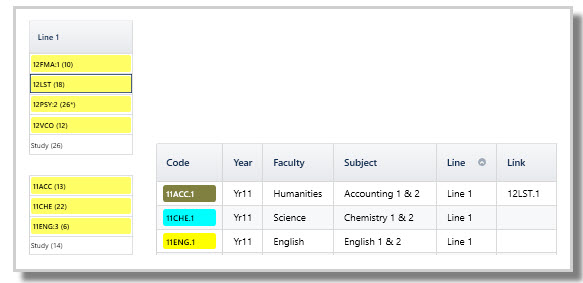
- Link: as per Courses > Vlink column. For multi-year datasets or those using the 'timetable around' function, the system adds a link entry in Class data to ensure cohesive lines across year levels.
- Rot: which rotation the class is in (if rotated lines)
- TeacherPref: as per entries in Courses > Teacher column
- RoomPref: as per entries in Courses > Room column
NOTE
If a single teacher or room is entered in Elective data > Courses, the staff or room will be assigned to the class. This can be manually changed if needed.
Ensure the 'View' menu has the following ticked: Teacher prefs, Assigned teacher, Room prefs and Assigned room.
Student allocations in Line results > Student results are converted to class enrolments and reflected in:
- Students > Student data > Class fields
- All class list management screens, e.g. Students > My classes, Students > Classlists
- Classes > Class data > #Stu
Example
Year 11 Class data shows 11ART.4 in Line 4 has four students. It is hardcoded to Periods Tue3, Thu4. It is linked to 12ART.4 and has None on Teacher Pref and Room Pref fields which implies 11ART and 12ART are combined taught by the same teacher EBRA in room 16. All these information were transferred from the Elective screen.
NOTE For multi-year datasets:When classes are created, a Link entry for each line is autopopulated. Do not delete these link entries if you wish to preserve the cohesive line structure across year levels in the dataset during timetable construction.
For example, Year 11 and 12 lines were generated together. When classes were created, an entry was added into the Line 1 11ACC.1 class to link it to the Line 1 12LST.1 class. When Line 1 is placed on the grid, all Year 12 and Year 11 Line 1 classes will be timetabled in the same period.
ALERT
Changes made in the line solution after class creation do not update Class data unless ‘Create classes’ is done again.
Changes made in Class data or any standard class list management screens do not flow back to Elective data.
Check Class data
- Classes no longer needed should be manually deleted.
- Incorrect data must be updated, e.g. #Per, Faculty, spreads, etc.
TIP
Extra classes will have no students (#Stu is blank), making them easy to identify and delete.
IMPORTANT
All Class data screens must be checked and edited before timetable construction in the Master Grid can begin.
Refer to: E10 - Class data
Was this article helpful?
That’s Great!
Thank you for your feedback
Sorry! We couldn't be helpful
Thank you for your feedback
Feedback sent
We appreciate your effort and will try to fix the article