TABLE OF CONTENTS
Preamble
Student allocations
How to access
- Navigate to Lines > Line results > Student allocations, select the student from the drop down at the top right; or
- Navigate to Lines > Line results > Student results, double click on any student.
What you will see
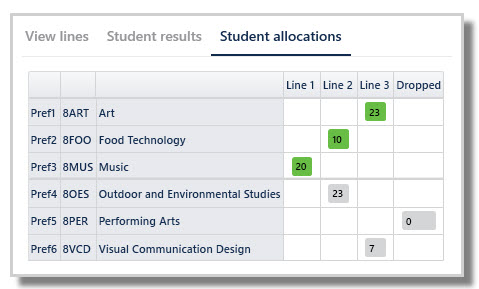
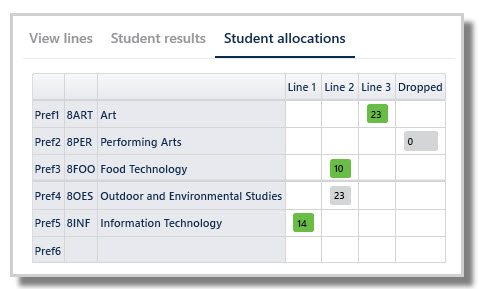
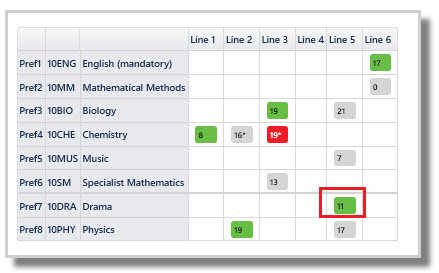
- Student's preferences on the left, Main and Reserves separated by a thick line
- Line numbers across the top, including a column for any dropped classes
- Green = allocated classes
- Grey = missed preference/ not allocated
- Peach = same as grey cells, except the course belongs to a different year level (multi year dataset only)
- Class sizes, an * indicates class is at capacity
NOTE
Any courses the student has not selected as preferences will not be displayed on this screen.
Interpreting Student Allocations
- Three 10CHE classes run, one each in Lines 1, 2 and 3. This student has been placed into Line 1.
- Line 2 10CHE class is at capacity, indicated by an asterisk.
- Line 3 10CHE class is over capacity, indicated by the red highlight.
ALERT
Over capacity can only occur when the user manually allocate students into the class after the lines were generated. See the Manual Changes section below.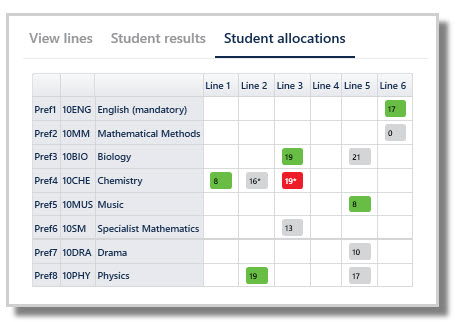
Manual Changes
- Student wants to be placed into a class that was originally at a lower preference.
- A new student has been added after line generation and must be manually placed to avoid disrupting existing student allocations.
TIP
Manual changes can also be used to test alternative outcomes for certain students while iterating through the line generation process.
IMPORTANT
Manual changes should only occur after forms are closed, after lines are generated and before classes are created.
Manual changes after class creation will not be translated across to classes unless Create classes is rerun.
Once classes are created, changes must be done via standard classlist management screens (Students > My Classes or Class List Manager).
How to make manual changes
- In Student allocations screen, find the class on the appropriate line.
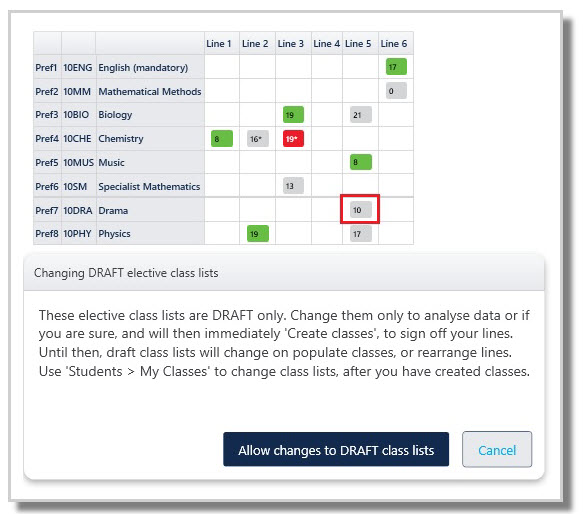
- Double click on the preferred grey class. A warning will appear in the first instance of any session.
- Click "Allow changes to DRAFT class lists".
Example
The student was granted Pref5 (10MUS) in Line 5 but must be moved to Pref 7 (10DRA). As classes are not yet created, this change can be done in Student allocations screen by double clicking 10DRA and selecting 'Allow changes to DRAFT class lists'.
WARNING
All manual changes will be lost if you run Generate lines, Optimise or Populate classes again.
Was this article helpful?
That’s Great!
Thank you for your feedback
Sorry! We couldn't be helpful
Thank you for your feedback
Feedback sent
We appreciate your effort and will try to fix the article