TABLE OF CONTENTS
Preamble
Optimise an existing lines solution for overall improvements by shuffling classes across lines.
When to optimise
- Optimise after generating a solution, i.e. after clicking Generate lines and a solution is displayed.
- Optimise after any data change that could affect the solution, allowing the algorithm to rearrange the classes based on the new information. Some common examples:
- After manually moving classes in View lines.
- When new teacher or room options are added to a class.
- Part-timers' day off are updated.
- When class numbers in #C are changed.
- When MaxS values are changed.
NOTE
It is common to run many versions of Line generation. The first few times the lines are generated and the View Lines screen accessed can be of a checking nature; to pick up problems with rules and constraint entries (or lack of constraint entries), not enough classes running, staffing and rooming option limitations, and other elective data entry issues. As these start to be addressed, the Lines results will better reflect the solution your school will accept.
Steps
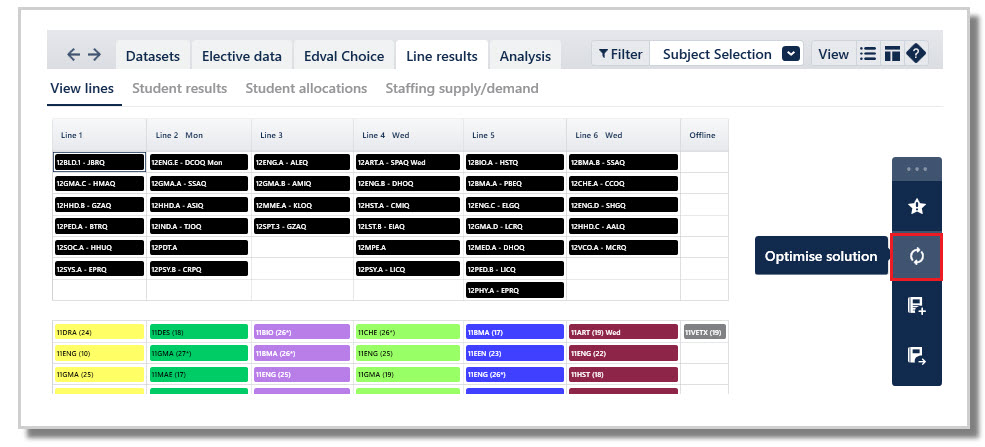
1. Navigate to Lines > Lines results > View lines > Action bar: Optimise solution.
2. Set the Optimise parameters. These are the same as the Generate lines > Construction parameters. The default parameters are the suggested settings.
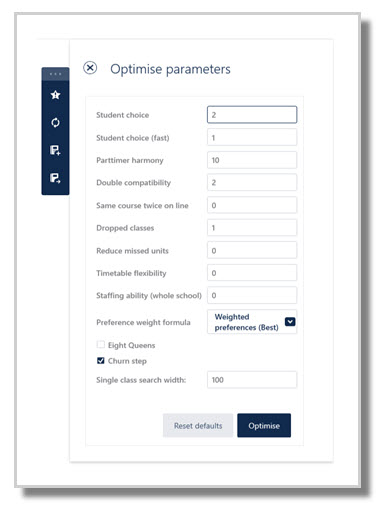
3. Click Reset to defaults if needed.
4. Click the Optimise button.
5. Analyse the results. Refer to: E10 - View lines: Results of line generation
6. Adjust data or parameters as needed.
7. Re-optimise or generate again.
Was this article helpful?
That’s Great!
Thank you for your feedback
Sorry! We couldn't be helpful
Thank you for your feedback
Feedback sent
We appreciate your effort and will try to fix the article