TABLE OF CONTENTS
- Preamble
- Entering teacher allowances
- Tips
- Importing Allowances
- View/print staff loads/allowances on timetables
Preamble
Some schools calculate teachers' maximum available teaching loads in a spreadsheet, and then manually transfer these figures into the Teachers > Teacher data (F2) screen. However, most schools prefer to use E10 to manage teacher loads and allowances, as it provides a more streamlined and accurate process.
The Teachers > Allowances screen records the loads of non-teaching activities for which staff are allocated time into their cycle. While all full-time staff are generally employed for the same amount of time, many are given time allowances to compensate them for specific roles and responsibilities. While timetabling itself does not require knowledge of these load credits, it is strongly recommended to enter them into E10.
Advantages of entering staff allowances in E10:
- Centralised and accessible records. Allowances are stored in one place rather than being known only by certain individuals, reducing the risk of undocumented or inaccessible information.
- Detection of allowance inconsistencies. Recording allowances makes it easier to identify outdated or incorrect credits - for example, when a teacher is still receiving an allowance for a duty they no longer perform.
- Improved load management. Having accurate, up-to-date allowances supports better calculations and adjustments of teacher loads.
- Greater transparency. Clear documentation promotes fairness, consistency and better visibility across the staffing allocations.
 For users of Tes Timetable Daily, entering allowances in the .etz file will ensure that staff are assigned correct class covers / underloads / overloads.
 Entering teacher allowances
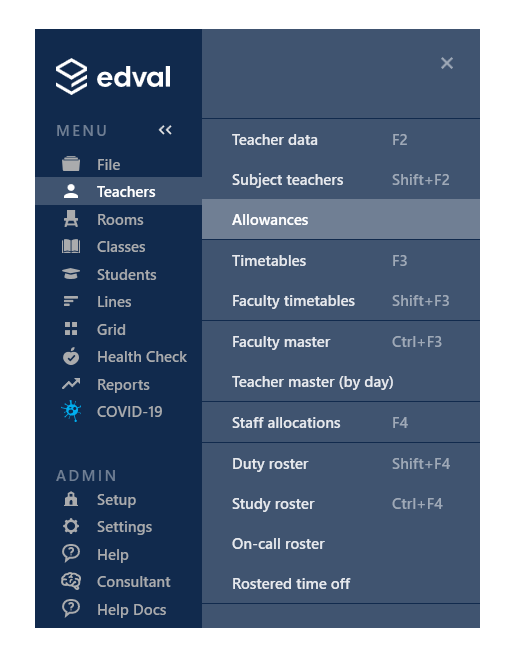
- Go to Teachers > Allowances.
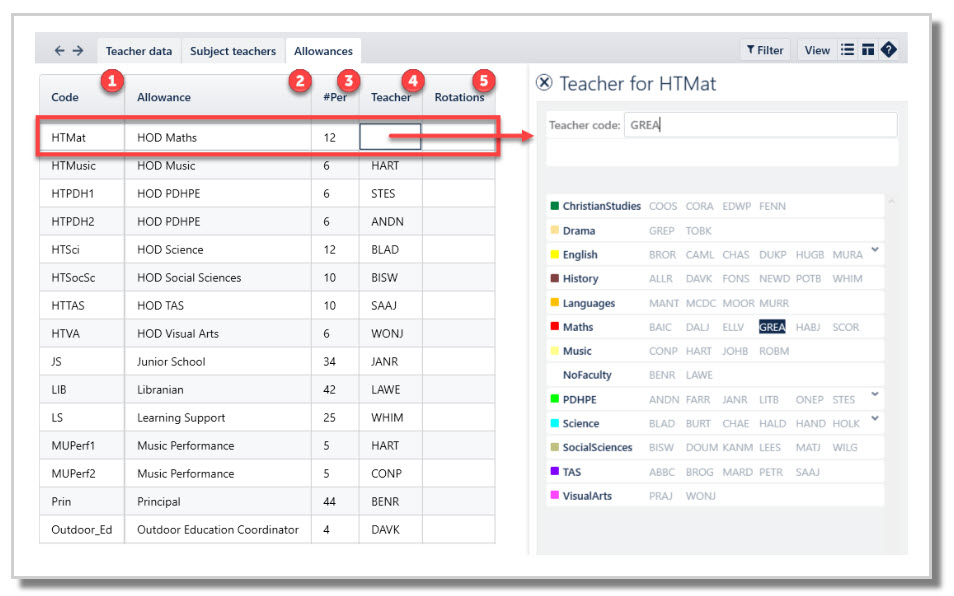
- Add allowances:
- Code: Type a unique code for the allowance (free format). Short and consistent.
- Allowance: Type the allowance name (free format).
- #Per: Enter the number of periods the allowance will account for in the teacher’s load, per cycle. You can manage allowances in minutes if preferred; select 'Loads in minutes' in the view menu. (format: minutes)
- Teacher: Enter the staff code who will be assigned the allowance.
- Rotations: Enter the rotation number/s if the allowance applies to only certain rotations and not the whole year. When left blank, E10 assumes all rotations. Useful for balancing rotational loads (e.g. Head of Production) and staff covers for users of Daily.
Example:
The teacher GREA gets an allowance of 12 periods for being the head of Mathematics. Create a new row to record this information (bottom row or press insert on the keyboard).
Tips
- For consistency, try to use similar codes for the same type of allowance, such as HTEng, HTMat, etc.
- A teacher may have more than one allowance, and these will be kept separate.
- Where two people share an allowance, eg Head of Department of English for 12 periods, create two codes, e.g. HODENG1 and HODENG2, each for 6 periods.
 Double-click any header to sort. Consistent codes and allowance name improve sorting accuracy.
 Importing Allowances
Allowances may be imported via an Excel or .csv.
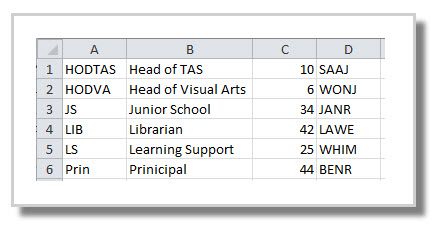
- Prepare the Excel or csv file with the unique *allowance code, allowance name, number of periods of each allowance, and staff code.
- File > Import data > Allowances
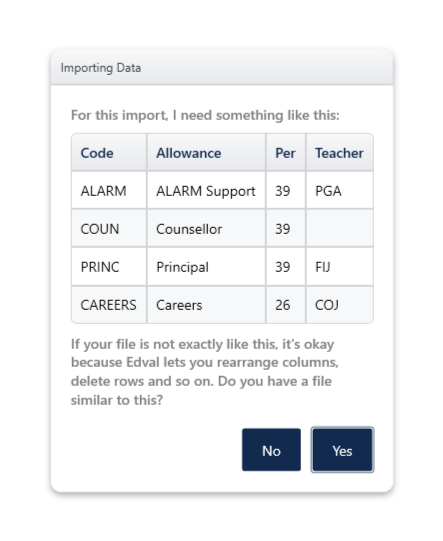
- Browse to locate the Excel or csv file.
- E10 will try to match the headings with the data, or simply drag and drop the heading and place it in the correct column.
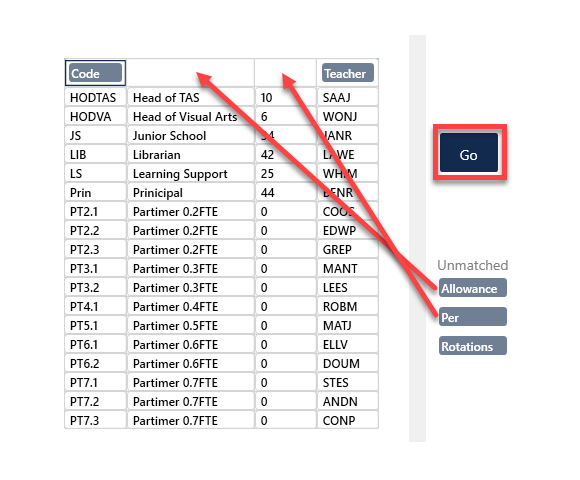
 E10 will show an unrecognised teacher code as a brown coloured cell warning in the Matched field pop-up screen. This will cause the allowance to be imported as listed in the spreadsheet, but the unrecognised teacher code will not be imported. Fix teacher data and add the correct teacher code in the blank field in Teachers > Allowances.
 - Select: Go.
- Select:
'Clear & Overwrite' to erase all previous allowance data in the file and import only the allowances included on the import document,
'Merge' if you wish to keep the current allowances in the file and just add/edit the allowances listed in the import document.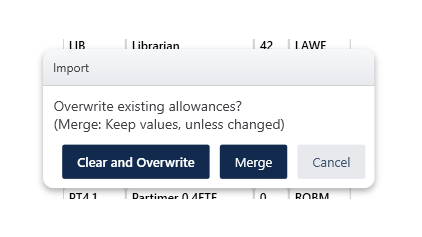
- Check the imported data:
Check Teachers > Allowances screen to make sure that it has imported as expected.
If it has not occurred as expected, or errors are discovered at this point, the file may be 'reverted to saved file', the spreadsheet fixed, and imported again.
View/print staff loads/allowances on timetables
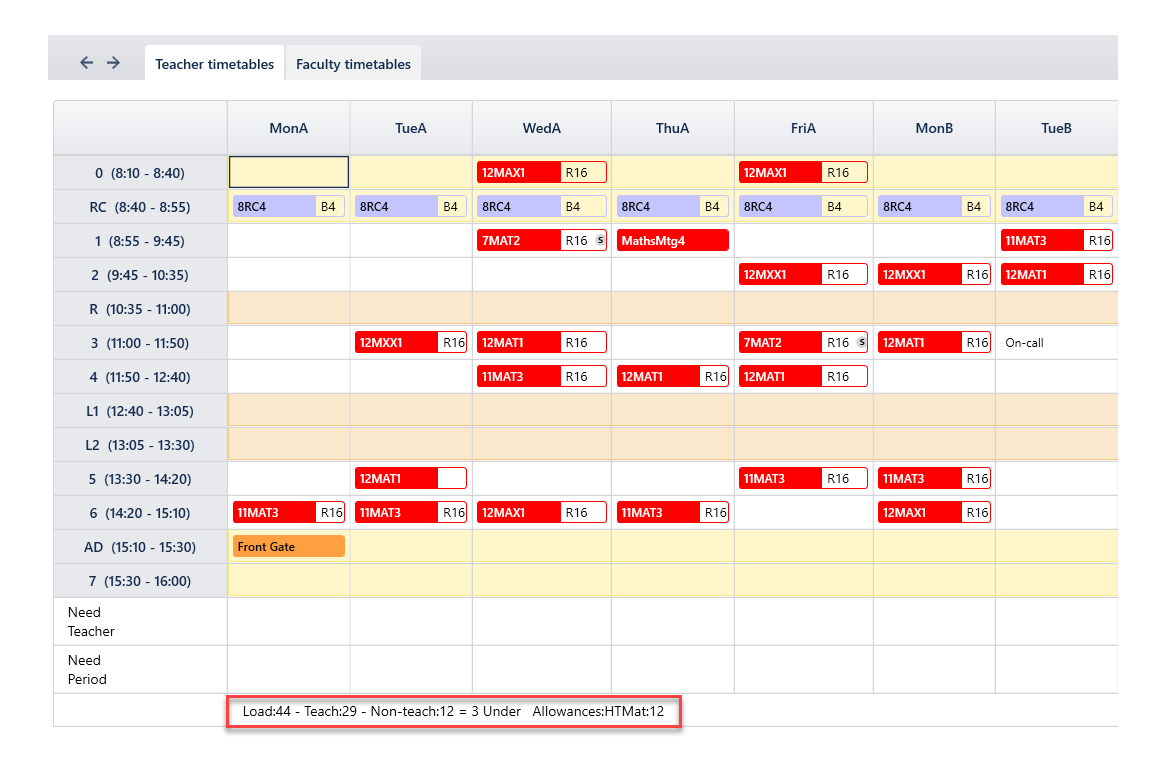
Teachers > Timetables (F3) have the option to display or print with allowances showing. Select View > Staff loads or select 'Staff Loads' from the print dialogue box in File > Bulk print > Teachers > Teacher timetables tab.
Was this article helpful?
That’s Great!
Thank you for your feedback
Sorry! We couldn't be helpful
Thank you for your feedback
Feedback sent
We appreciate your effort and will try to fix the article