TABLE OF CONTENTS
- Preamble
- Requirements before emailing subjects granted
- What students will see
- Steps
- Example of email received
- Email history
Preamble
Schools can communicate subjects granted to students in two ways:
- by email communication
- by displaying a screen to students when they log on to my.edval.education
This document explains the process using option 1: by email, and is intended for schools using Choice for subject selections.
NOTE
For option 2, refer to Choice: Display My Subjects to students
If your school did not use Choice for subject selections, please contact our Timetable Specialists for assistance with using this feature through 'Get Help!'.
Requirements before emailing subjects granted
- Student subject choices have been collected
- Lines have been generated
- Lines have been approved by school leadership
- Classes have been created
Only after these steps are complete can the school email students their subject allocations for the following year.
IMPORTANT
Email addresses must be included in the .etz file before students can be emailed their subjects granted.
If needed, refer to: Importing Student data from a spreadsheet.
TIP
Delay communication as much as possible. Ideally, after a draft timetable for the next academic year is prepared, as staffing or timetable construction issues may require returning to line generation which will change subject allocations.
What students will see
- Subject name and Course code only (no class identifiers)
- No teachers associated with the subjects
- Only subjects included in the sycned online Choice forms
- No subjects outside of the Choice form, e.g. core subjects that are not included in the subject selections
WARNING
Classes will not appear in the Subjects Granted email if:
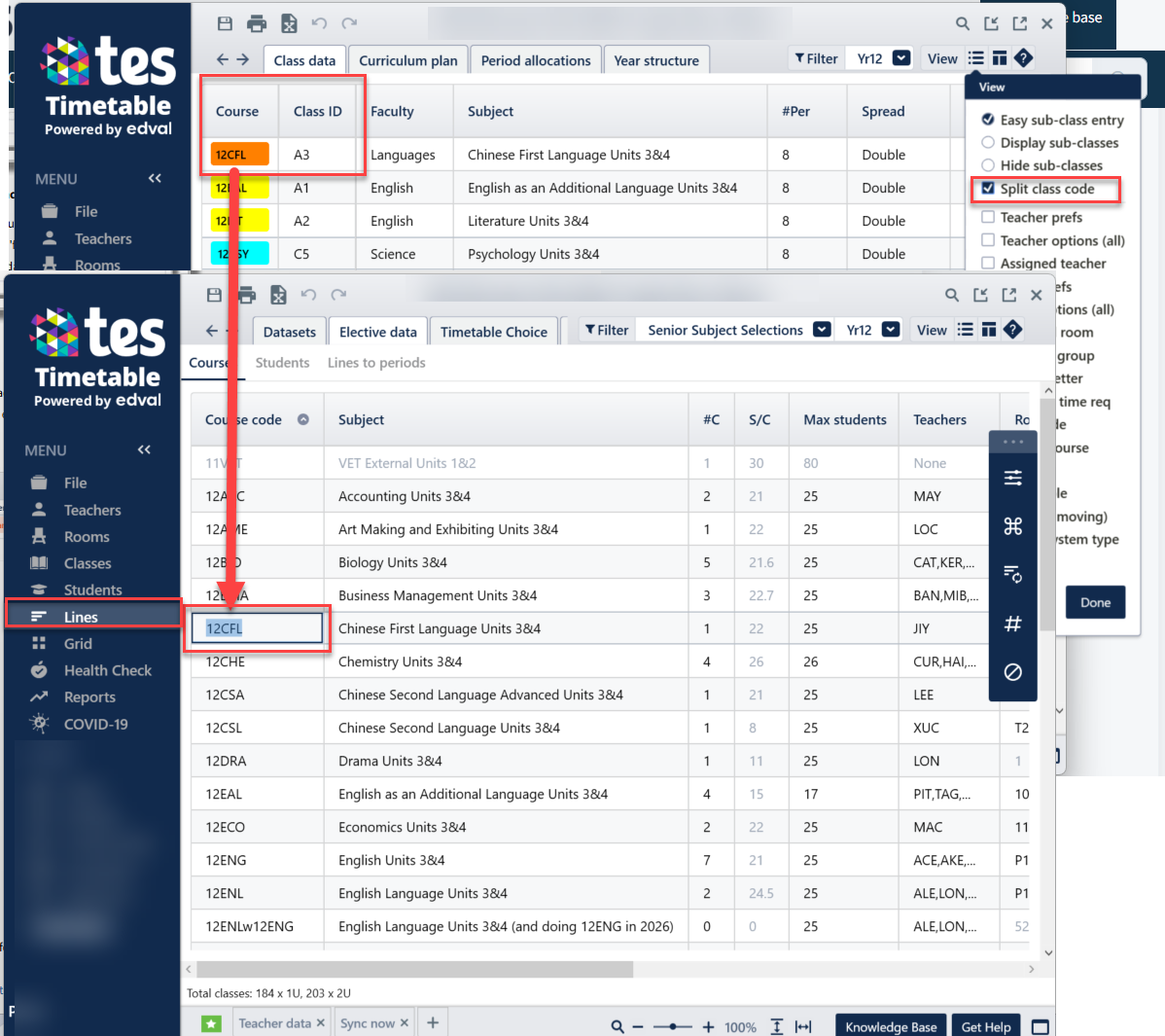
The Course code was changed after creating classes and no longer matches what was synced in Elective Data.
Ensure the Course code (without the Class Identifiers) matches Elective data. See screenshot below.
Do not add class identifiers to Elective data as they are added during the class creation.
Classes were moved to a different year level after classes are created.
Ensure classes remain in the same year level as they were set up in Elective data.
Class list changes were made and the etz was not re-synced.
Sync the etz again before sending the email.
TIP
Tick Split class code in Class data >View to easily see if Course codes (no Class IDs) match Elective data > Courses.
Steps
Step 1: Collect student preferences via Choice
- Choice forms are set up in .etz file and synced to the web.
- Students log in and submit their selections.
- Choice form is closed.
- Choices are downloaded into the .etz file.
Step 2: Generate lines & Create classes
- Lines are generated and approved.
- Classes are created. At this point Students > Student data will be populated with the students' classes.
Step 3: Sync class list data
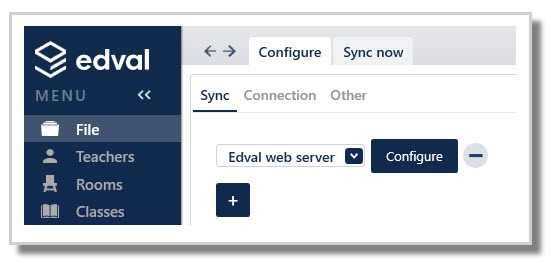
- Go to File > Synchronise > Configure.
- Select 'Edval web server' from the Sync tab.
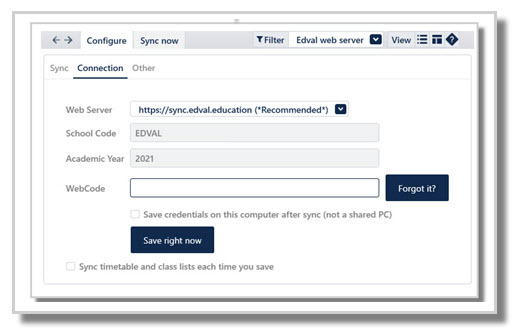
- In the Connection tab, enter your WebCode for the academic year of the .etz file.
- Select OK.
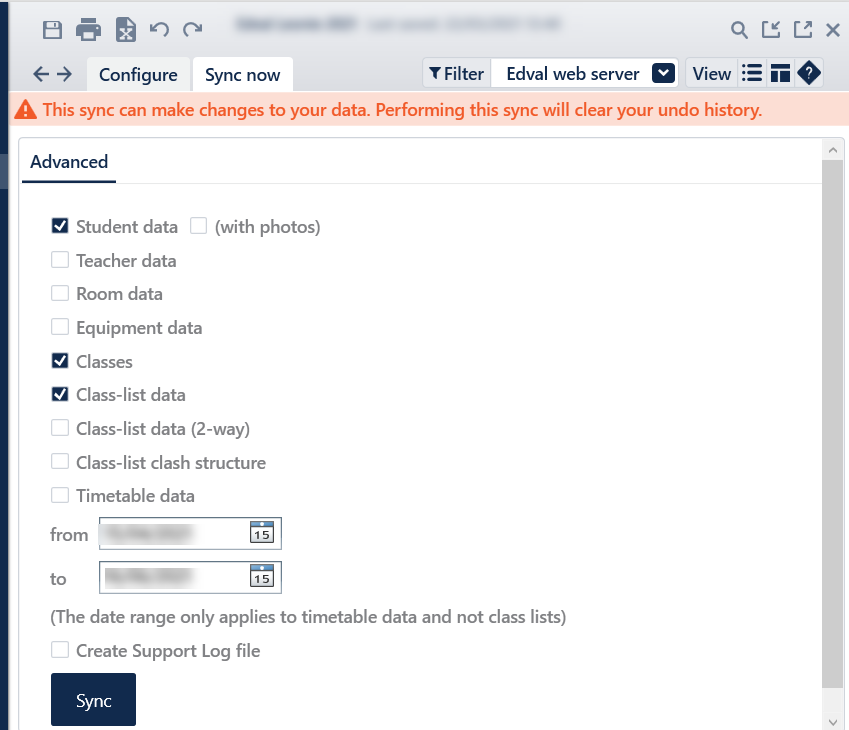
- Go to the Sync now tab.
- Tick 'Student data', 'Classes' and 'Class-list data'.
- Enter a 'from' and 'to' date for the following academic year. The date range is only applicable to timetable data, which is not being sent at this stage, so any date range in the next academic year can be entered.
- Click on Sync.
Step 4: Create a document template
- Log onto my.edval.education with your admin WebCode for the academic year of the .etz file.
- Go to Choice > Document templates.
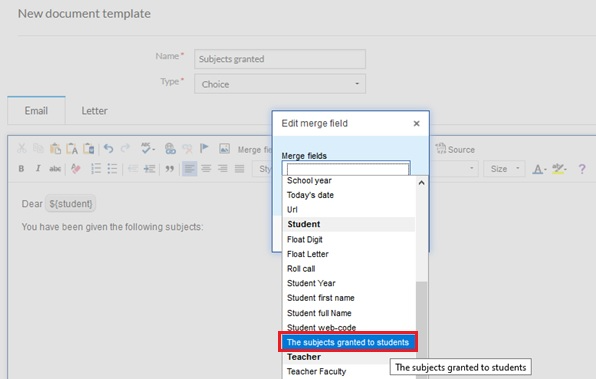
- Create a template to use to inform students of the subjects they were granted.
Refer to Choice: Document templates. - Ensure the Merge field 'The subjects granted to students' is used in the template.
Step 5: Email students
- Log onto my.edval.education with your admin WebCode for the academic year of the .etz file.
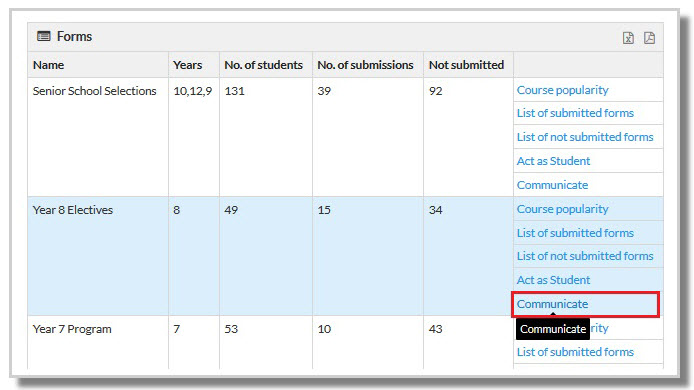
- Go to Choice > Forms.
- Select Communicate for the desired form you wish to communicate to students about.
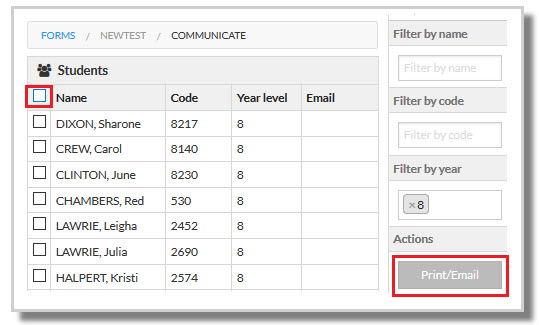
- Select all students or just those you wish to email.
- Select the Print/Email button from the Actions panel on the right.
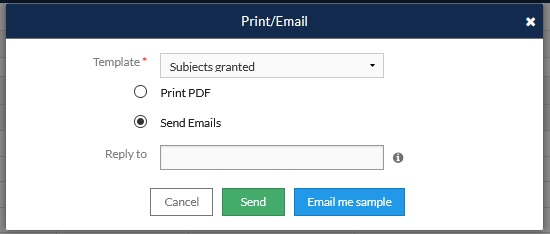
- Enter the details:
NOTE
Click Print PDF instead if you prefer to generate PDFs of subjects granted.
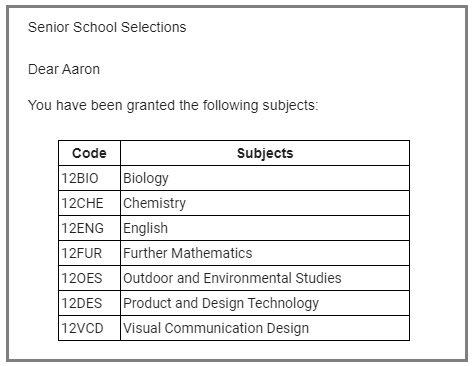
Example of email received
Email history
Refer to: Choice: Email History
Was this article helpful?
That’s Great!
Thank you for your feedback
Sorry! We couldn't be helpful
Thank you for your feedback
Feedback sent
We appreciate your effort and will try to fix the article